 GazeTo
PDF
语言
GazeTo
PDF
语言
GazeTo — 面向所有通过眼神进行学习和交流的人士的使用指南
欢迎!GazeTo 是一个基于眼动控制的学习与沟通平台——由 AssistUK 项目开发,特别面向正在使用或学习辅助沟通的人群。
你无需任何经验,也不需要专用硬件。GazeTo 在浏览器中运行,既支持眼动控制,也支持鼠标或触控操作。
眼动控制 · 鼠标 · 触控 —— 皆可使用。
无论你是通过眼动控制、点击鼠标、使用轨迹球,
还是用手指轻触屏幕——GazeTo 都能响应这些
输入方式,无需任何额外设置。
关于眼动控制:它适用于任何能通过眼球
移动鼠标指针的设备(“鼠标模拟”)。此时,你的视线将直接替代鼠标的功能——
几乎所有眼动控制设备都支持这一功能,无论来自哪家制造商。
源于亲身实践的灵感。Nele Diercks 不仅是该领域的专家,还担任辅助沟通协会的志愿讲师。对于 AssistUK 而言,Nele Diercks 是灵感的源泉:她在使用辅助沟通方面的亲身实践,为应用程序在日常生活中真正需要具备的功能提供了重要启示。 更多相关内容请参见“关于我们”一章。
3步快速入门:
- 打开 GazeTo —— 首次启动时,简短的语音向导将引导您完成语言设置和个人资料配置。
- 点击底部的“辅助”,选择第1级或第2级的活动——或者直接在首页点击“立即开始”。
- “开始”——注视、点击或轻触。仅此而已。
内容
- 什么是 GazeTo?
- 首次启动——入门指南与个人资料
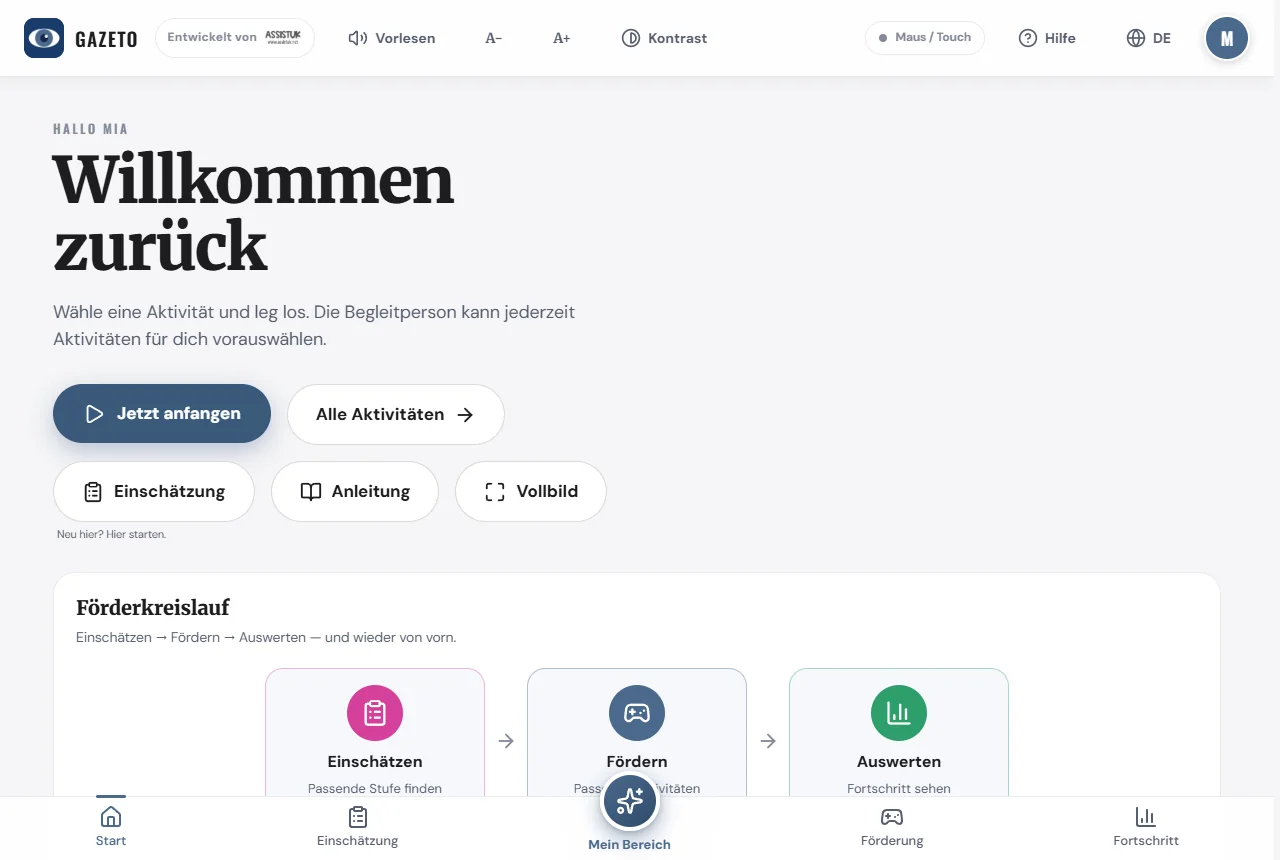
- 屏幕概览
- 如何操控?眼动、鼠标、触控
- 眼动控制——一次正确设置
- 分级模型——7个能力等级
- 查找并启动活动
- 从头到尾完成一项活动
- 我的专区——精选内容与信息亭模式
- 评估——确定干预阶段
- 进展——支持周期
- 场景画面 — 在 SceneTalk 中
- 调整设置
- 切换语言 — 101种语言
- 备份和传输数据
- 安装 GazeTo 并离线使用
- 隐私保护——所有数据均保存在本地
- 关于我们 — Lars Tiedemann、Nele Diercks 和 AssistUK
- 支持 GazeTo
- 小词典
- 如果遇到问题
- 常见问题
- 帮助与联系
1. 什么是 GazeTo?
GazeTo 帮助用户循序渐进地学习眼动控制——从最初的注视到熟练地使用图标进行沟通。它提供了 197 项活动,既有趣又能培养重要的眼动技能。
GazeTo同时面向两类人群:
- 练习者——通过目光进行游戏、探索和交流。
- 陪练者(治疗师、教师、家属)——他们负责选择活动、评估当前水平并跟踪进步情况。
其背后遵循着一个清晰的促进循环:评估 → 训练 → 评估 —— 然后循环往复。评估确定合适的入门阶段,活动针对性地进行训练,而进展则反映了哪些方面发生了变化。
其专业基础源于辅助沟通和视线控制训练领域公认的框架体系——包括伊蕾娜·莱伯(Irene Leber)的分级模型、DAGG-3(Tobii Dynavox)以及Eye Gaze Pathway。 每项活动都对应这些框架(可在详情页的“专业人员专区”中查看)。
GazeTo 完全免费且无广告——专为治疗、学校、早期干预及家庭使用而开发。它可直接在平板电脑或电脑的浏览器中运行,无需注册,也无需通过应用商店下载。
姊妹应用 TouchTo:对于那些使用手指而非眼睛进行操作的用户,GazeTo 提供了姊妹应用 TouchTo——活动和难度等级与 GazeTo 相同,但专为触控直接操作而设计。
2. 首次启动——入门指南与个人资料
首次打开应用时,一个简短的引导流程将分 4 个步骤欢迎您的到来:
- 欢迎与语言——选择您的语言(共101种)。
- 使用方法——简要说明操作方式。
- 功能概览——各功能区域的介绍。
- 创建个人资料——姓名、头像和年龄段。
你随时可以重新观看该引导:设置 → “重新观看入门指南”。
个人资料 — 今天谁在练习?
每个个人资料都会保存自己的练习进度、偏好设置和年龄段。这样,多人可以在同一台设备上练习,而不会互相覆盖数据。
创建个人资料的方法:
- 点击“新建个人资料”。
- 输入名称,并选择一张照片(上传或用相机拍摄)、相册中的图片(例如狐狸、熊猫、火箭)或一种颜色。
- 选择年龄段(儿童、青少年、成人、老年人)——这将决定系统推荐的活动类型,并据此筛选活动列表。
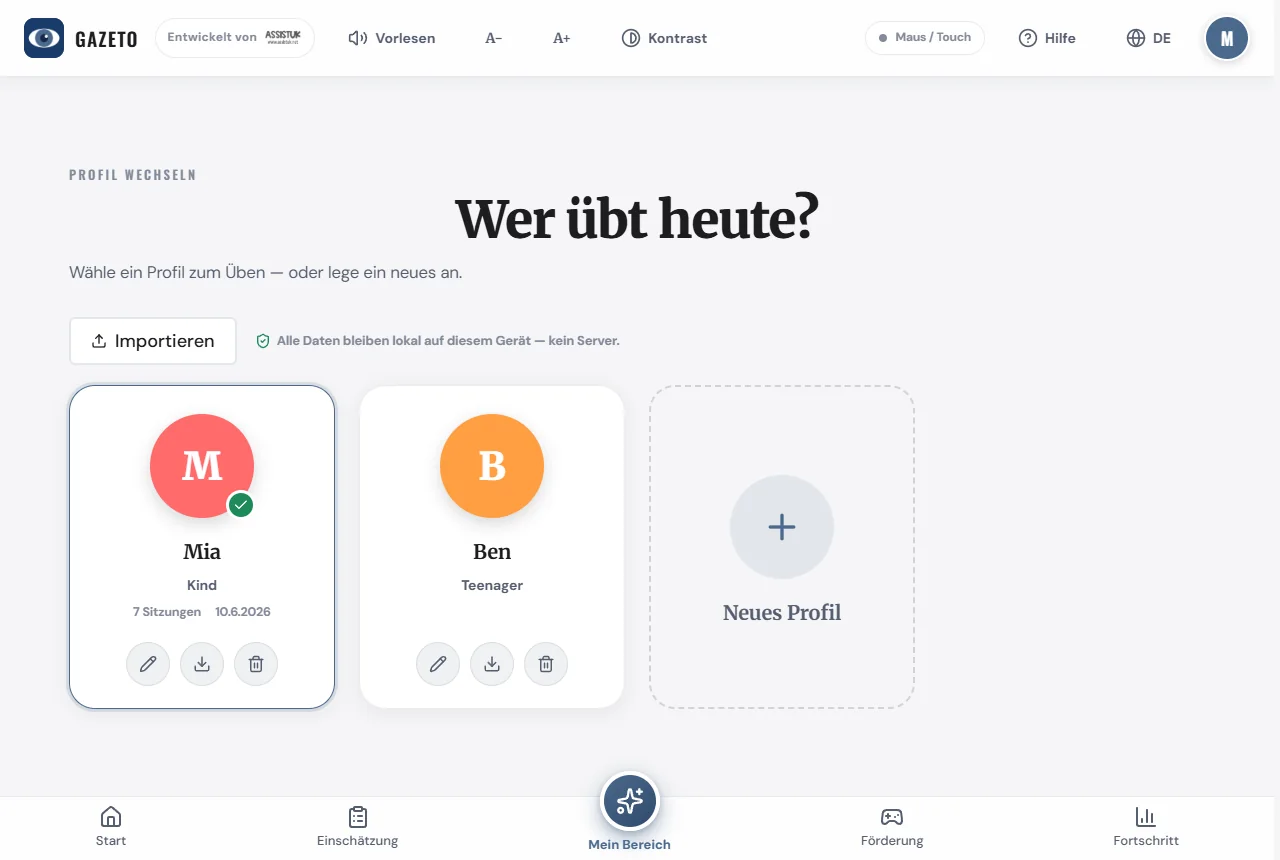
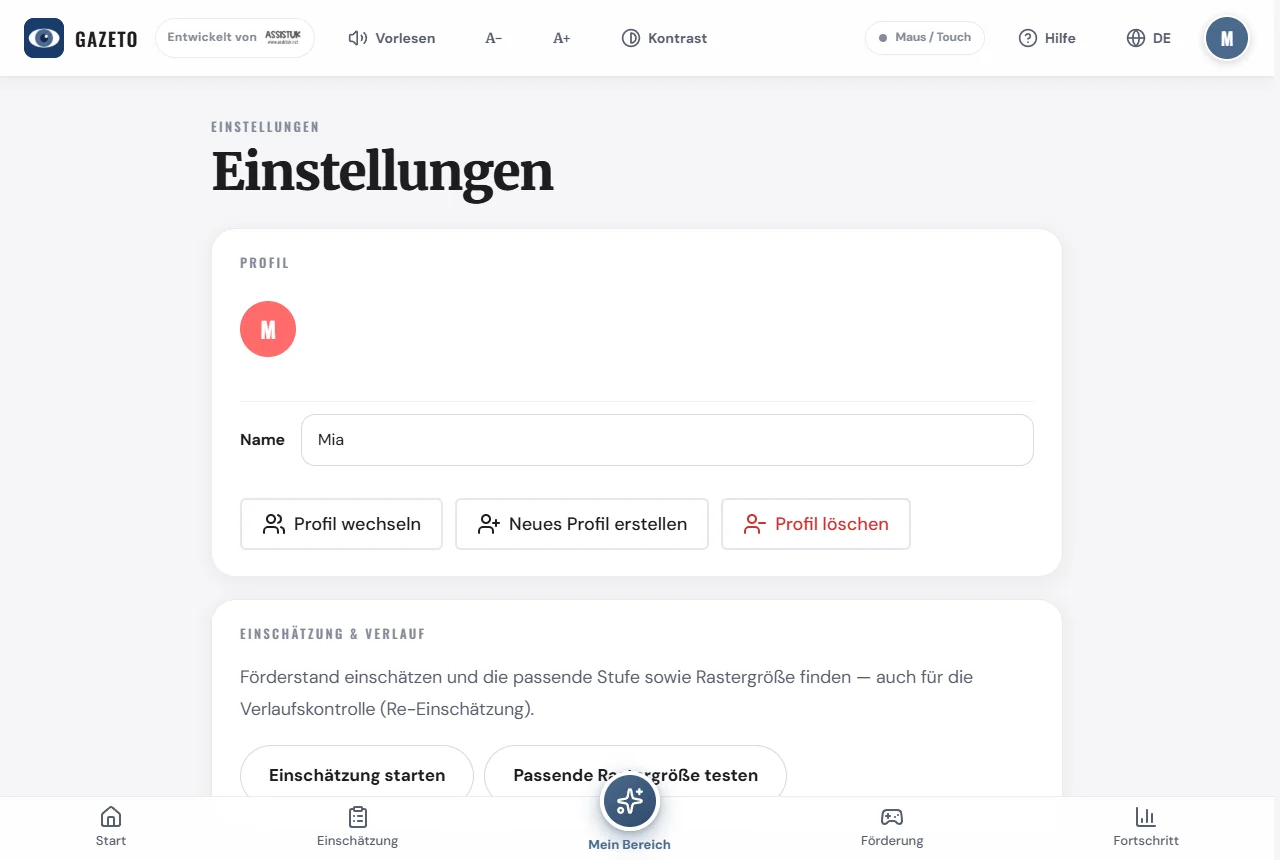
提示:你可以随时点击右上角的个人资料图标来切换或编辑个人资料。在“设置”中也可以管理个人资料并创建新资料。
3. 屏幕概览
GazeTo 的界面布局在所有版本中都是一致的——一旦掌握了基本操作,你就能在任何区域轻松上手。
顶部工具栏
- GazeTo 徽标(左侧)——可随时带你返回首页。
- 朗读——将当前屏幕上的文本大声朗读出来,并同时高亮显示正在朗读的位置。朗读过程中,该按钮会变为“停止”——再次点击或查看屏幕即可结束朗读。
- A− / A+ — 缩小或放大字体,效果立竿见影。
- 对比度 — 开启或关闭高对比度显示模式。
- 状态显示 — 显示当前的输入方式(例如“鼠标/触摸”)。
- 帮助 — 打开功能概览:以卡片形式说明所有功能区域,并提供直接跳转链接及返回本指南的按钮。
- 语言 — 打开语言选择界面(参见第 14 章)。
- 个人资料图标 — 切换个人资料。
底部的导航栏
- 首页 — 欢迎页面、推荐内容、3天计划及支持循环。
- 评估 — 评估工具:问卷和测评(参见第10章)。
- “我的专区”(中间)——为练习者量身定制的精选内容。
- 培养 — 带筛选功能的全部197项活动。
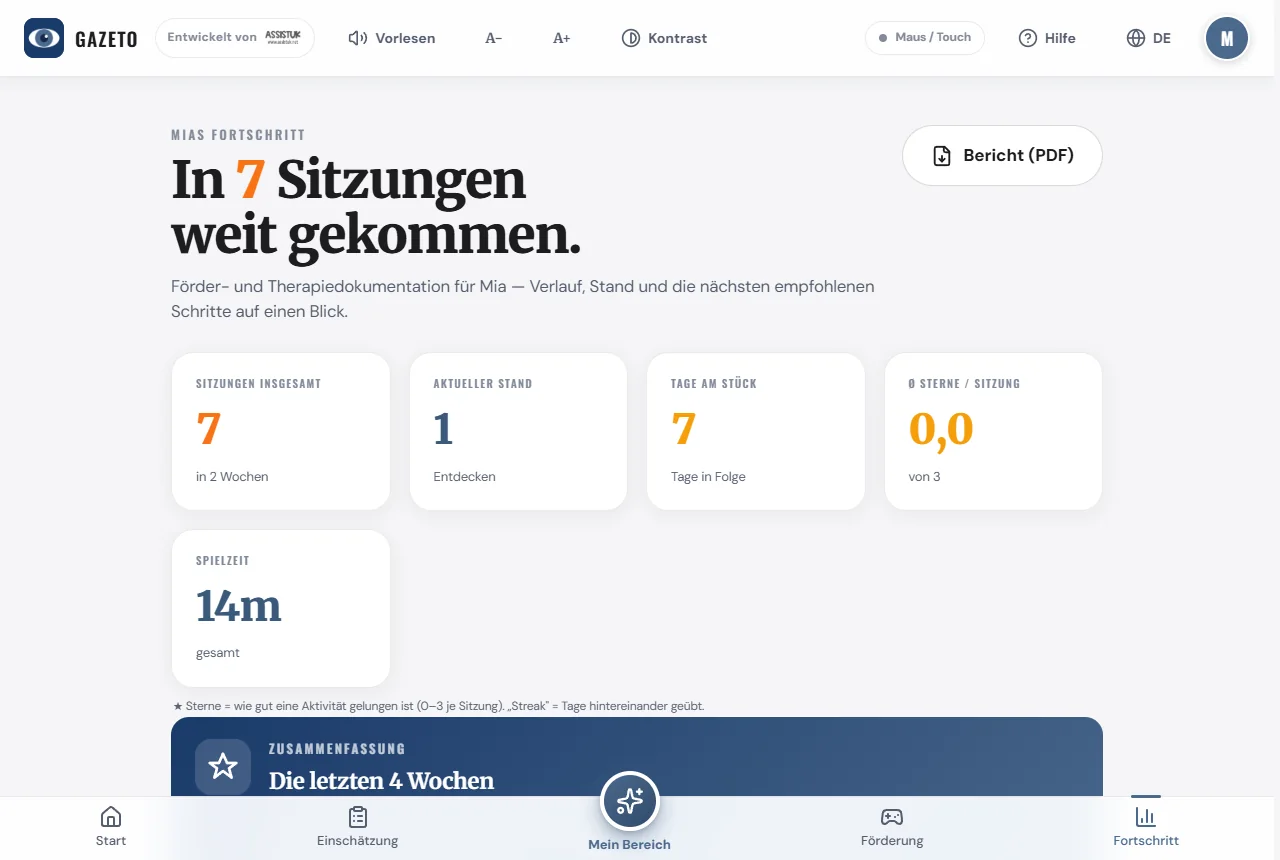
- 进度 — 统计数据、报告和建议。
在页脚最底部,你可以找到本指南的链接,以及版权声明、隐私政策、无障碍声明和《使用条款》。
4. 如何进行操作?
GazeTo 从根本上设计为三种输入方式平等运作:
| 输入 | 工作原理 |
|---|---|
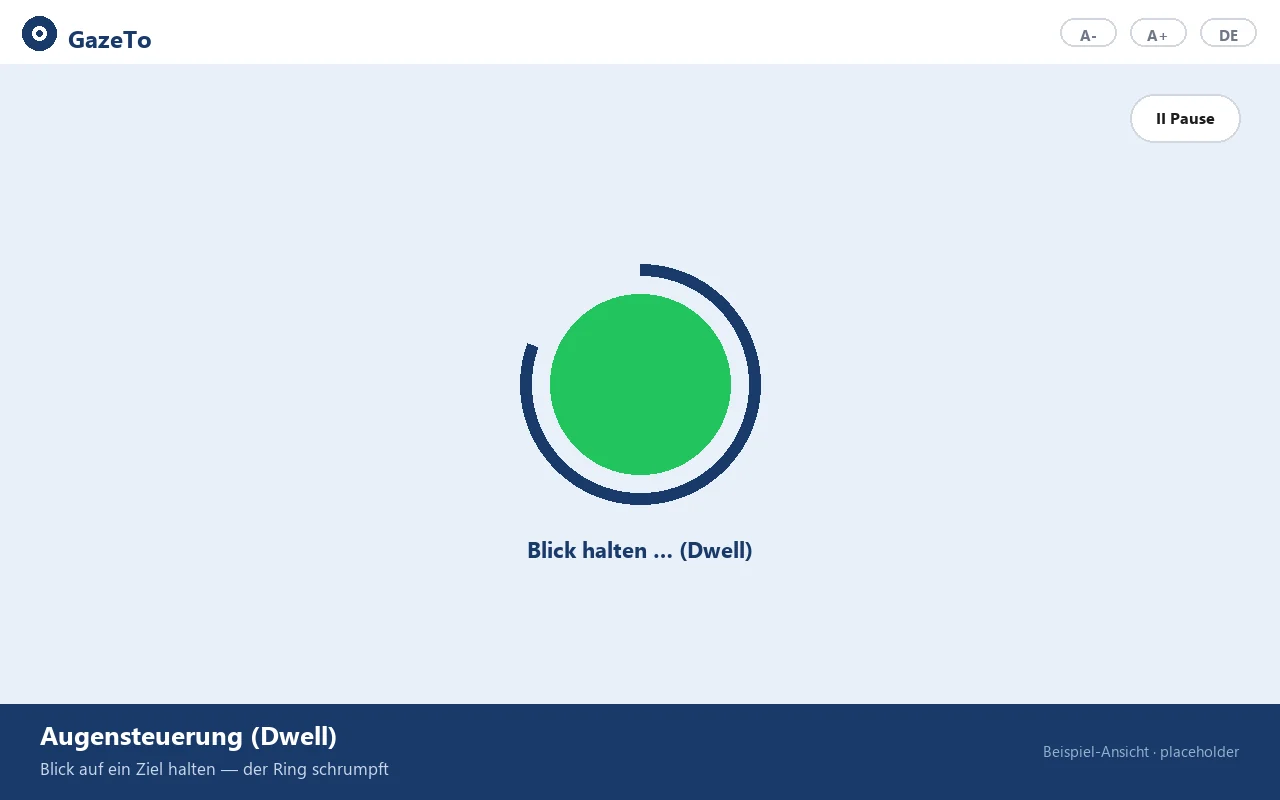
| 眼动控制(不依赖特定品牌) | 当你注视某个目标时,一个环形或圆形区域会开始缩小。当该区域完全填满时,目标即被触发。这被称为“驻留”(Dwell)。 |
| 鼠标(或轨迹球、操纵杆) | 点击可触发按钮。在画布上移动时会自动绘图或做出反应。 |
| 触控(平板、触摸屏) | 轻触 = 触发。无需额外设置,随时随地均可使用。 |
亮点:无需在不同模式之间切换。无论是先用眼神选定目标,然后用轨迹球继续操作——都没问题。
鼠标指针:在“活动”界面中,GazeTo 默认显示一个低调的鼠标光环而非箭头——它几乎不遮挡内容,且可通过鼠标或轨迹球轻松追踪。在菜单中则保持常规鼠标指针。 如果更喜欢看到一个大的视线圆圈,可以在“光标样式”选项下将其开启,并在“光标颜色”中选择合适的颜色。“关闭”选项会隐藏所有光标。
5. 眼动控制——正确设置一次
重要提示(适用于眼动控制用户):
GazeTo 会通过驻留系统自行完成点击操作。无论使用哪家厂商的产品,您的眼动
控制设备都应仅用于移动鼠标指针——它不应
自行产生点击,也不应触发硬件驻留。
设置方法如下:
- 打开设置(底部齿轮图标)。
- 将输入方式设置为“鼠标光标/眼动控制”。
- 设置驻留时间——即需要注视多长时间才能触发操作。初学者通常设置为 500–800 毫秒;如果注视位置非常不准确,建议将时间设得更长一些。
- 可选:在光标样式中选择一个醒目的圆圈代替鼠标光环,并在光标颜色中选择合适的颜色。
提示:请确保眼动控制校准准确,并保持与屏幕的合适坐姿距离。这将显著提高瞄准精度。
什么样的驻留时间才合适?以下提供一个参考:
| 情况 | 建议 |
|---|---|
| 熟练用户,视线精准 | 400–600 毫秒 |
| 初学者,初次体验 | 600–1000 毫秒 |
| 视线不稳、疲劳、CVI | 1000–1500 毫秒 —— 宁慢勿急 |
若视力受限或患有CVI,建议在设置中启用“清晰显示(CVI)”功能——该功能会将背景变暗,并在目标周围添加醒目的对比度环(参见第13章)。
6. 分级模型
GazeTo 将所有活动划分为 7 个能力等级——这些等级相互衔接:
| 等级 | 名称 | 内容简介 |
|---|---|---|
| 1 | 探索 | 对刺激作出反应——感知颜色、动作和声音。 |
| 2 | 探索 | 因果关系——“我的目光能产生影响”。 |
| 3 | 寻找 | 有针对性地观察——达到特定目标。 |
| 4 | 选择 | 做出选择——在多个选项中做出决定。 |
| 5 | 控制 | 自主掌控游戏和流程。 |
| 6 | 应用 | 在日常生活中和交流中运用所学内容。 |
| 7 | 掌握 | 能够自信、独立且灵活地进行沟通。 |

每个级别都有专属颜色,并贯穿整个应用程序。在首页,"全部7个级别"的图块列将引导您进入各级别的详情页面:在那里,每个级别都有详细说明——包括目标、观察要点以及所有相应的活动。
哪个级别适合你?如果你不确定:评估功能会通过6个简短问题为你推荐一个入门级别。如有疑问,建议从低一个级别开始——获得成功带来的成就感比过度挑战更能促进进步。
7. 查找并开始活动
通过“培养”(位于导航栏底部),你可以找到全部197项练习。
筛选方法如下:
- 选择目标群体(所有人、儿童、青少年、成人、老年人)。
- 选择难度等级(1–7)——或选择“全部”以查看完整列表。
- 所选的难度级别筛选条件将保持有效,直到你选择新的选项为止。
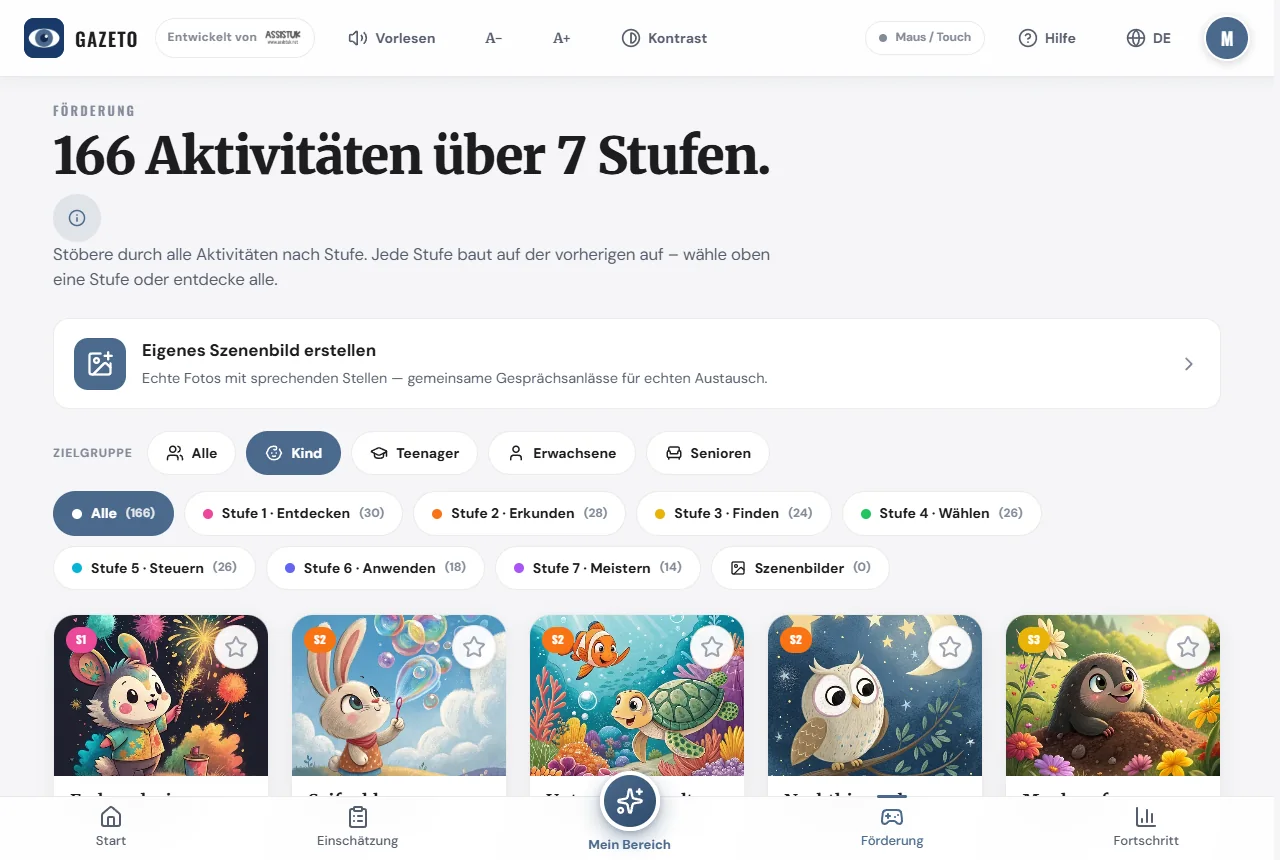
点击某项活动以打开详情页。在开始前,你可以在此设置难度(简单/标准)、游戏时长及其他选项。
星标:点击活动旁的星标图标可将其置顶——该活动随后将出现在“我的专区”以及首页的“置顶活动”中。这样,陪同人员就能据此整理出合适的选择。
8. 活动从头到尾
- 选择活动——详情页面随即打开。
- 可选:调整难度和时长。点击“自定义”可查看更多选项(例如乐器、背景音乐、背景图片)。
- 点击“开始”——活动将以全屏模式启动。
- 可通过视线、鼠标或触摸进行操作。暂停按钮始终可见;任务内容可随时朗读。
- 活动结束时,将显示包含星级评分和视线轨迹概览的评估结果。
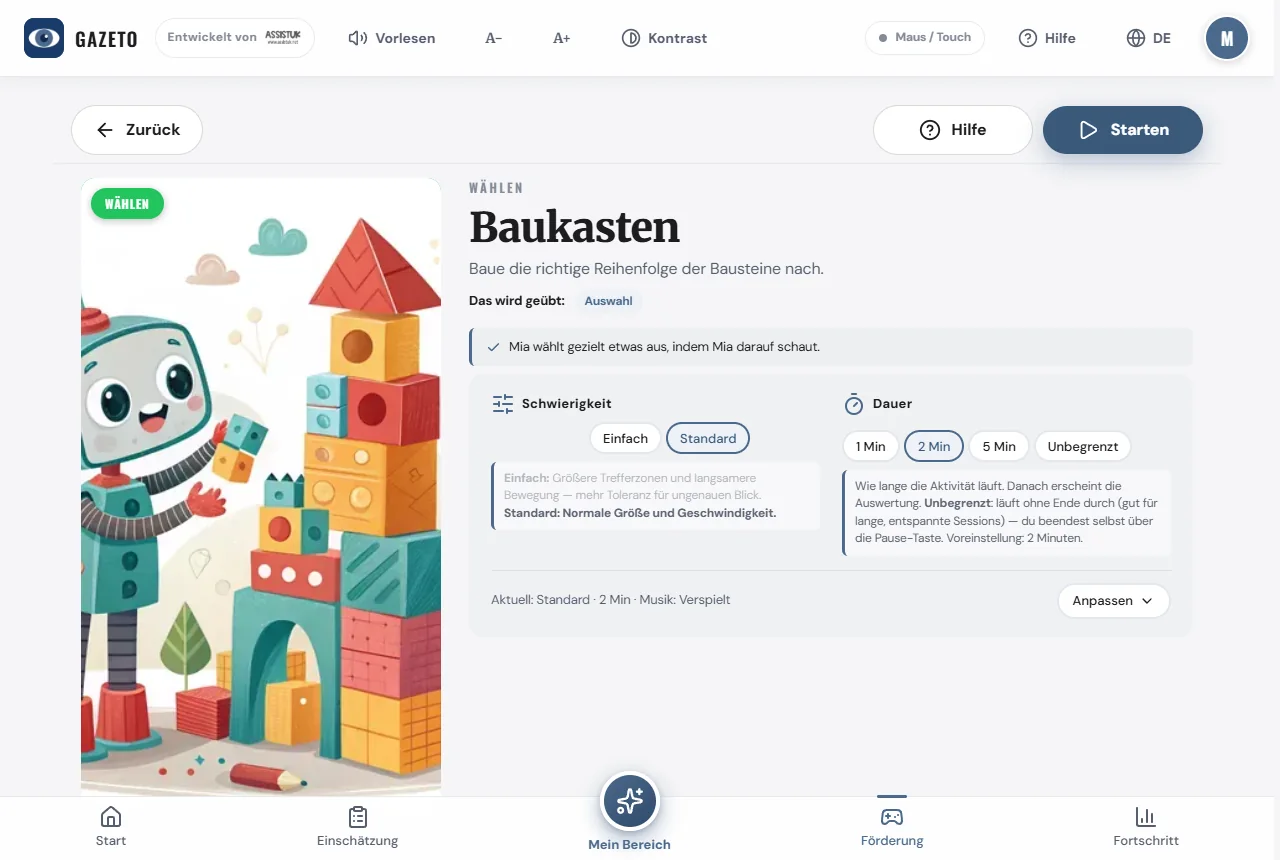
给专业人员的提示:在详情页中设有“给专业人员”部分,其中包含该活动在相关框架(Leber、DAGG-3、Eye Gaze Pathway)中的定位以及观察建议。
小小的惊喜:每轮结束时,GazeTo都会庆祝成功——有时是五彩纸屑,有时是星星或气球。 庆祝方式每轮都会变化,以避免单调乏味。对于需要安静环境的用户,“清晰显示(CVI)”功能可提供更低调的视觉效果。
9. 我的专区——精选内容与信息亭模式
“我的专区”是专为练习者精心整理的选项集合。陪练人员在列表中用星标标记的活动会显示在此处——这样,练习者就可以轻松地在预先准备好的选项中自主浏览。甚至自建的场景画面也会以独立的磁贴形式显示在此处。
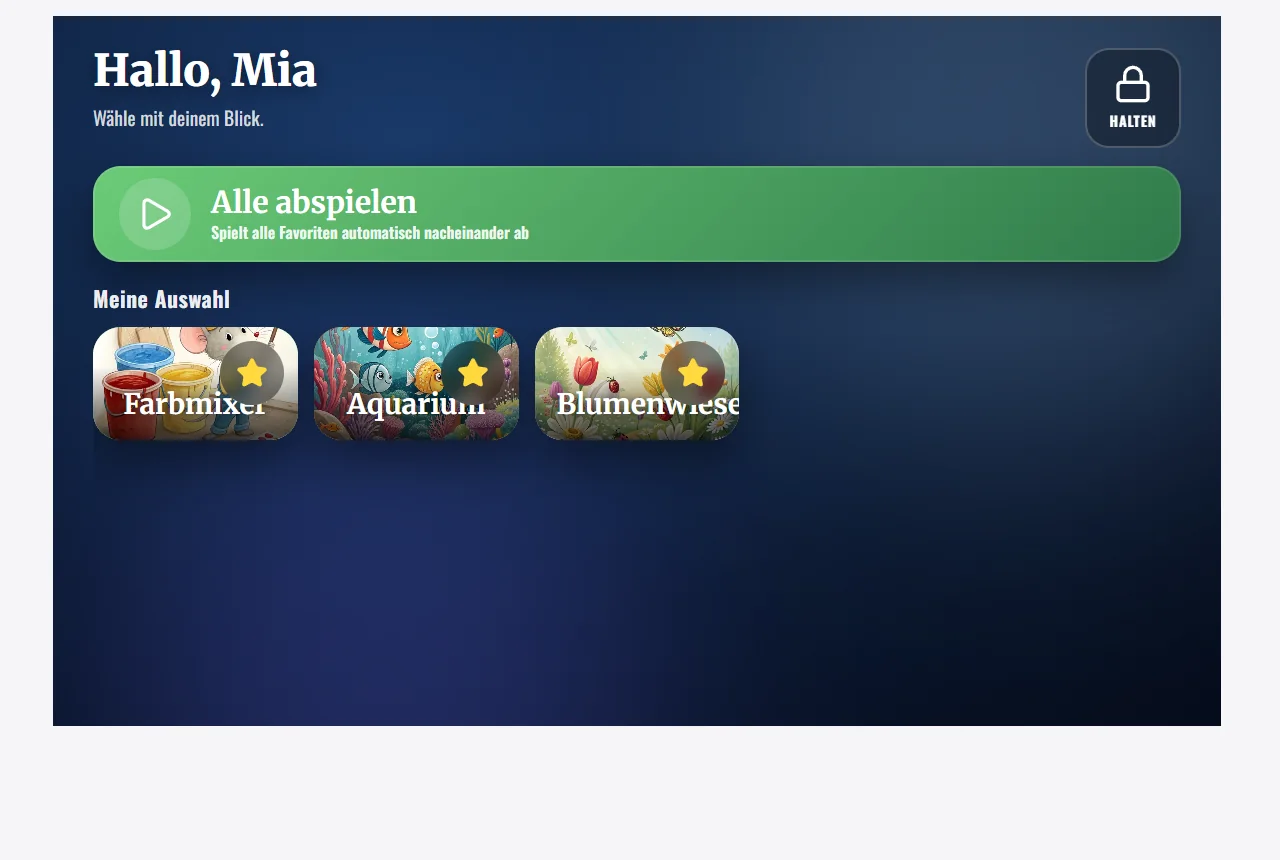
“自助模式”——受保护的练习环境
在设置中设有“锁定‘我的专区’(信息亭模式)”选项。启用该锁定功能后,“我的专区”将进入受保护的用户模式:练习者无法意外退出或更改设置——他们将安全地留在预先准备好的选项中。
陪同人员可通过以下方式退出“信息亭模式”:
- 用鼠标按住“锁定”按钮(位于右上角,带有锁形图标),或用手指按住该按钮。
- 持续按住,直到按钮内的进度条填满——这大约需要 2–3 秒。然后返回路径就会打开。
重要提示:松开手指会中断操作,且短暂点击无效——此时 GazeTo 会显示提示信息,说明正确的操作手势。 通过视线(Dwell)无法有意触发该按钮:这样,即使练习者的视线停留在按钮上,也不会意外离开受保护区域。
提示:主界面上的全屏按钮仅会最大化屏幕显示区域(按Esc键可随时退出)。而真正用于自主练习的“锁定”功能是信息亭模式。
10. 评估——确定发展水平
针对专业人员和治疗师,系统提供了一项引导式评估,该评估可对当前发展水平进行定位,并推荐相应的阶段和干预方案。
操作方法如下:
- 打开“评估”(位于导航栏底部)或“进度”→“启动评估向导”——或者在活动详情页中点击“专业人员专区”部分。
- 回答 6 个关于可观察行为的简短问题(约 5 分钟)。
- 您将获得推荐的入门级别、在框架体系中的定位以及具体的干预方案。
此外,还包含量化测试(例如:命中精度、停留时间、区域精度、分类能力)以及词汇检索测试——其结果可直接传输至词汇查找器,以确定适合该沟通辅助设备的词汇量范围。
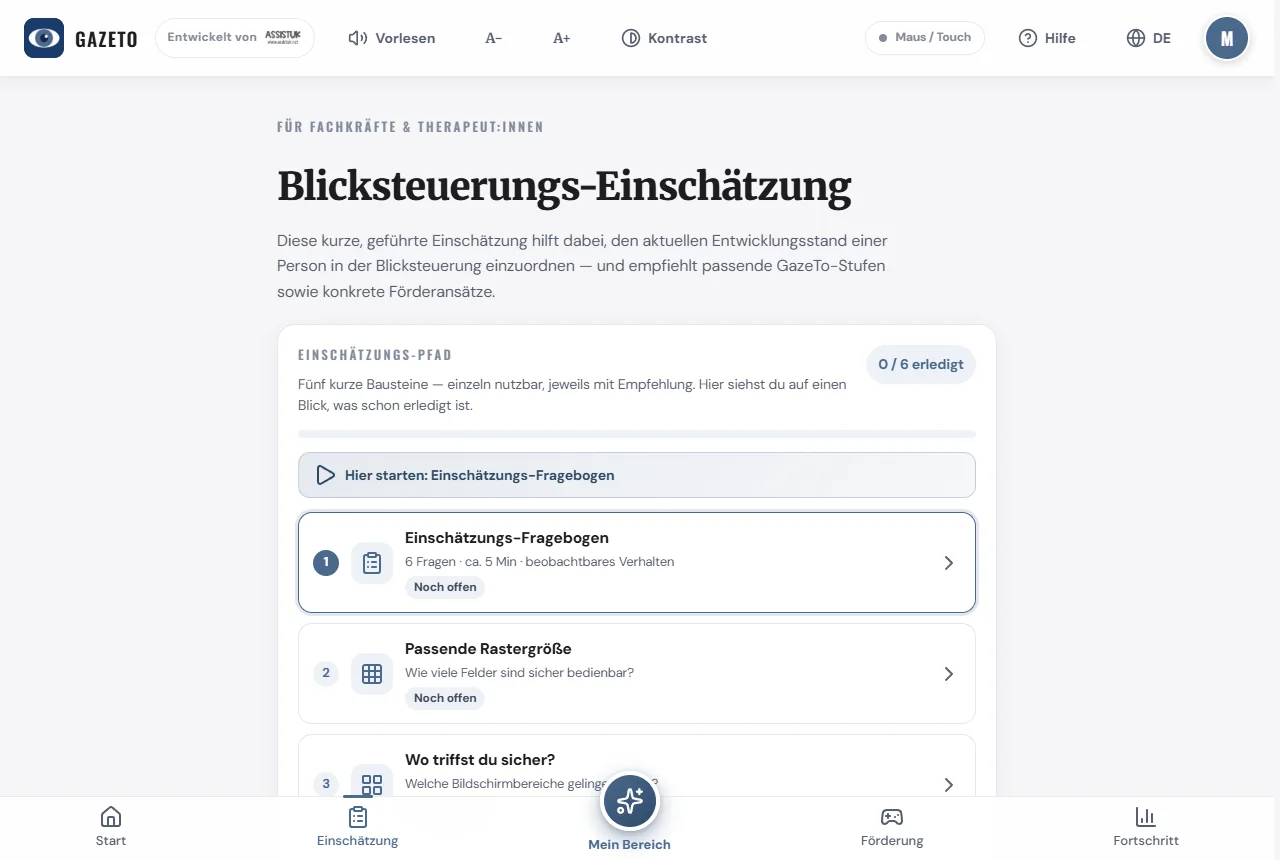
该评估基于公认的评估框架(Tobii Dynavox DAGG-3、Irene Leber、Eye Gaze Pathway)。它仅作为指导参考,不能替代专业评估。
11. 进展——干预周期
“进展”界面显示进展情况,并遵循以下支持与干预循环:评估 → 支持计划 → 支持实施 → 重新评估。
在此你可以查看:
- 训练次数、训练天数和训练系列(“连续训练天数”)
- 视线分析(屏幕覆盖率、注视点、左右分布)
- 建议的下一步措施和每周计划
- 指导起始页面建议的干预重点
- 每次训练的报告和热力图
12. 场景图片 — 在 SceneTalk 中
自定义“会说话的图片”功能属于其姊妹应用 SceneTalk。在该应用中,你可以选择一张喜欢的照片,标记图片中的特定位置(例如妈妈、宠物、最喜欢的玩具),并为其添加文字或语音录音。当用户注视某个位置时,即可听到对应的词语。
SceneTalk 完全免费,无需注册即可在浏览器中使用:scenetalk.assistuk-apps.net
从 GazeTo 进入该应用有三种途径:
- “SceneTalk 中有场景图片”卡片(位于“活动”页面顶部),
- 第2至7级中的“本级别自定义内容”提示,
- 网格精度测试末尾的“在 SceneTalk 中使用”按钮——该处测得的评估结果会直接匹配你创建的网格。
场景将保存在SceneTalk中,并在那里进行备份。GazeTo本身仍会提供现成的场景活动——你可以在活动列表中正常找到它们。
13. 调整设置
在设置中(底部齿轮图标),你可以配置以下内容:
- 输入方式和停留时间(参见第 5 章)
- 光标样式(默认:在活动视图中显示低调的鼠标环,在菜单中显示普通鼠标指针;可启用圆圈/圆点/微型圆点/十字准线——支持自定义颜色;选择“关闭”后,当移动点分散注意力时,所有指针均会隐藏)
- 清晰显示(CVI)——将活动区域的背景变暗,并在目标周围显示对比度环;对CVI用户或视力受限者很有帮助
- 锁定我的区域(信息亭模式)——受保护的用户模式(参见第 9 章)
- 音量、声音和背景音乐(可选择曲目)
- 对比度、配色方案和字体大小(也可随时在顶部工具栏中调整)
- 语言(参见第14章)
- 切换或编辑个人资料
- 数据与备份 — 备份和迁移(参见第 15 章)
14. 切换语言 — 101种语言
GazeTo 支持 101 种语言——与 DigitalPainters 的语言选择相同。您可以在两个位置找到它们:
- 右上角工具栏中的语言图标,
- 或在“设置”中的“语言”部分。
每种语言都会显示其国旗和以该语言文字书写的名称(例如“中文”、“العربية”)。通过搜索框,你可以快速找到任何语言——搜索功能支持该语言的本地名称、英文名称和缩写。
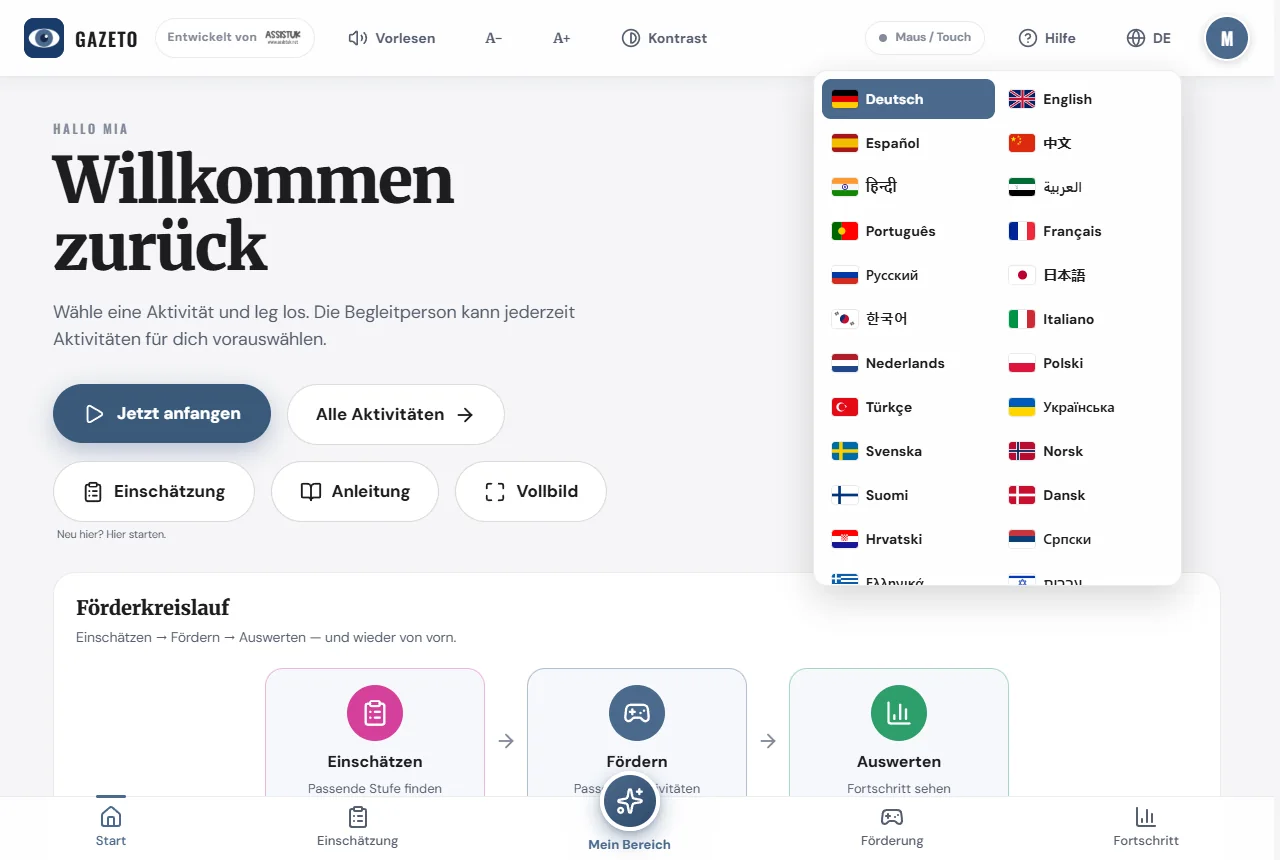
整个应用将立即切换语言——即使是自右向左书写的语言(如阿拉伯语、希伯来语等)也能正确显示。尚未翻译成该语言的内容将自动显示为英语——确保所有内容始终清晰可读。
15. 备份和传输数据
在“数据与备份”设置部分,你可以:
- 创建完整备份(将所有个人资料、会话、场景和设置合并到一个文件中),并将其恢复到另一台设备上,
- 或者仅导出/导入设置。
例如,这样你就可以从旧设备迁移到新设备,而不会丢失进度。备份文件将保存在你的设备上——不会上传到任何地方。
重要提示:GazeTo 将所有数据本地存储在浏览器中。若清空浏览器数据(“清除网站数据”),也会一并删除个人资料和进度记录。因此,在进行大规模浏览器清理或更换设备之前,请务必先创建完整备份。
16. 安装 GazeTo 并离线使用
GazeTo 可像应用程序一样安装,安装后即可离线使用。
- 在平板电脑/手机上:在浏览器菜单中选择“添加到主屏幕”。
- 在电脑上:点击地址栏中的安装图标——或确认“安装 GazeTo”提示。
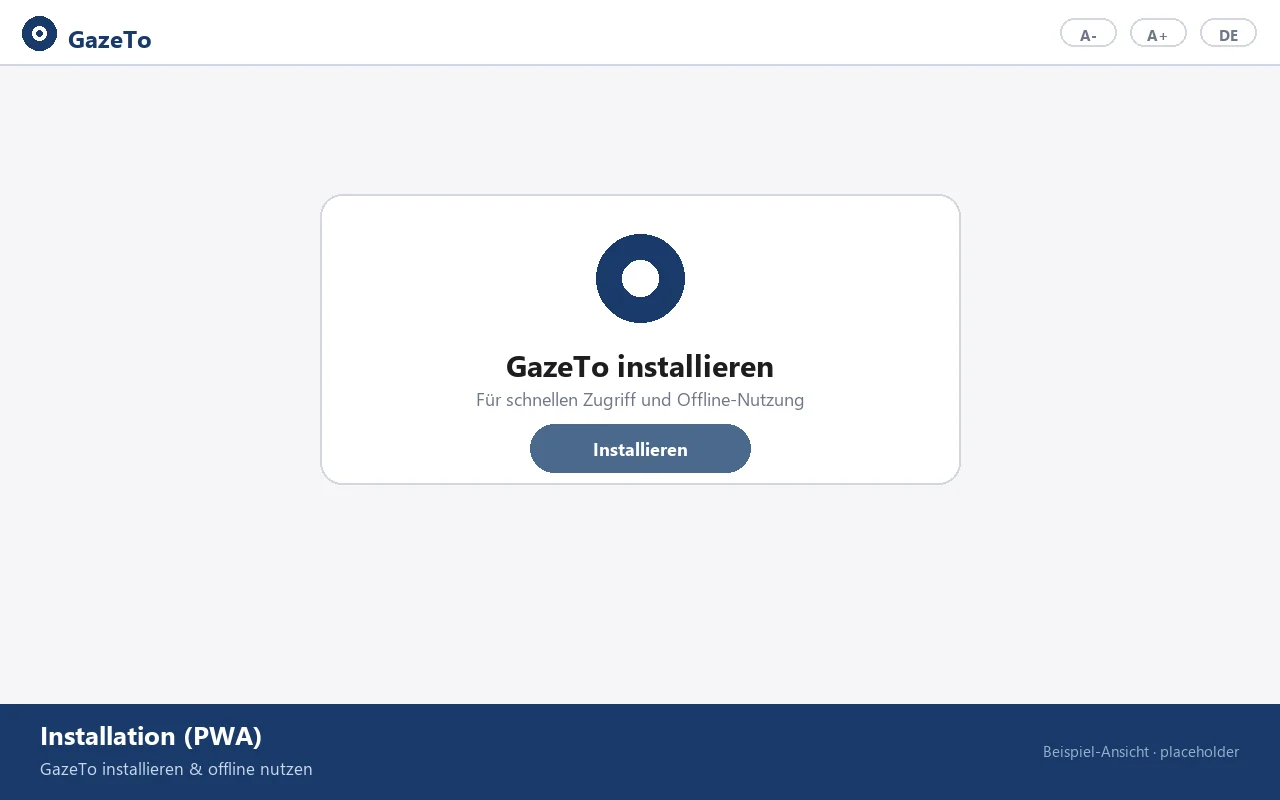
首次安装后,GazeTo 可完全在离线状态下运行——非常适合治疗和学校使用。仅当首次切换新添加的语言时,系统会短暂重新加载一次。
声音提示:出于安全考虑,在浏览器标签页中,声音需在首次触摸后才会启动——只需在任意位置轻点或点击一次即可(GazeTo 会显示相关提示)。作为已安装的应用程序,声音将自动播放——这更是安装它的一个理由。
17. 数据保护
GazeTo 不会在服务器上存储任何个人数据。用户资料、进度和场景画面仅保存在设备的浏览器中(本地)。 不存在云端传输。关于应用的启动频率以及运行是否正常,我们会在自有服务器上进行匿名统计——不使用 Cookie,也不会将任何数据存储在设备上。
眼动控制完全在本地进行——不会录制或传输任何视频。
18. 关于我们——Lars Tiedemann、Nele Diercks 与 AssistUK
GazeTo 是 AssistUK 旗下的一个项目——AssistUK 是一家致力于提供辅助、包容及辅助沟通相关内容和应用程序的社会企业。
Lars Tiedemann
应用科学大学(FH)特教专业硕士,自1992年起从事辅助沟通领域工作。在Tobii Dynavox拥有超过10年的工作经验,在弗莱堡天主教大学任教5年以上,自2007年起从事辅助沟通软件开发。 拉斯·蒂德曼负责开发 GazeTo 以及整个 AssistUK 应用系列。
内莱·迪尔克斯
既是该领域的专家,也是辅助沟通协会的志愿讲师。对于AssistUK而言,内莱·迪尔克斯是灵感源泉:她亲身实践辅助沟通的经验,为应用程序在日常使用中真正需要关注的核心要素提供了重要启示。

AssistUK应用系列
GazeTo还有其他“兄弟姐妹”——均采用无障碍设计: TouchTo(触控直达)、DigitalPainters(绘画与创意,支持眼动控制)、ArtTherapy和MusicTherapy(艺术与音乐治疗创作)、AssistPlay(益智游戏)等。 您可以在 www.assistuk.net 上找到所有应用和相关服务。
19. 支持 GazeTo
GazeTo 完全免费,无广告且无需注册账号。我们仅匿名统计应用的访问次数。为了维持这一状态——并推动新活动、新功能及新语言版本的开发——我们诚挚欢迎您的自愿捐助。 每一欧元都将直接用于应用的进一步开发和运营(服务器、托管、软件许可)。
注:GazeTo 是 Lars Tiedemann(AssistUK)发起的一个非商业项目,但并非注册的非营利组织。因此,捐款不属于可抵税的捐赠,也不会开具捐赠收据。 如果您仍希望提供支持:衷心感谢您——发自内心地感谢您对这项事业的支持。
SEPA转账

IBAN:DE81 1101 0100 2460 6697 67
BIC:SOBKDEBBXXX
用途:GazeTo 支持

即使没有资金,你也可以提供帮助:向学校、早期干预中心、言语治疗和职业治疗诊所、沟通辅助咨询中心以及自助团体介绍 GazeTo。了解并使用 GazeTo 的人越多,整个项目就越有意义。 通过电子邮件发送的反馈和体验分享也对我们大有帮助。
20. 小词典
本指南中出现的一些术语:
| UK | 辅助沟通——指不依赖(可理解的)口语进行交流的所有方式。 |
| 眼动控制 | 使用眼动追踪仪,你可以通过眼球运动来控制鼠标指针。 |
| 驻留 | “停留”:你静静地注视某一点,直到圆环填满——此时便会触发操作。这样你就可以无需按键进行点击。 |
| 校准 | 眼动追踪仪的硬件和软件会自动将眼控功能校准至你的双眼。 |
| 等级 | GazeTo学习模型中的7个能力等级之一(从“探索”到“精通”)。 |
| 场景图像(VSD) | 包含交互区域(热点)的照片——“视觉场景显示”(Visual Scene Display)。 |
| 热点 | 场景图中被标记的位置,在观看或点击时会播放语音。 |
| 信息亭模式 | “我的区域”的锁定功能:练习者所选内容将受到保护。 |
| 热力图 | 一张彩色地图,显示在一次训练会话中视线移动的轨迹。 |
| PWA | “渐进式网页应用”(Progressive Web App)——GazeTo可像普通应用一样安装,并支持离线运行。 |
21. 如果遇到问题
别担心——大多数问题都能快速解决。
眼动控制无法触发任何操作
触发次数过多或过快
通常是眼动控制硬件本身也会进行额外点击——请关闭其自动点击功能。如果这样还不行,请在GazeTo中稍微延长驻留时间。
无声音
在浏览器标签页中,声音应仅在首次真实触控后才开始播放——轻点或单击一次即可。作为已安装的应用程序,声音会自动播放。否则:请检查设备音量,并在“设置”中查看“声音/音乐”选项。
页面显示为空白或内容过时
请重新加载一次。GazeTo会在下次连接互联网时自动更新——无需从应用商店安装。
个人资料或进度消失
这是由于该网站的浏览器数据被清除了(包括通过“释放存储空间”功能清空的情况)。因此请定期创建完整备份——所有内容均可从中恢复。
无法加载某种语言
切换新语言时,系统会首次从互联网下载该语言数据。离线状态下仅可使用已用过的语言——请短暂连接网络并选择该语言一次。
仍然遇到问题?请联系我们——请参阅“帮助与联系”。我们很乐意为您提供帮助,每一条反馈都能让 GazeTo 变得更好。
22. 常见问题
GazeTo需要付费吗?
不,完全免费——机构用户也不例外。为了保持这一免费状态,我们非常欢迎您的任何自愿捐赠。
需要联网吗?
仅在首次启动时(以及首次切换语言时)需要。之后,GazeTo 即可安装并完全离线运行。
支持哪些眼动控制设备?
只要能移动鼠标指针的设备均可支持——不分厂商。GazeTo 会自行完成点击操作(Dwell)。重要提示:请关闭硬件的自动点击功能(参见第 5 章)。
GazeTo 可以在哪些设备上运行?
在安装了最新浏览器(Chrome、Edge、Safari、Firefox)的平板电脑和个人电脑上均可运行。眼动控制需要配备眼动追踪器的设备;鼠标、轨迹球和触控功能在任何设备上均可使用。
我可以在机构(学校、诊所、特殊教育中心)中使用 GazeTo 吗?
非常欢迎——这正是它设计的初衷。用户配置文件可区分不同的练习者,“信息亭模式”能保障自主练习,而评估功能则有助于制定干预计划。如有疑问,请随时发送电子邮件。
数据会如何处理?会进行统计吗?
不会。没有账户,也没有云端存储。系统仅匿名统计应用的启动次数。所有数据均保存在设备本地——备份文件需由您自行创建。
GazeTo和TouchTo有什么区别?
GazeTo专为眼动控制设计(停留时间、视线分析),TouchTo则是其姊妹应用,用于直接触控操作(用手指点击)——两者包含相同的级别和活动。同时使用这两款应用的用户能立即上手。
我可以提出建议或想法吗?
当然可以!GazeTo 的发展正是源于社区的需求。请将您的想法发送至 lars.tiedemann@assistuk.net —— 越具体越好。
23. 帮助与联系
- 电子邮件:lars.tiedemann@assistuk.net
- AssistUK:www.assistuk.net
- 法律声明:应用底部的页脚处可查阅版权声明、隐私政策及无障碍信息。
大胆尝试吧——没有什么会因此而“搞砸”。每一步微小的进步都是真实的。
——Lars Tiedemann & Nele Diercks,AssistUK