 GazeTo
PDF
—
мова
GazeTo
PDF
—
мова
GazeTo — посібник для всіх, хто навчається та спілкується за допомогою погляду
Ласкаво просимо! GazeTo — це навчально-комунікаційна платформа з керуванням за допомогою погляду, розроблена в рамках проєкту AssistUK спеціально для людей, які використовують або вивчають допоміжну комунікацію.
Тобі не потрібен попередній досвід і спеціальне обладнання. GazeTo працює в браузері і підтримує управління поглядом так само, як і мишкою чи сенсорним екраном.
Керування поглядом · миша · сенсорний екран — все працює.
Незалежно від того, чи керуєш ти поглядом, клацаєш мишею, використовуєш трекбол або
торкаєшся екрана пальцем — GazeTo реагує на кожен із цих
способів введення, і тобі не потрібно нічого налаштовувати.
Щодо керування поглядом: воно працює з будь-яким пристроєм, який переміщує курсор миші за допомогою погляду
(«емуляція миші»). Твій погляд просто бере на себе функцію миші —
це підтримують практично всі системи керування поглядом, незалежно від виробника.
Ідеї, натхненні власним досвідом. Неле Діркс є експерткою у своїй сфері та волонтеркою-доповідачкою Товариства з питань допоміжної комунікації. Для AssistUK Неле Діркс є джерелом натхнення: її власний досвід роботи з допоміжною комунікацією дає підказки щодо того, що насправді важливо для додатків у повсякденному житті. Детальніше про це — у розділі «Про нас».
Почніть у 3 кроки:
- Відкрийте GazeTo — під час першого запуску короткий посібник проведе вас через налаштування мови та профілю.
- Перейдіть внизу на «Підтримка» та виберіть завдання з рівня 1 або 2 — або просто натисніть «Почати зараз» на головній сторінці.
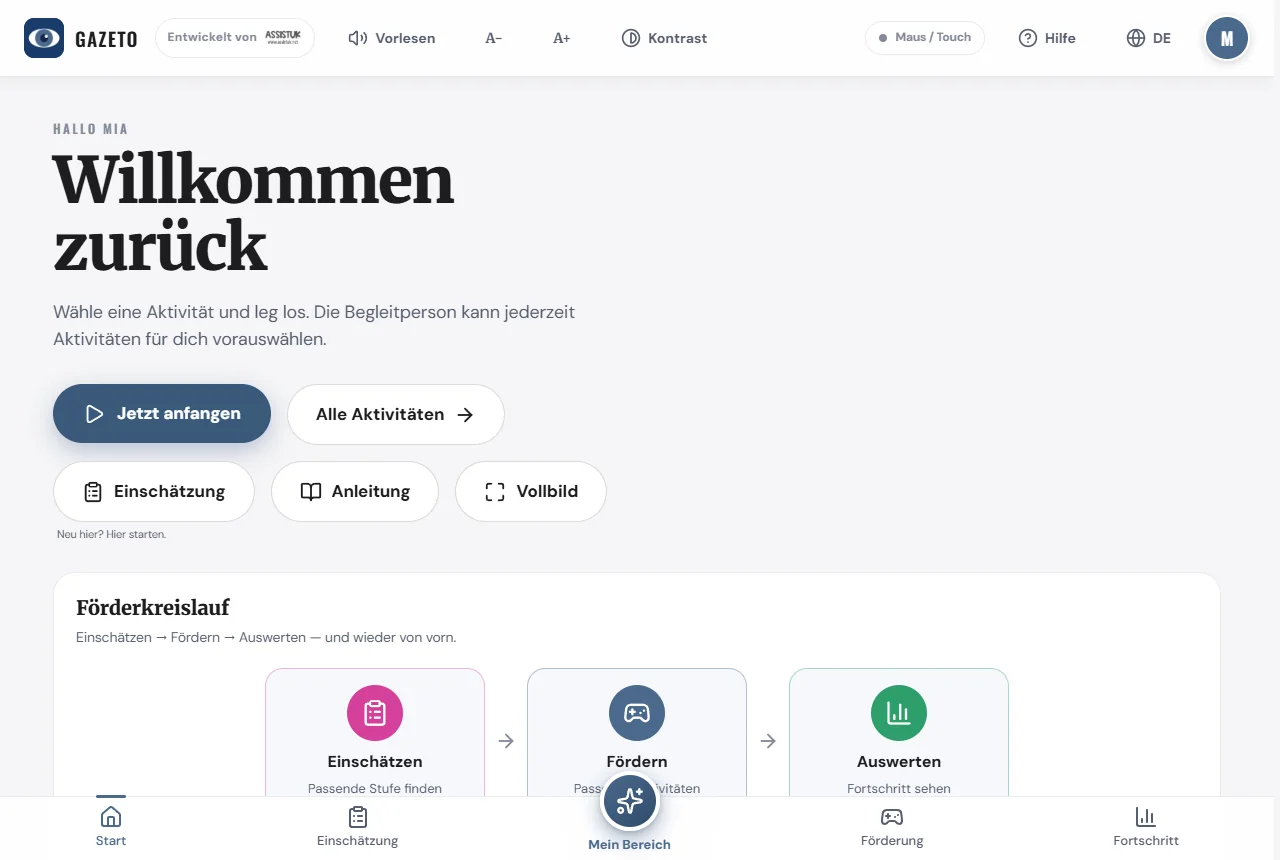
- «Старт» — подивіться, клацніть або натисніть. Більше нічого не потрібно.
Зміст
- Що таке GazeTo?
- Перший запуск — ознайомлення та профіль
- Огляд екрана
- Як керувати? Очі, миша, сенсорний екран
- Керування поглядом — налаштуйте правильно один раз
- Модель рівнів — 7 рівнів компетентності
- Пошук та запуск активностей
- Завдання від А до Я
- Мій простір — підібрана добірка та режим кіоску
- Оцінка — визначення рівня розвитку
- Прогрес — цикл розвитку
- Кадри сцен — у SceneTalk
- Налаштування
- Зміна мови — 101 мова
- Створення резервних копій та передача даних
- Встановити GazeTo та користуватися в автономному режимі
- Захист даних — все зберігається локально
- Про нас — Ларс Тідеманн, Неле Діркс та AssistUK
- Підтримати GazeTo
- Невеликий словник
- Якщо щось не працює
- Поширені запитання
- Допомога та контакти
1. Що таке GazeTo?
GazeTo допомагає крок за кроком навчитися керуванню поглядом — від першого погляду до впевненого спілкування за допомогою символів. Програма пропонує 197 вправ, які не тільки приносять задоволення, але й розвивають важливі навички керування поглядом.
GazeTo орієнтований одночасно на дві групи:
- особа, яка тренується, — вона грає, відкриває для себе нове та спілкується за допомогою погляду;
- супроводжуюча особа (терапевт, викладач, родич) — вона обирає завдання, оцінює рівень підготовки та відстежує прогрес.
В основі лежить чіткий цикл розвитку: оцінка → розвиток → аналіз — і знову з початку. Оцінка визначає відповідний початковий рівень, вправи цілеспрямовано тренують навички, а прогрес показує, що змінилося.
Фаховою основою є визнані рамки підтримки комунікації та розвитку зорового керування — зокрема, ступенева модель за Ірене Лебер, DAGG-3 (Tobii Dynavox) та Eye Gaze Pathway. Кожне завдання віднесено до цих рамок (це можна побачити в розділі «Для фахівців» на сторінці детальної інформації).
GazeTo є безкоштовним і не містить реклами — розроблено для терапії, школи, ранньої реабілітації та використання вдома. Програма працює безпосередньо у браузері на планшеті або ПК, без реєстрації та без завантаження з App Store.
Сестринський додаток TouchTo: для людей, які замість очей використовують палець, існує сестринський додаток GazeTo — TouchTo — з тими самими завданнями та рівнями, але повністю розроблений для прямого сенсорного керування.
2. Перший запуск — ознайомлення та профіль
Під час першого запуску вас зустріне короткий посібник із 4 кроків:
- «Ласкаво просимо» та «Мова» — виберіть свою мову (з 101).
- Як це працює — коротке пояснення управління.
- Що тут можна робити — огляд розділів.
- Створення профілю — ім’я, фото та вікова група.
Ти можеш повторити цей посібник у будь-який час: Налаштування → «Переглянути вступ ще раз».
Профілі — хто сьогодні тренується?
Кожен профіль зберігає власний прогрес, улюблені налаштування та вікову групу. Таким чином, на одному пристрої можуть займатися кілька осіб, не перезаписуючи дані один одного.
Ось як створити профіль:
- Натисни «Новий профіль».
- Введи ім’я та вибери фото (завантаж або зроби камерою), зображення з галереї (наприклад, лисиця, панда, ракета) або колір.
- Виберіть вікову групу (дитина, підліток, дорослий, літня людина) — вона визначає, які вправи будуть запропоновані, та фільтрує список вправ відповідно.
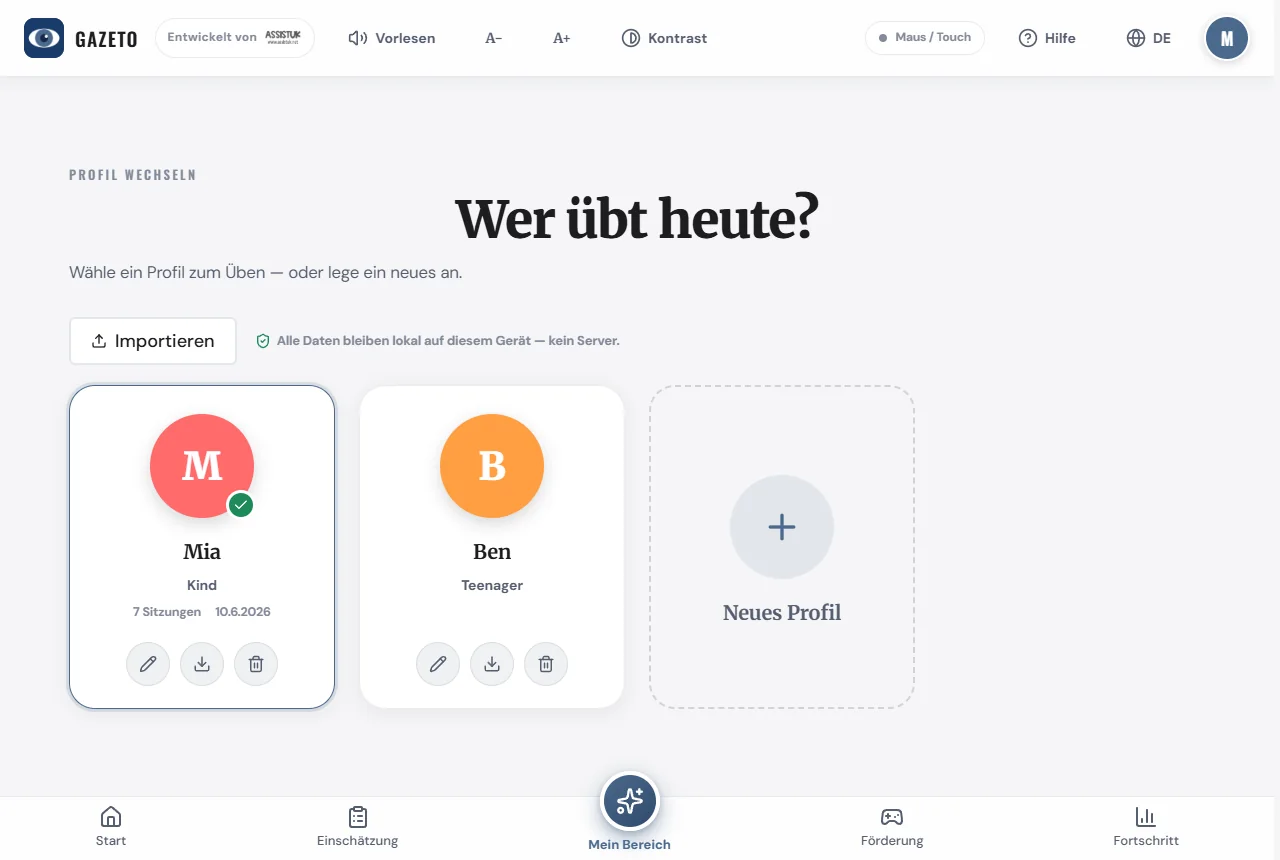
Порада: ти можеш у будь-який час змінити або редагувати профіль, натиснувши на значок профілю у правому верхньому куті. Також у налаштуваннях можна керувати профілями та створювати нові.
3. Огляд екрана
GazeTo має однакову структуру в усіх розділах — зрозумівши її, ви легко зорієнтуєтеся в будь-якій частині програми.
Верхня панель
- Логотип GazeTo (ліворуч) — завжди повертає вас на головну сторінку.
- «Прочитати вголос» — зачитує вголос текст на поточному екрані та позначає прочитану частину. Під час зачитування кнопка змінюється на «Стоп» — повторне натискання або перегляд завершує зачитування.
- A− / A+ — зменшення або збільшення шрифту, змінюється миттєво.
- Контраст — увімкнення та вимкнення режиму високої контрастності.
- Індикатор стану — показує активний спосіб введення (наприклад, «Миша / Сенсорний екран»).
- Довідка — відкриває огляд функцій: пояснення всіх розділів у вигляді карток із прямим переходом та кнопкою для переходу до цього посібника.
- Мова — відкриває меню вибору мови (див. розділ 14).
- Піктограма профілю — зміна профілю.
Навігація внизу
- Початок — привітання, рекомендації, 3-денний план та цикл розвитку.
- Оцінка — інструменти оцінки: анкета та тести для вимірювання (див. розділ 10).
- «Мій простір» (у центрі) — підібрана добірка для учня.
- Розвиток — усі 197 завдань із фільтрами.
- Прогрес — статистика, звіти та рекомендації.
У нижньому колонтитулі ти знайдеш посилання на цю інструкцію, а також інформацію про видавця, політику конфіденційності, доступність та загальні умови використання.
4. Як керувати?
GazeTo з самого початку розроблено так, щоб три способи введення даних працювали на рівних:
| Введення | Як це працює |
|---|---|
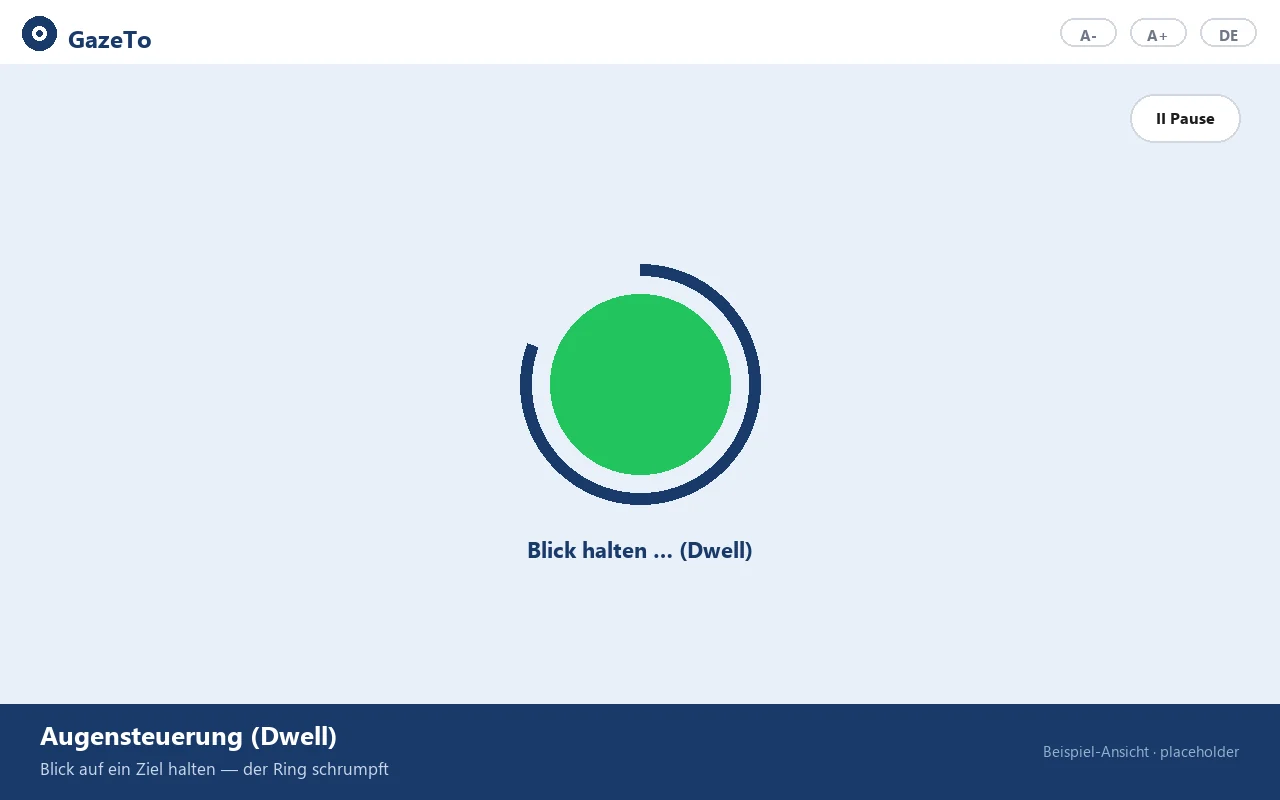
| Керування поглядом (незалежно від виробника) | Ви дивитеся на ціль — кільце або коло починає зменшуватися. Коли воно заповнюється, ціль активується. Це називається «Dwell» (затримка). |
| Миша (або трекбол, джойстик) | Клік активує кнопки. Переміщення по екрану автоматично малює/реагує. |
| Сенсорний ввід (планшет, сенсорний екран) | Натискання = активація. Працює скрізь, без додаткових налаштувань. |
Головна перевага: не потрібно перемикатися між режимами. Якщо ви вибрали ціль поглядом, а потім продовжуєте керувати трекболом — це не проблема.
Курсор миші: у вікнах активності GazeTo за замовчуванням відображає непомітне кільце замість стрілки — воно майже нічого не закриває, і за ним легко стежити за допомогою миші або трекбола. У меню залишається звичайний курсор миші. Якщо ви бажаєте бачити велике коло огляду, увімкніть його в налаштуваннях у розділі «Стиль курсора» та виберіть відповідний колір у розділі «Колір курсора». Опція «Вимкнути» приховує будь-який курсор.
5. Керування поглядом — налаштуйте правильно один раз
ВАЖЛИВО для користувачів систем керування поглядом:
GazeTo самостійно виконує кліки за допомогою системи затримки. Ваша система керування
поглядом — незалежно від виробника — повинна ТІЛЬКИ переміщати курсор миші — вона не
повинна генерувати власні кліки та не повинна запускати апаратну затримку.
Ось як це налаштувати:
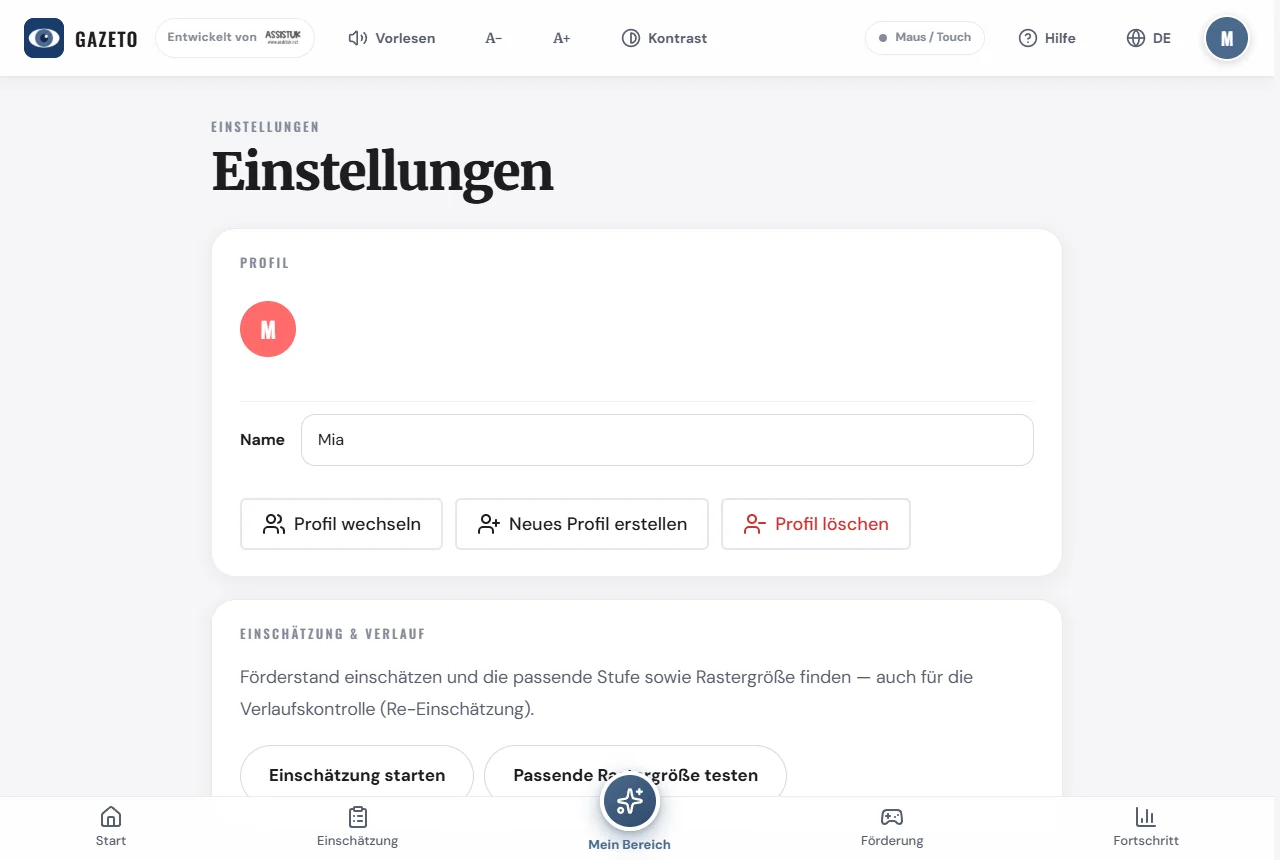
- Відкрийте налаштування (значок шестерні внизу).
- Встановіть метод введення на «Курсор миші / Управління поглядом».
- Налаштуйте час затримки — скільки часу потрібно дивитися, щоб спрацювала реакція. Для початку зазвичай достатньо 500–800 мс; якщо ваш погляд дуже неточний, краще вибрати довший час.
- За бажанням: у розділі Стиль курсора вибери добре помітне коло замість кільця миші, а в розділі Колір курсора — відповідний колір.
Порада: подбайте про правильне калібрування системи керування поглядом та дотримання оптимальної відстані від екрана. Це значно покращить точність наведення.
Який час затримки є оптимальним? Орієнтовні значення:
| Ситуація | Рекомендація |
|---|---|
| Досвідчені користувачі, точний погляд | 400–600 мс |
| Початківці, перші кроки | 600–1000 мс |
| Нервовий погляд, втома, ХВЗ | 1000–1500 мс — краще повільно та впевнено |
При обмеженому зорі або CVI додатково допомагає функція «Чітке зображення (CVI)» у налаштуваннях — вона затемнює фон і додає чіткі контрастні кільця навколо цілей (див. розділ 13).
6. Модель поетапного навчання
GazeTo класифікує всі завдання за 7 рівнями компетентності — вони будуються один на одному:
| Рівень | Назва | Про що йдеться |
|---|---|---|
| 1 | Відкриття | Реагувати на подразники — сприймати колір, рух, звук. |
| 2 | Дослідження | Причина та наслідок — «мій погляд щось спричиняє». |
| 3 | Знаходження | Цілеспрямоване спостереження — досягнення певної мети. |
| 4 | Вибір | Зробити вибір — визначитися між варіантами. |
| 5 | Керувати | Самостійно керувати іграми та процесами. |
| 6 | Застосування | Застосовувати вивчене в повсякденному житті та під час спілкування. |
| 7 | Опанування | Впевнено, самостійно та комплексно спілкуватися. |

Кожен рівень має свій колір, який повторюється у всьому додатку. На головній сторінці рядок плиток «Усі 7 рівнів» веде до сторінок з детальною інформацією про рівні: там кожен рівень детально пояснено — із зазначенням цілей, рекомендацій щодо спостереження та всіх відповідних завдань.
Який рівень підходить? Якщо ти не впевнений: тест на основі 6 коротких запитань допоможе визначити початковий рівень. У разі сумнівів краще почати з рівня нижче — відчуття успіху дасть більше користі, ніж перевантаження.
7. Пошук і початок вправ
У розділі «Розвиток» (внизу навігаційного меню) ти знайдеш усі 197 вправ.
Ось як можна відфільтрувати:
- Виберіть цільову групу (Усі, Діти, Підлітки, Дорослі, Люди похилого віку).
- Виберіть рівень (1–7) — або «Усі» для перегляду повного списку.
- Вибраний фільтр за рівнем залишається активним, доки ти не вибереш інший.
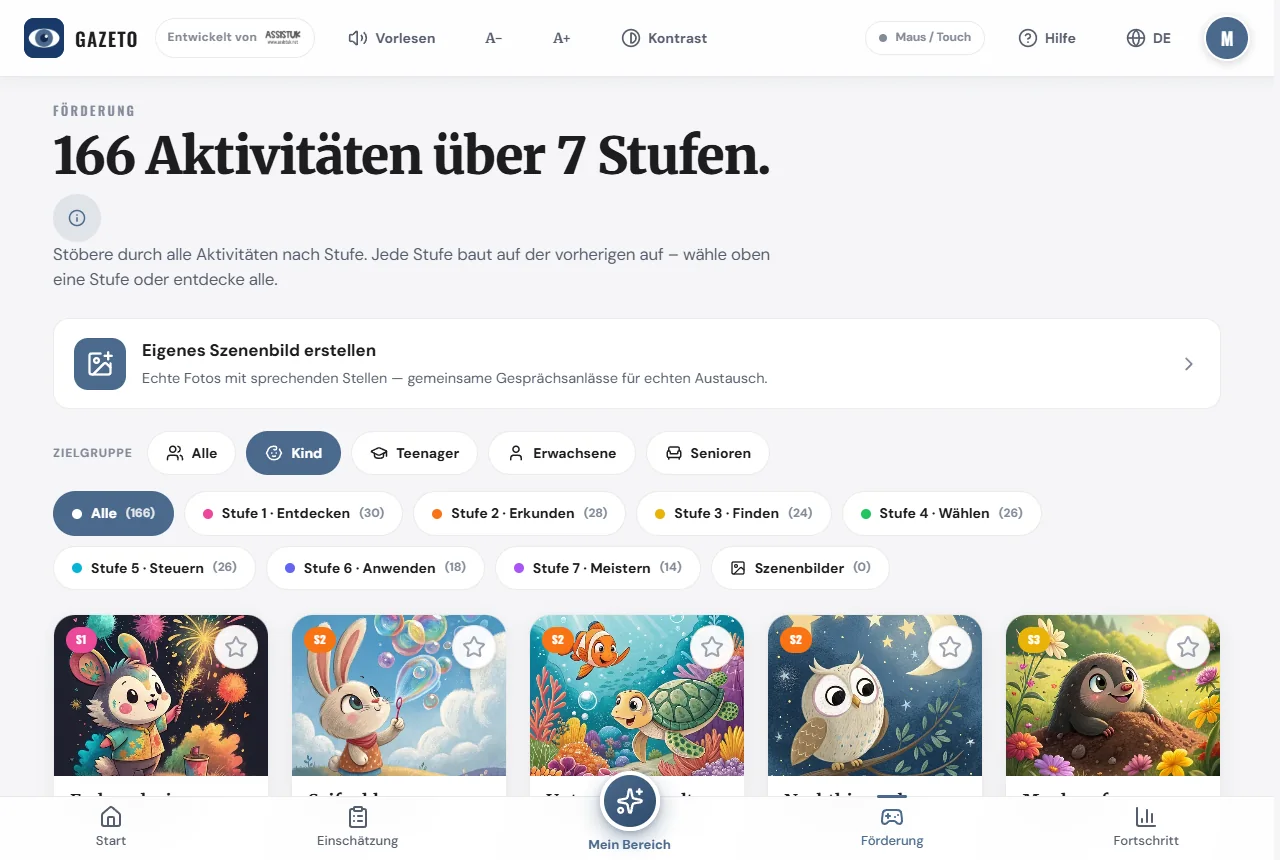
Натисніть на активність, щоб відкрити сторінку з детальною інформацією. Там перед початком ви можете налаштувати рівень складності (Легкий/Стандартний), тривалість гри та інші параметри.
Зірочка: за допомогою символу зірочки ви можете закріпити вправу — вона з’явиться в розділі «Мій простір» та на головній сторінці в розділі «Закріплені вправи». Так супроводжуюча особа може підібрати відповідний набір вправ.
8. Вправа від А до Я
- Виберіть активність — відкриється сторінка з детальною інформацією.
- За бажанням налаштуйте рівень складності та тривалість. У розділі «Налаштувати» доступні додаткові параметри (наприклад, інструмент, фонова музика, фонове зображення).
- Натисніть «Старт» — завдання запуститься у повноекранному режимі.
- Грайте за допомогою погляду, миші або сенсорного екрану. Кнопка паузи завжди доступна; завдання можна прослухати в будь-який момент.
- Після закінчення часу з’являється оцінка із зірочками та оглядом траєкторії погляду.
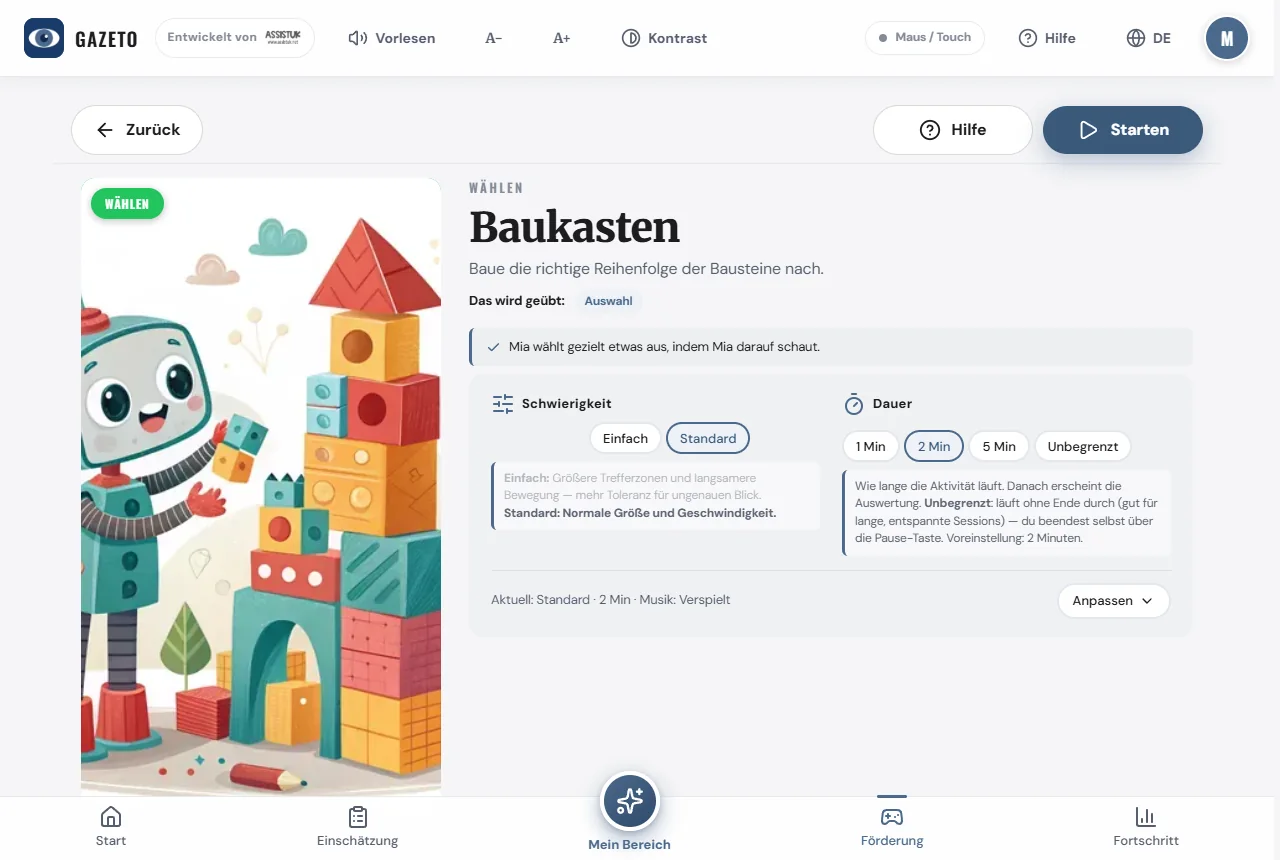
Порада для фахівців: на сторінці детальної інформації є розділ «Для фахівців» із класифікацією завдання за рамковими документами (Leber, DAGG-3, Eye Gaze Pathway) та порадами щодо спостереження.
Маленькі радості: наприкінці кожного раунду GazeTo святкує успіх — то конфеті, то зірочками чи повітряними кульками. Святкування змінюється від раунду до раунду, щоб не набридло. Для користувачів, яким потрібний спокій, функція «Чітке зображення (CVI)» забезпечує більш стримані ефекти.
9. «Мій розділ» — підібрана добірка та режим «кіоск»
«Мій простір» — це добірка, складена спеціально для користувача, який тренується. Тут з’являються завдання, які супроводжуючий позначив у списку зірочкою — так користувач, який тренується, може легко самостійно переглядати підготовлену добірку. Тут також з’являються самостійно створені сцени у вигляді окремих плиток.
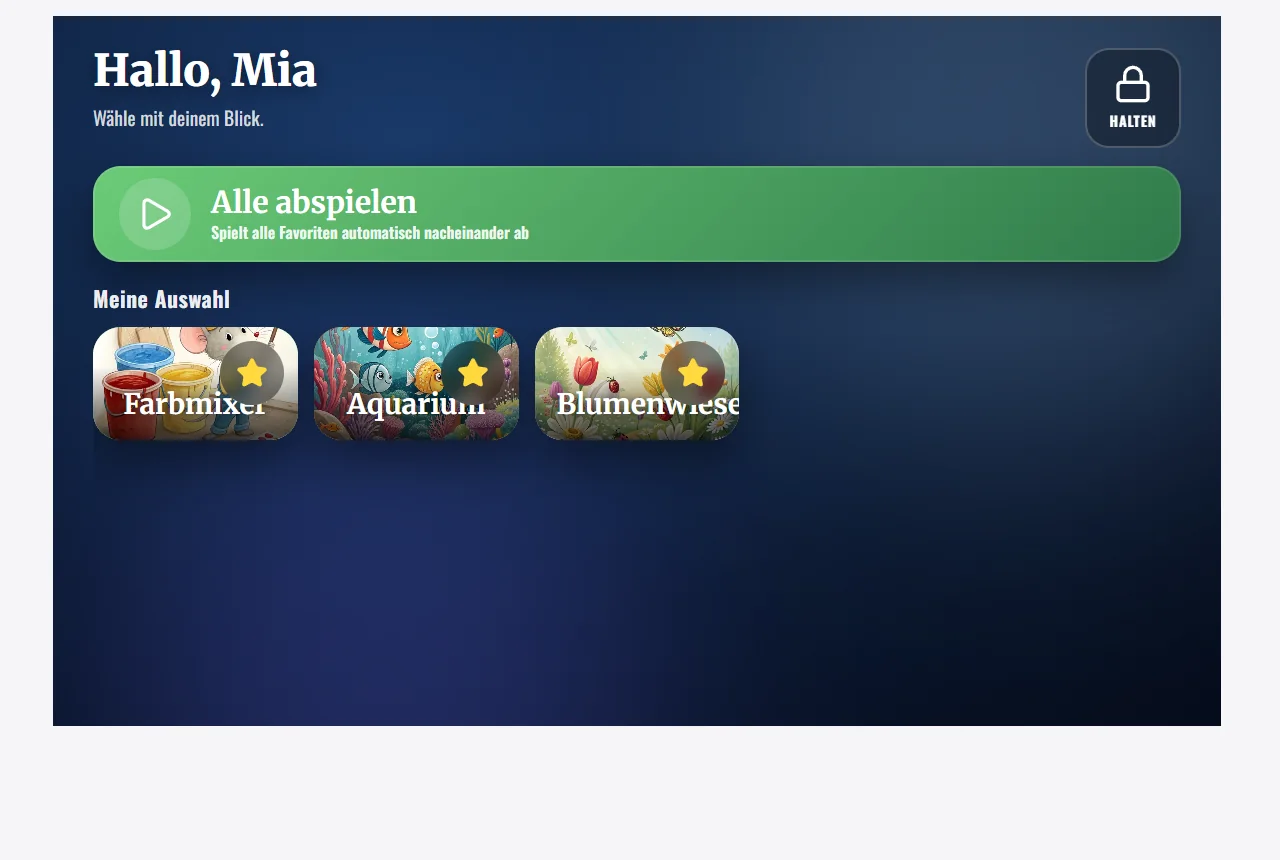
Режим «кіоск» — безпечне навчання
У налаштуваннях є опція «Заблокувати «Мій простір» (кіоск)». Якщо блокування активовано, «Мій простір» перетворюється на захищений режим користувача: учасник тренування не може випадково вийти з нього або змінити налаштування — він залишається в безпеці у своїй підготовленій добірці.
Ось як супроводжуюча особа може вийти з режиму кіоску:
- Натисніть і утримуйте кнопку «Утримувати» (угорі праворуч, із символом замка) мишкою або пальцем.
- Тримайте натиснутою, доки смужка на кнопці не заповниться повністю — це займає приблизно 2–3 секунди. Після цього відкриється шлях назад.
Важливо знати: відпускання кнопки перериває процес, а короткого дотику недостатньо — у такому разі GazeTo покаже підказку з правильним жестом. Поглядом (Dwell) цю кнопку неможливо активувати навмисно: завдяки цьому користувач не може випадково вийти із захищеної зони, навіть якщо його погляд зупиниться на кнопці.
Порада: Кнопка «Повний екран» на стартовому екрані лише розгортає вікно на весь екран (клавіша Esc дозволяє вийти з цього режиму в будь-який момент). Справжньою «блокуванням» для самостійного навчання є режим «Кіоск».
10. Оцінка — визначення рівня розвитку
Для фахівців та терапевтів передбачена керована оцінка, яка визначає поточний рівень розвитку та рекомендує відповідні етапи й підходи до розвитку.
Як це працює:
- Відкрийте «Оцінка» (внизу в навігаційному меню) або «Прогрес» → «Запустити помічника з оцінки» — або розділ «Для фахівців» на сторінці детальної інформації про активність.
- Дайте відповіді на 6 коротких запитань щодо спостережуваної поведінки (приблизно 5 хвилин).
- Ви отримаєте рекомендований початковий рівень, класифікацію за рамковими моделями та конкретні підходи до розвитку.
До цього додаються тести для вимірювання (наприклад, точність влучання, час затримки, точність зонування, категоризація) та тест на пошук слів — його результат можна безпосередньо передати до пошуковика словника, щоб визначити відповідний обсяг лексики для засобу комунікації.
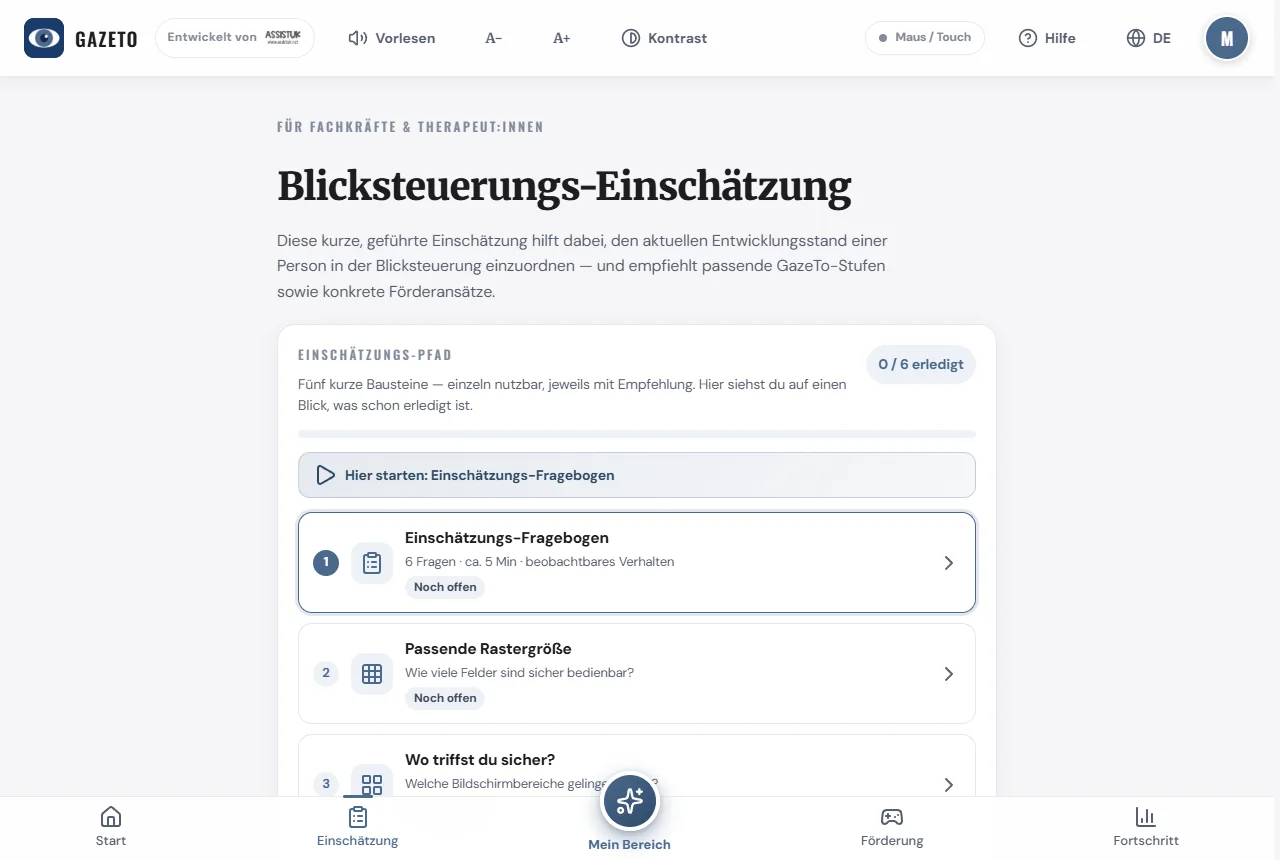
Оцінка ґрунтується на визнаних методологічних рамках (Tobii Dynavox DAGG-3, Ірен Лебер, Eye Gaze Pathway). Вона слугує орієнтиром і не замінює фахового обстеження.
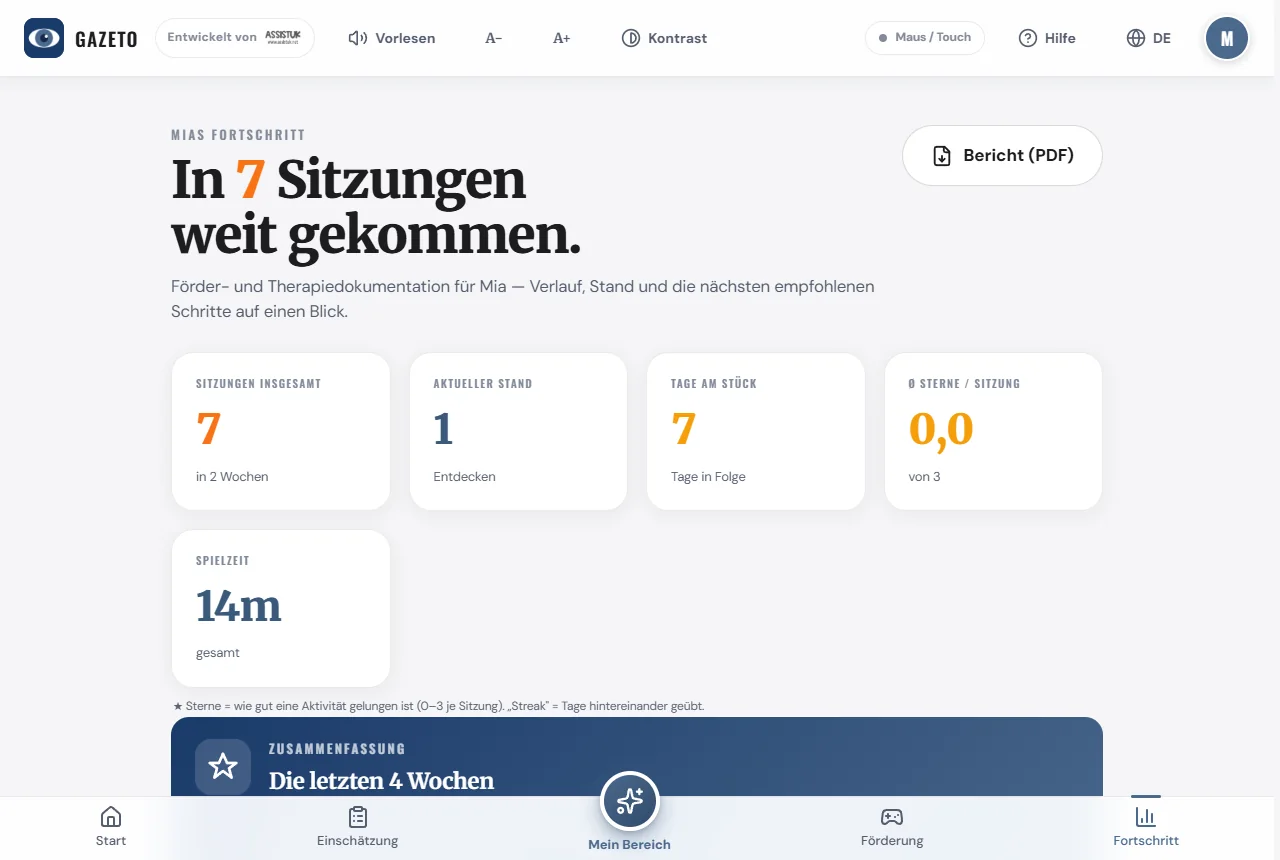
11. Прогрес — цикл розвитку
Екран «Прогрес» відображає хід роботи та слідує циклу підтримки та втручання: оцінка → план підтримки → підтримка → нова оцінка.
Тут ти знайдеш:
- кількість сеансів, дні виконання вправ та серії («дні поспіль»)
- аналіз погляду (покриття екрану, фіксації, розподіл по полях)
- рекомендовані наступні кроки та тижневий план
- основні напрямки корекції, які визначають рекомендації на початковому етапі
- Звіти та теплові карти для кожного сеансу
12. Зображення сцен — у SceneTalk
Власні «розмовні» зображення — це функція сестринського додатка SceneTalk. Там ти обираєш улюблену фотографію, позначаєш об’єкти на зображенні (маму, домашню тварину, улюблену іграшку) та додаєш текст або аудіозапис. Той, хто дивиться на цей об’єкт, чує відповідне слово.
SceneTalk є безкоштовним і доступним у браузері без реєстрації: scenetalk.assistuk-apps.net
Три способи переходу з GazeTo:
- картка «Сценні зображення є в SceneTalk» у верхній частині сторінки «Активності»,
- підказка щодо рівнів «Власний контент для цього рівня» на рівнях від 2 до 7,
- кнопка «Використовувати в SceneTalk» у кінці тесту на точність сітки — там виміряні результати безпосередньо підставляються у сітку, яку ви створюєте.
Сцени зберігаються в SceneTalk і там же резервуються. Готові сцени-завдання GazeTo й надалі надає самостійно — їх можна знайти у звичайному списку завдань.
13. Налаштування
У налаштуваннях (значок шестерні внизу) ви, серед іншого, можете налаштувати:
- Спосіб введення та час затримки (див. розділ 5)
- Стиль курсора (за замовчуванням: непомітне кільце миші в активностях, у меню — звичайний курсор миші; можна ввімкнути коло/точку/мініатюрну точку/перехрестя — з кольором; опція «Вимкнути» приховує будь-який курсор, якщо рухома точка відволікає увагу)
- Чітке зображення (CVI) — затемнює фони під час виконання дій та відображає контрастні кільця навколо цілей; корисно при CVI або обмеженому зорі
- Блокування моєї області (кіоск) — захищений режим користувача (див. розділ 9)
- Гучність, звуки та фонова музика (з вибором треків)
- Контрастність, колірна схема та розмір шрифту (також доступні в будь-який час у верхній панелі)
- Мова (див. розділ 14)
- Зміна або редагування профілю
- Дані та резервне копіювання — резервне копіювання та перенесення (див. розділ 15)
14. Зміна мови — 101 мова
GazeTo підтримує 101 мову — той самий вибір мов, що й у DigitalPainters. Ти можеш знайти їх у двох місцях:
- у правому верхньому куті панелі за допомогою піктограми мови,
- або в налаштуваннях у розділі «Мова».
Кожна мова відображається з прапорцем та назвою, написаною відповідним шрифтом (наприклад, «中文», «العربية»). За допомогою поля пошуку ти можеш швидко знайти будь-яку мову — система розуміє назву мови її рідною мовою, англійською назвою та абревіатурою.
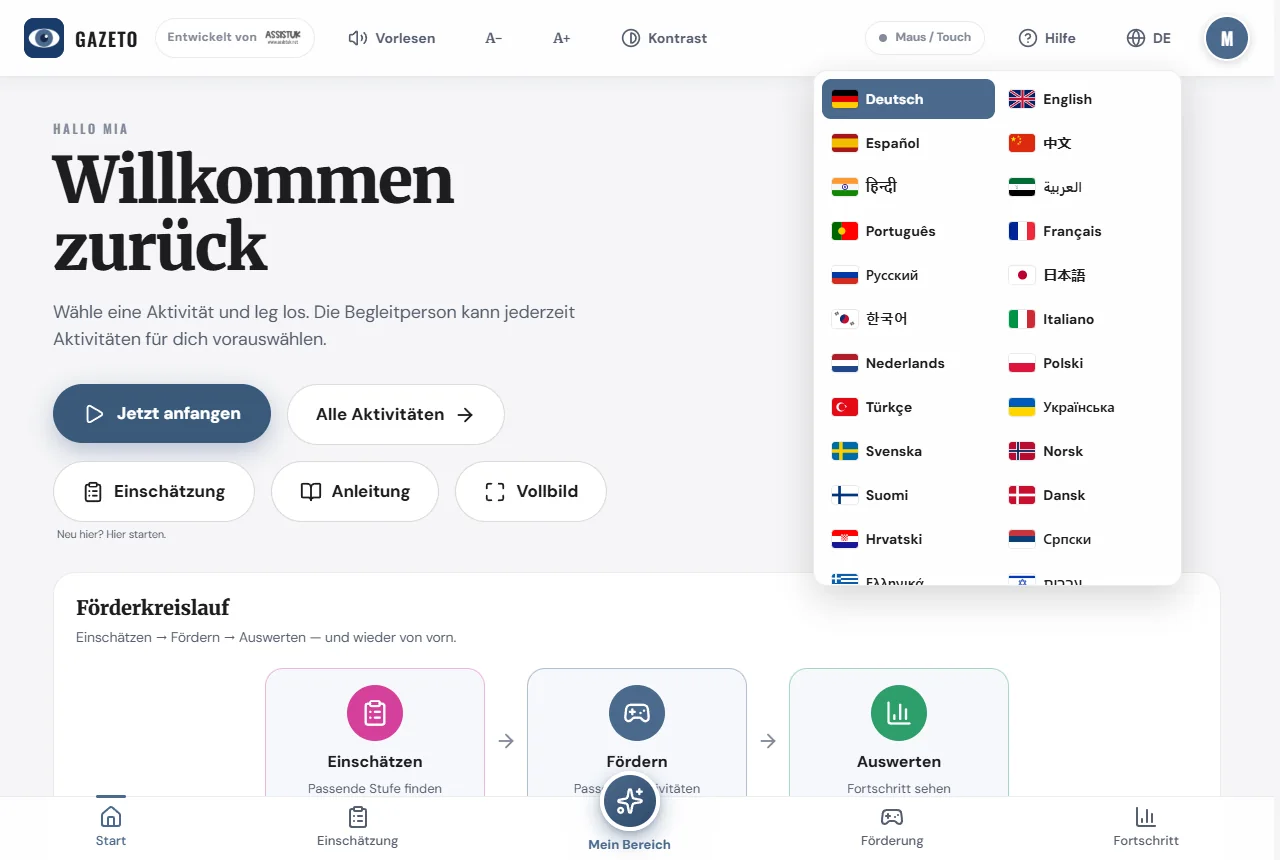
Весь додаток миттєво перемикається — навіть мови з напрямком письма справа наліво (арабська, іврит тощо) відображаються правильно. Вміст, який ще не перекладено на певну мову, автоматично з’являється англійською — так все завжди залишається читабельним.
15. Створення резервних копій та перенесення даних
У розділі налаштувань «Дані та резервне копіювання» ти можеш:
- створити повну резервну копію (усі профілі, сесії, сцени та налаштування в одному файлі) та відновити її на іншому пристрої,
- або лише експортувати/імпортувати налаштування.
Так, наприклад, ти можеш перейти зі старого пристрою на новий, не втрачаючи прогресу. Файл резервної копії залишається у тебе — він нікуди не завантажується.
Важливо: GazeTo зберігає всі дані локально в браузері. Якщо ви видалите дані браузера («Видалити дані веб-сайтів»), ви також видалите профілі та прогрес. Тому перед масштабним очищенням браузера або зміною пристрою спочатку створіть повну резервну копію.
16. Встановити GazeTo та користуватися в автономному режимі
GazeTo встановлюється як додаток і після цього працює в автономному режимі.
- На планшеті/мобільному телефоні: у меню браузера виберіть «Додати на головний екран».
- На комп’ютері: натисніть на піктограму інсталяції в адресному рядку — або підтвердьте повідомлення «Встановити GazeTo».
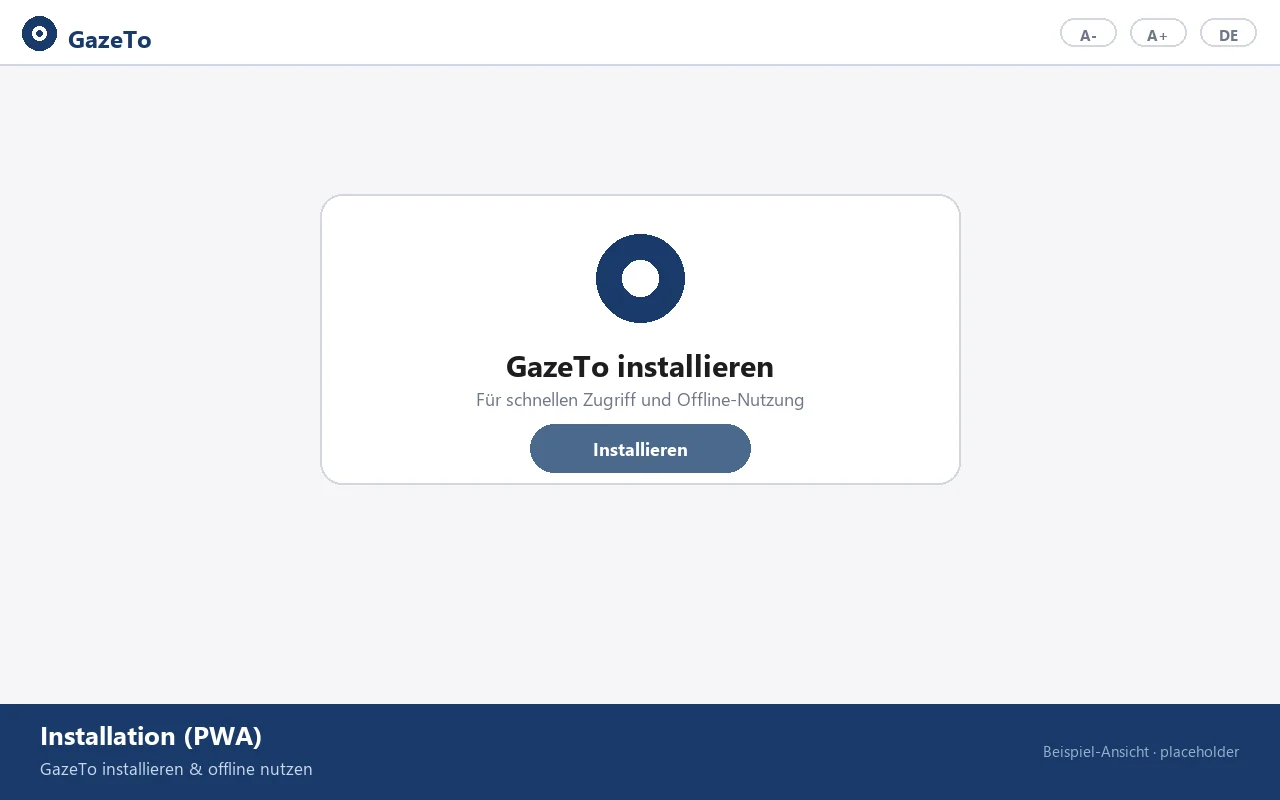
Після першої інсталяції GazeTo працює повністю без Інтернету — ідеально підходить для терапії та навчання. Лише новододані мови завантажуються один раз короткочасно під час першого перемикання.
Порада щодо звуку: з міркувань безпеки звук у вкладці браузера вмикається лише після першого дотику — достатньо один раз натиснути або клацнути десь (GazeTo покаже відповідне повідомлення). У встановленому додатку звук вмикається автоматично — ще одна причина для встановлення.
17. Захист даних
GazeTo не зберігає особисті дані на серверах. Профілі, прогрес та зображення сцен залишаються виключно в браузері пристрою (локально). Передача даних у хмару не відбувається. Ми анонімно підраховуємо на нашому власному сервері, як часто запускається додаток і чи працює він без технічних збоїв — без використання файлів cookie та без збереження будь-яких даних на пристрої.
Управління поглядом відбувається виключно локально — відео не записується і не передається.
18. Про нас — Ларс Тідеманн, Неле Діркс та AssistUK
GazeTo — це проєкт AssistUK, соціального підприємства, що розробляє контент та додатки у сфері асистування, інклюзії та підтримуваної комунікації.
Ларс Тідеманн
Дипломований педагог-реабілітолог (FH), з 1992 року працює у сфері підтримуваної комунікації. Понад 10 років досвіду роботи в компанії Tobii Dynavox, більше 5 років викладацької діяльності у Католицькому університеті Фрайбурга, розробка програмного забезпечення для підтримуваної комунікації з 2007 року. Ларс Тідеманн розробляє GazeTo та всю лінійку додатків AssistUK.
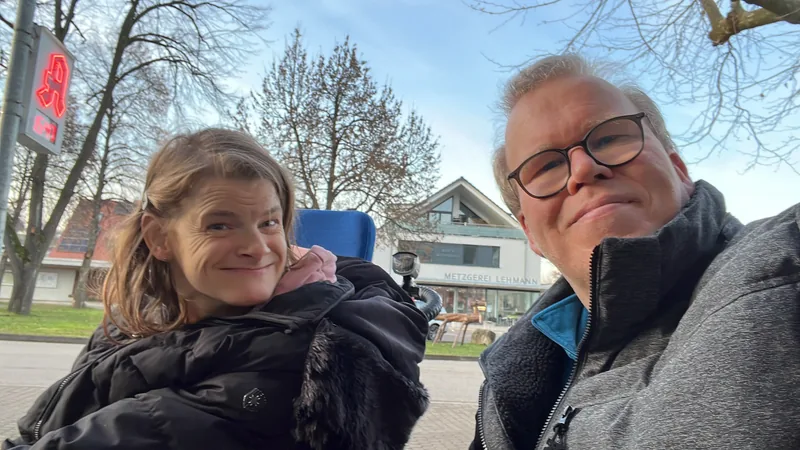
Неле Діркс
Експертка у своїй галузі та волонтерка-доповідачка Товариства з питань допоміжної комунікації. Для AssistUK Неле Діркс є джерелом натхнення: її практичний досвід роботи з допоміжною комунікацією дає підказки щодо того, що насправді важливо для додатків у повсякденному житті.
Сімейство додатків AssistUK
У GazeTo є «брати й сестри» — усі розроблені з урахуванням безбар’єрності: TouchTo (прямий сенсорний доступ), DigitalPainters (малювання та творчість, у тому числі за допомогою керування поглядом), ArtTherapy та MusicTherapy (мистецька та музична терапія), AssistPlay (навчальні ігри) та інші. Усі додатки та пропозиції ти знайдеш на сайті www.assistuk.net.
19. Підтримай GazeTo
GazeTo є безкоштовним, без реклами та без необхідності створення облікового запису. Відстежується лише анонімно, скільки разів запускається додаток. Щоб так було й надалі — і щоб з’являлися нові активності, функції та переклади — ми будемо раді вашому добровільному внеску. Кожен євро йде безпосередньо на подальший розвиток та підтримку роботи (сервери, хостинг, ліцензії на програмне забезпечення).
Примітка: GazeTo — це некомерційний проєкт Ларса Тідемана (AssistUK), але не зареєстрована громадська організація. Тому внески не є податковими відрахуваннями, і квитанція про пожертву не видається. Тим, хто все ж хоче підтримати нас: щиро дякуємо — від щирого серця, за справу.
Переказ SEPA

IBAN: DE81 1101 0100 2460 6697 67
BIC: SOBKDEBBXXX
Призначення платежу: Підтримка GazeTo

Навіть без грошей ти можеш допомогти: розкажи про GazeTo — у школах, центрах раннього розвитку, кабінетах логопедії та ерготерапії, консультаційних центрах з альтернативних способів комунікації та групах самодопомоги. Чим більше людей знає про GazeTo та користується ним, тим більше сенсу набуває весь проект. Також дуже допомагають відгуки та розповіді про досвід використання, надіслані електронною поштою.
20. Невеликий словник
Кілька термінів, що зустрічаються в цій інструкції:
| АК | Підтримувана комунікація — усі способи спілкування без (зрозумілої) усної мови. |
| Керування поглядом | За допомогою пристрою для відстеження руху очей ви переміщуєте курсор миші за допомогою погляду. |
| Затримка | «Затримка»: ти спокійно дивишся на певну точку, доки кільце не заповниться — після чого воно спрацьовує. Так ти клацаєш без натискання кнопки. |
| Калібрування | Налаштування системи керування поглядом під ваші очі — це робить апаратне та програмне забезпечення ай-трекера. |
| Рівень | Один із 7 рівнів компетентності навчальної моделі GazeTo (від «Відкриття» до «Майстерності»). |
| Зображення сцени (VSD) | Фотографія з активними ділянками (хотспотами) — «Visual Scene Display». |
| Активна точка | Позначене місце на зображенні сцени, яке «говорить» при перегляді або натисканні. |
| Режим кіоску | Блокування розділу «Мій простір»: людина, яка тренується, залишається захищеною у своєму виборі. |
| Теплова карта | Кольорова карта, що показує, куди рухався погляд під час сеансу. |
| PWA | «Прогресивний веб-додаток» — GazeTo встановлюється як додаток і працює в автономному режимі. |
21. Якщо щось не працює
Не хвилюйтеся — більшість проблем швидко вирішуються.
Управління поглядом не спрацьовує
- Керування поглядом може лише переміщувати курсор миші, але не клікати самостійно — див. розділ 5 (Автоматичний клік / Вимкнути затримку апаратного зчитування).
- Час затримки занадто довгий або занадто короткий? Налаштуйте його в налаштуваннях.
Активується двічі або занадто швидко
Зазвичай апаратне забезпечення для керування поглядом додатково клацає самостійно — вимкніть його автоматичні клацання. Якщо це не допомагає, трохи подовжіть час затримки в GazeTo.
Не чути звуку
У вкладці браузера звук має вмикатися лише після першого реального дотику — достатньо одного дотику або кліка. У встановленому додатку звук вмикається автоматично. В іншому випадку: перевірте гучність пристрою та налаштування звуків/музики.
Сторінка залишається білою або виглядає застарілою
Оновіть сторінку один раз. GazeTo оновлюється автоматично при наступному запуску через Інтернет — установка з магазину додатків не потрібна.
Профілі або прогрес зникли
Це трапляється, якщо дані браузера для цього веб-сайту були видалені (у тому числі за допомогою функцій «звільнити місце»). Тому регулярно створюйте повну резервну копію — з неї можна все відновити.
Мова не завантажується
Нові мови завантажуються з Інтернету під час першого перемикання. В офлайн-режимі доступні лише мови, якими ви вже користувалися — просто підключіться до Інтернету та виберіть мову один раз.
Все ще виникають проблеми? Напишіть нам — див. розділ «Допомога та контакти». Ми з радістю допоможемо, а кожен відгук робить GazeTo кращим.
22. Поширені запитання
Чи коштує GazeTo щось?
Ні, нічого — навіть для організацій. Щоб так і залишалося, ми раді кожному добровільному внеску.
Чи потрібен інтернет?
Тільки під час першого запуску (та під час першого переходу на іншу мову). Після цього GazeTo можна встановити, і воно працюватиме повністю в автономному режимі.
Які системи керування поглядом підтримуються?
Усі, що можуть переміщати курсор миші — незалежно від виробника. GazeTo самостійно виконує кліки (Dwell). Важливо: вимкніть автоматичні кліки апаратного забезпечення (див. розділ 5).
На яких пристроях працює GazeTo?
На планшетах і ПК з актуальним браузером (Chrome, Edge, Safari, Firefox). Для управління поглядом потрібен пристрій з трекером погляду; миша, трекбол і сенсорний екран працюють на будь-яких пристроях.
Чи можу я використовувати GazeTo в навчальному закладі (школі, кабінеті, центрі розвитку)?
З радістю — саме для цього він і створений. Профілі розділяють учасників тренувань, режим «кіоск» захищає самостійне навчання, а оцінка допомагає у плануванні корекційної роботи. У разі питань просто напишіть нам на електронну пошту.
Що відбувається з даними? Чи щось підраховується?
Ні. Ніяких облікових записів, ніякого хмарового сховища. Підраховується лише анонімно, скільки разів запускається додаток. Усе зберігається локально на пристрої — резервні копії ти створюєш самостійно у вигляді файлу.
У чому різниця між GazeTo та TouchTo?
GazeTo створено для керування поглядом (затримка погляду, аналіз погляду), TouchTo — це сестринський додаток для прямого сенсорного керування (натискання пальцем) — з тими самими рівнями та завданнями. Хто користується обома, той одразу зорієнтується.
Чи можу я поділитися своїми побажаннями чи ідеями?
Звичайно, будь ласка! GazeTo розвивається безпосередньо з потреб спільноти. Надішліть свою ідею на lars.tiedemann@assistuk.net — чим конкретніше, тим краще.
23. Допомога та контакти
- Електронна пошта: lars.tiedemann@assistuk.net
- AssistUK: www.assistuk.net
- Юридична інформація: ви можете знайти відомості про видавця, політику конфіденційності та доступність у нижньому колонтитулі додатка.
Сміливо пробуйте — тут немає чого зіпсувати. Кожен маленький крок — це справжній крок.
— Ларс Тідеманн та Неле Діркс, AssistUK