 GazeTo
PDF
Language
GazeTo
PDF
Language
GazeTo — A Guide for Everyone Who Learns and Communicates with Their Eyes
Welcome! GazeTo is a learning and communication platform for eye control—developed as part of the AssistUK project, specifically for people who use or are learning Augmentative and Alternative Communication (AAC).
You don’t need any prior experience or special hardware. GazeTo runs in your browser and works just as well with eye control as it does with a mouse or touchscreen.
Eye control · Mouse · Touch — anything goes.
Whether you control it with your eyes, click with a mouse, use a trackball, or
tap the screen with your finger — GazeTo responds to each of these
input methods without requiring you to change anything.
About eye control: It works with any device that moves the mouse pointer with your eyes
(“mouse emulation”). Your gaze simply takes over the role of the mouse—
virtually all eye-control devices support this, regardless of the manufacturer.
Ideas from lived experience. Nele Diercks — Expert by lived experience and, on a voluntary basis, speaker for the German Society for Augmentative and Alternative Communication (Gesellschaft für Unterstützte Kommunikation). For AssistUK, Nele Diercks provides ideas and impulses: her lived experience with Augmentative and Alternative Communication shows what really matters in everyday use of the apps. More in the chapter About us.
Get started in 3 steps:
- Open GazeTo — when you launch it for the first time, a short guide will walk you through language and profile settings.
- Tap “Support” at the bottom and choose an activity from Level 1 or 2 — or simply tap “Get Started” on the home screen.
- “Start”—look, click, or tap. That’s all it takes.
Content
- What is GazeTo?
- First Time — Onboarding & Profile
- Screen Overview
- How do I control it? Eyes, mouse, touch
- Eye Tracking — Setting It Up Right the First Time
- The Level Model — The 7 Competency Levels
- Finding and Starting Activities
- An Activity from A to Z
- My Area—Curated Selection & Kiosk Mode
- Assessment — determining the level of support
- Progress — the support cycle
- Scene images — in SceneTalk
- Adjust settings
- Change Language — 101 Languages
- Backing Up and Transferring Data
- Install GazeTo and use it offline
- Privacy — everything stays local
- About Us — Lars Tiedemann, Nele Diercks & AssistUK
- Support GazeTo
- Small Glossary
- If something isn't working
- Frequently Asked Questions
- Help & Contact
1. What is GazeTo?
GazeTo helps users learn eye-tracking step by step—from their first attempt to look at something to confidently communicating with symbols. It offers 197 activities that are fun and, at the same time, promote important eye-tracking skills.
GazeTo is designed for two groups at the same time:
- the user—who plays, explores, and communicates using their gaze.
- the support person (therapist, teacher, family member)—who selects activities, assesses progress, and tracks development.
This is based on a clear support cycle: Assess → Support → Evaluate—and start over. The assessment identifies the appropriate starting level, the activities provide targeted practice, and the progress shows what has changed.
The technical foundation is based on recognized frameworks for Augmentative and Alternative Communication (AAC) and eye-gaze training—including the level model by Irene Leber, the DAGG-3 (Tobii Dynavox), and the Eye Gaze Pathway. Each activity is assigned to these frameworks (visible in the “For Professionals” section on the details page).
GazeTo is free and ad-free—developed for therapy, school, early intervention, and home use. It runs directly in the browser on a tablet or PC, with no registration required and no need for an app store.
Sister app TouchTo: For people who use their finger instead of their eyes, there’s GazeTo’s sister app TouchTo—the same activities and levels, but built entirely for direct touch access.
2. First-Time Setup — Onboarding & Profiles
When you open the app for the very first time, a short 4-step guide welcomes you:
- Welcome & Language — choose your language (from 101).
- How It Works — a brief explanation of the controls.
- What You Can Do Here — an overview of the sections.
- Create a Profile — Name, photo, and age group.
You can go through the tutorial again at any time: Settings → “Review the Introduction.”
Profiles — Who’s practicing today?
Each profile saves your own progress, preferred settings, and age group. This way, multiple people can practice on one device without overwriting each other’s data.
Here’s how to create a profile:
- Tap “New Profile.”
- Enter a name and choose a photo (upload one or take a photo with the camera), an image from the gallery (e.g., fox, panda, rocket), or a color.
- Select the age group (child, teenager, adult, senior)—this determines which activities are suggested and filters the activity list accordingly.
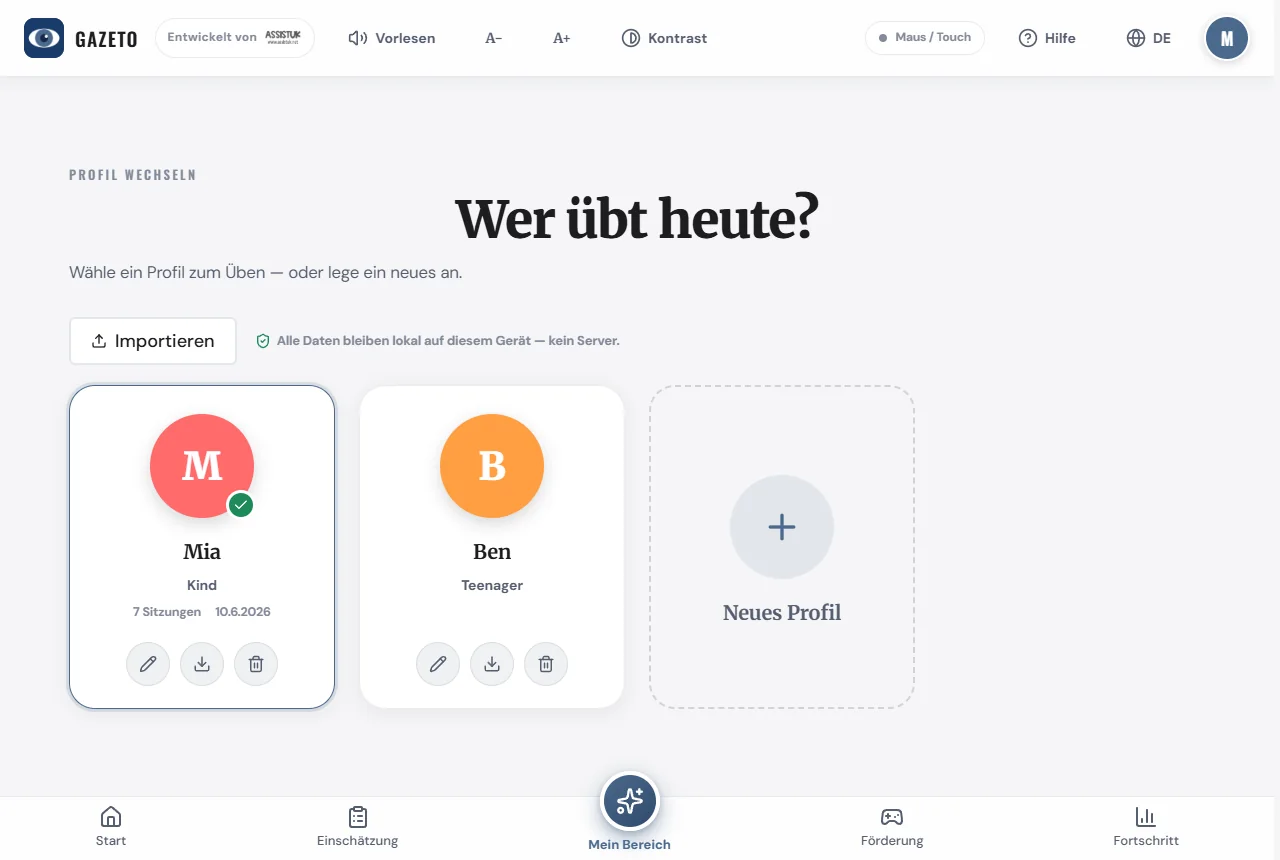
Tip: You can switch or edit your profile at any time by tapping the profile icon in the top-right corner. You can also manage profiles and create new ones in the settings.
3. Screen Overview
GazeTo has the same layout everywhere—once you understand it, you’ll be able to navigate any section.
The top bar
- GazeTo logo (left)—always takes you back to the start.
- Read Aloud — reads the text on the current screen aloud and highlights the passage being read. While the text is being read, the button changes to “Stop”—tapping it again or looking away stops the reading.
- A− / A+ — makes the text smaller or larger; changes take effect immediately.
- Contrast — turns a high-contrast display mode on and off.
- Status indicator — shows the active input method (e.g., “Mouse / Touch”).
- Help — Opens the feature overview: all sections explained as cards, with direct links and a button to this guide.
- Language — Opens the language selection (see Chapter 14).
- Profile icon — Switch profiles.
The navigation bar at the bottom
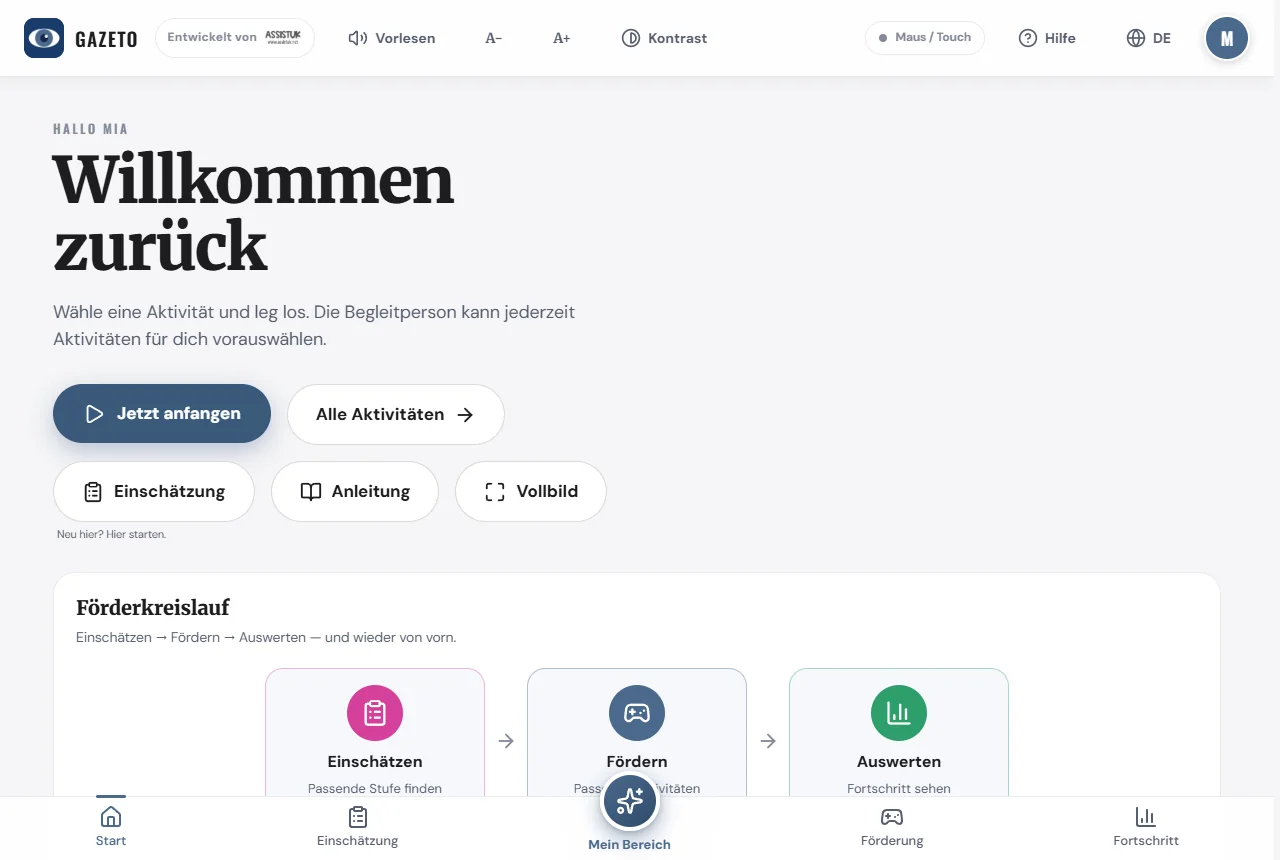
- Start — Welcome, recommendations, 3-day plan, and the support cycle.
- Assessment — the assessment tools: questionnaires and standardized tests (see Chapter 10).
- My Area (center) — the curated selection for the learner.
- Development — all 197 activities with filters.
- Progress — Statistics, reports, and recommendations.
At the very bottom of the footer, you’ll find a link to this guide, as well as the Legal Notice, Privacy Policy, Accessibility Information, and Terms of Service.
4. How do I navigate?
GazeTo is built from the ground up so that three input methods function equally:
| Input | How it works |
|---|---|
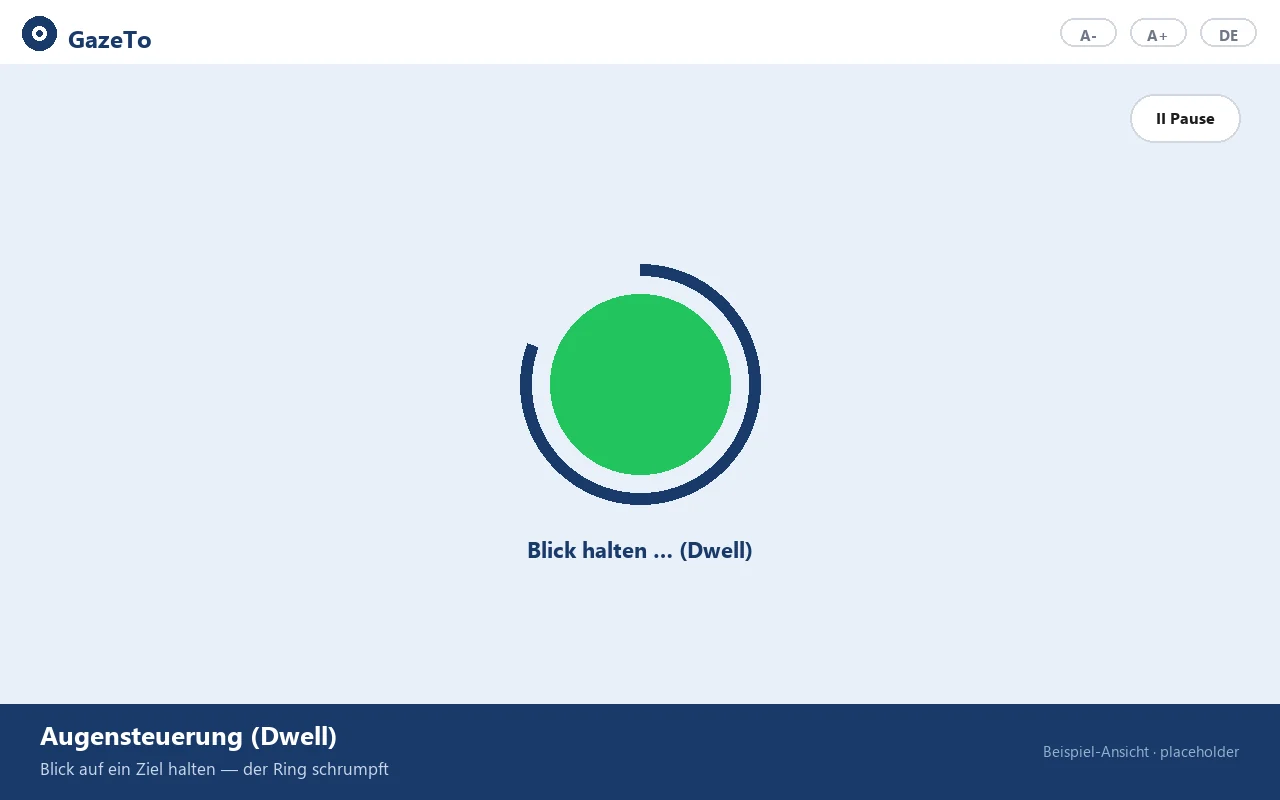
| Eye Tracking (manufacturer-independent) | You look at a target—a ring or circle begins to shrink. Once it’s full, the target is triggered. This is called “dwell.” |
| Mouse (or trackball, joystick) | Clicking activates buttons. Moving across the canvas automatically draws or triggers a response. |
| Touch (tablet, touchscreen) | Tap to trigger. Works everywhere without any extra settings. |
The best part: You don’t need to switch between modes. If you select a target with your eyes and then continue using the trackball—no problem.
Mouse pointer: In activities, GazeTo shows a subtle mouse ring instead of the arrow by default—it covers very little and is easy to follow with a mouse or trackball. In the menus, the standard mouse pointer stays. If you’d rather see a large gaze circle, enable it in the settings under “Cursor style” and pick a suitable color under “Cursor colour”. “Off” hides every pointer.
5. Eye Tracking—Once Set Up Correctly
IMPORTANT for eye-tracking users:
GazeTo handles the clicks itself via the dwell system. Your eye-tracking device
—regardless of the manufacturer—should ONLY move the mouse pointer; it should not
generate its own clicks or trigger hardware dwell.
Here’s how to set it up:
- Open Settings (gear icon at the bottom).
- Set the input method to “Mouse Cursor / Eye Tracking.”
- Set the dwell time—how long you need to look at something before it triggers an action. For starters, 500–800 ms is often a good starting point; if your gaze is very imprecise, it’s better to set it longer.
- Optional: Under Cursor style, choose a clearly visible circle instead of the mouse ring, and under Cursor colour, a suitable color.
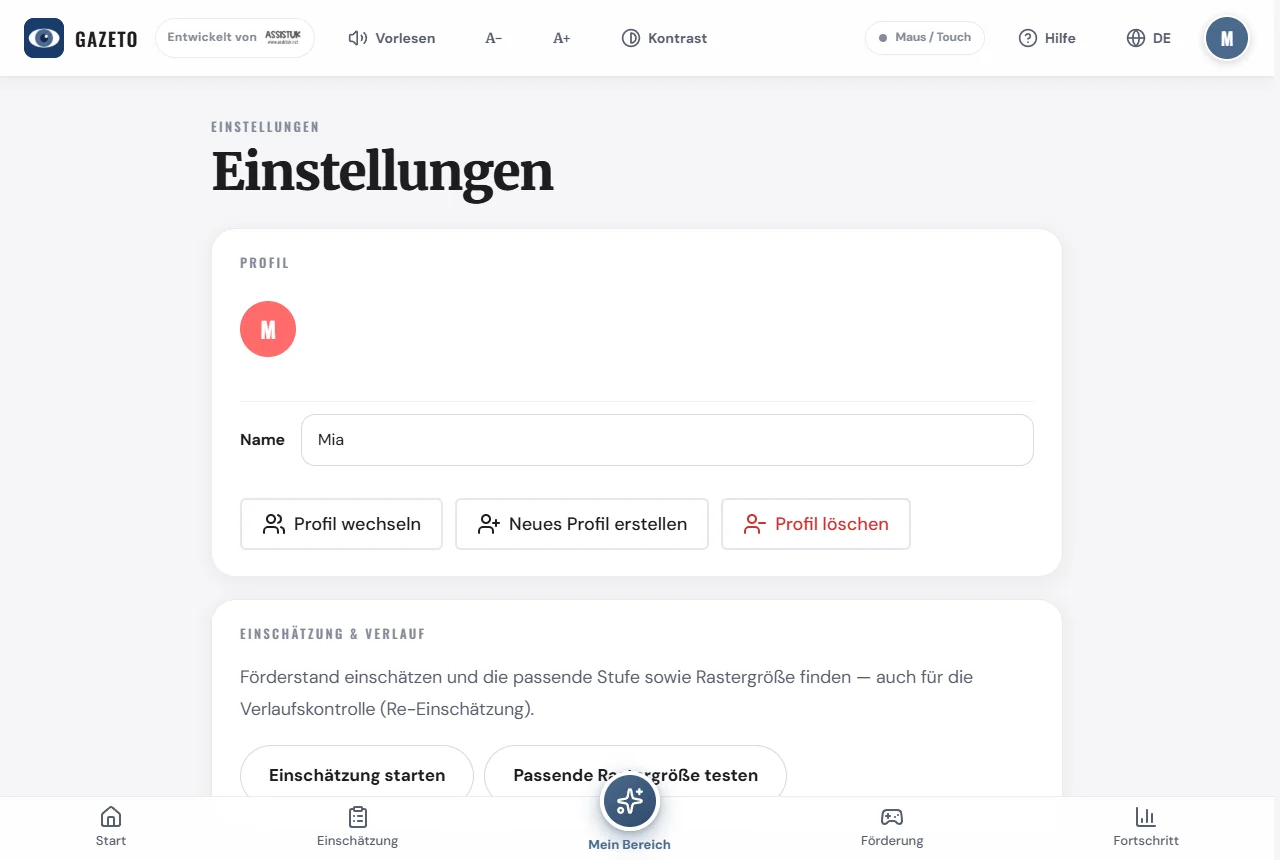
Tip: Make sure the eye tracking is properly calibrated and that you’re sitting at a suitable distance from the screen. This significantly improves accuracy.
What’s the right dwell time? Here’s a guide:
| Situation | Recommendation |
|---|---|
| Experienced users, precise gaze | 400–600 ms |
| Beginners, first experiences | 600–1,000 ms |
| Restless gaze, fatigue, CVI | 1,000–1,500 ms — better slow and steady |
If you have limited vision or CVI, the “Clear Display (CVI)” option in the settings can also help—it darkens backgrounds and adds distinct contrast rings around targets (see Chapter 13).
6. The Step-by-Step Model
GazeTo organizes all activities into 7 proficiency levels—they build on one another:
| Level | Name | What It’s About |
|---|---|---|
| 1 | Discover | Responding to stimuli—perceiving color, movement, and sound. |
| 2 | Explore | Cause and effect — “My gaze makes a difference.” |
| 3 | Finding | Focused observation — hitting a specific target. |
| 4 | Choose | To make a selection—to choose between options. |
| 5 | Control | Control games and processes yourself. |
| 6 | Apply | Apply what you’ve learned in everyday life and in communication. |
| 7 | Master | Communicate confidently, independently, and creatively. |

Each level has its own color, which is used consistently throughout the app. On the home screen, the “All 7 Levels” tile row leads to the level detail pages: There, each level is explained in detail—including its goals, observation tips, and all relevant activities.
Which level is right for you? If you’re unsure, the assessment recommends a starting level based on 6 short questions. When in doubt, it’s better to start one level lower—a sense of accomplishment goes a long way, whereas feeling overwhelmed doesn’t.
7. Find and Start Activities
Under “Support” (at the bottom of the navigation bar), you’ll find all 197 exercises.
Here’s how to filter:
- Select a target group (All, Children, Teens, Adults, Seniors).
- Select a level (1–7)—or “All” for the full list.
- The selected difficulty level filter remains in effect until you choose a new one.
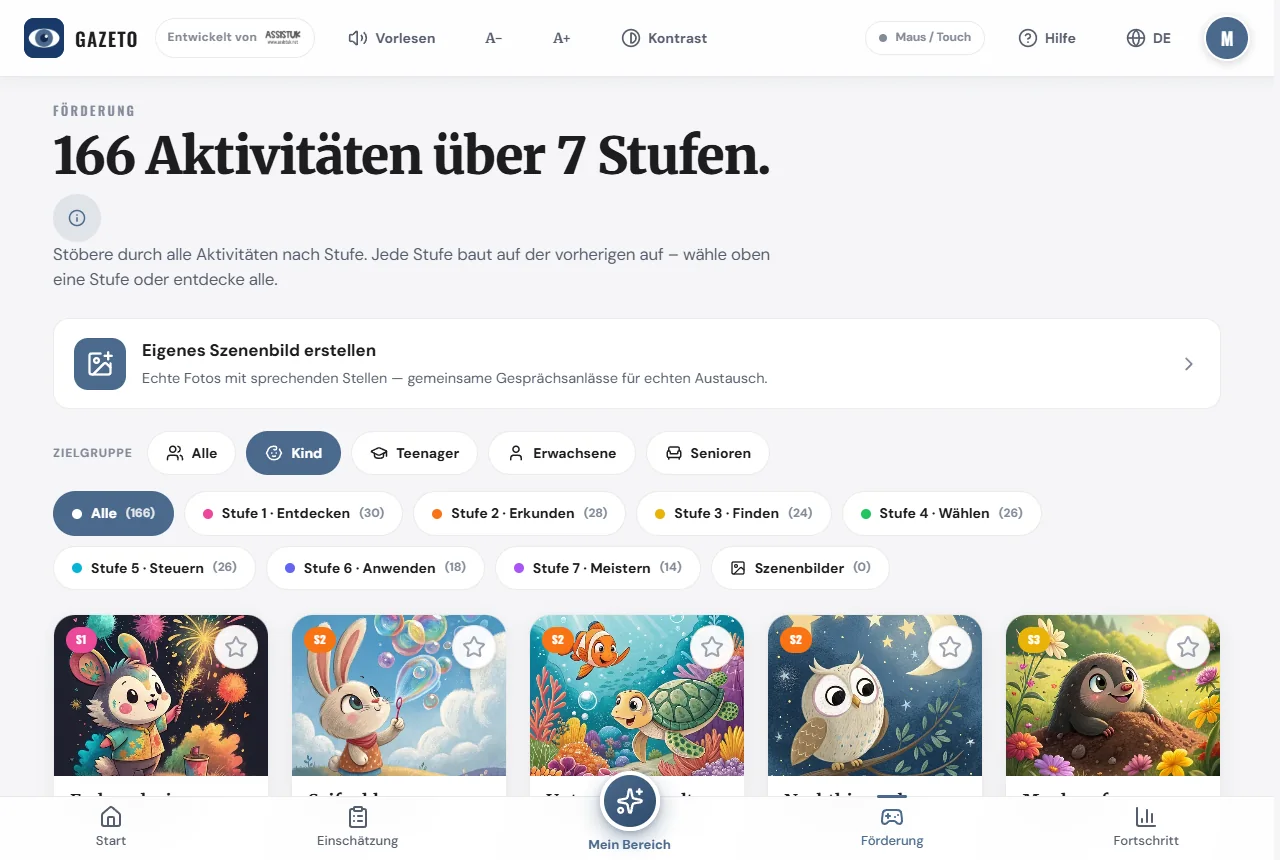
Tap an activity to open the details page. There, you can adjust the difficulty (Easy/Standard), duration, and other options before starting.
The Star: Use the star icon to pin an activity—it will then appear in “My Area” and on the home screen under “Pinned Activities.” This helps the caregiver put together a suitable selection.
8. An Activity from A to Z
- Select an activity—the details page opens.
- Optionally, adjust the difficulty and duration. Tap “Customize” for more options (e.g., instrument, background music, background image).
- Tap “Start”—the activity begins in full-screen mode.
- Play using eye tracking, a mouse, or touch. A pause button is always accessible; the task can be read aloud at any time.
- Once the activity ends, the evaluation appears with stars and an eye-tracking overview.
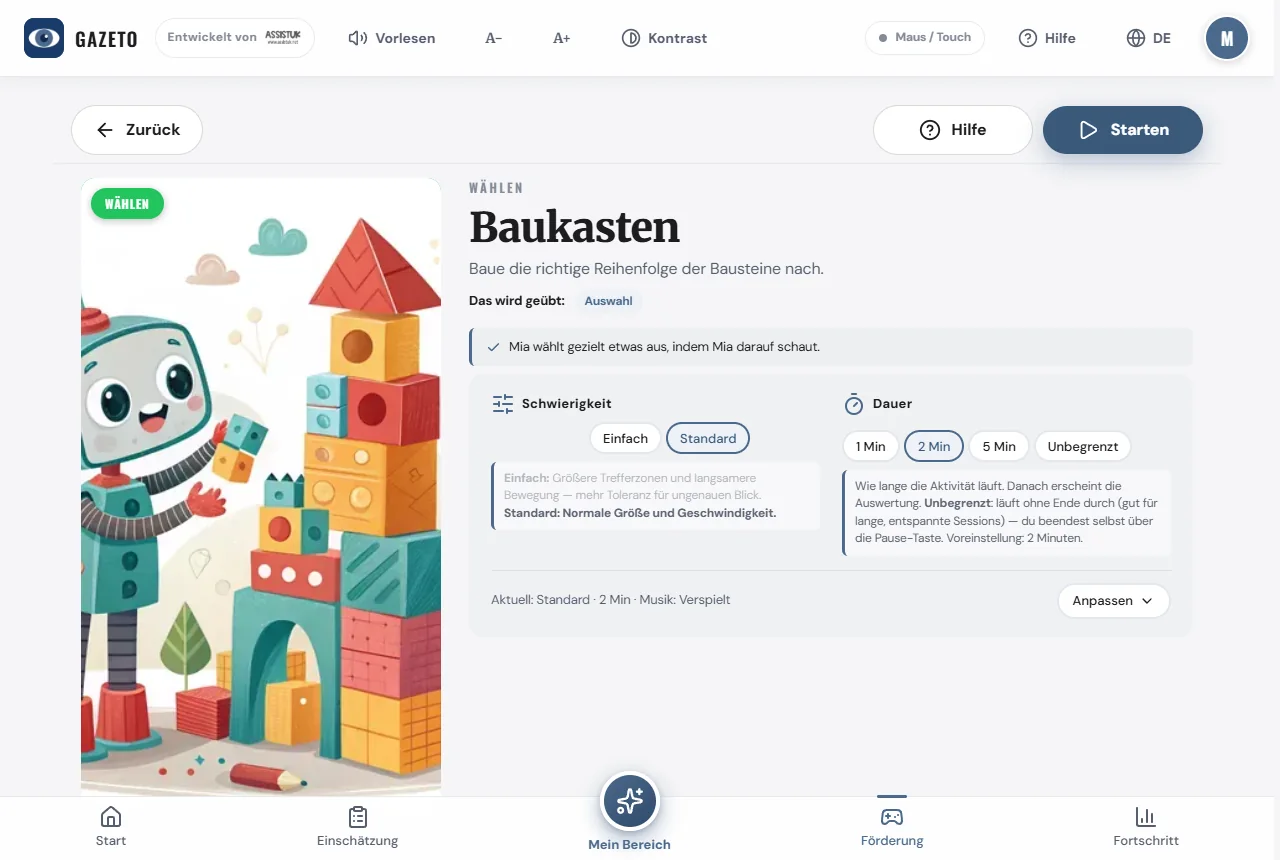
Tip for professionals: On the details page, there’s a section titled “For Professionals” that includes the activity’s classification within the frameworks (Leber, DAGG-3, Eye Gaze Pathway) and observation tips.
Little treats: At the end of each round, GazeTo celebrates the success—sometimes with confetti, sometimes with stars or balloons. The celebration changes from round to round so it doesn’t get boring. For users who need a quiet environment, the “Clear Display (CVI)” setting provides more subdued effects.
9. My Area — Curated Selection & Kiosk Mode
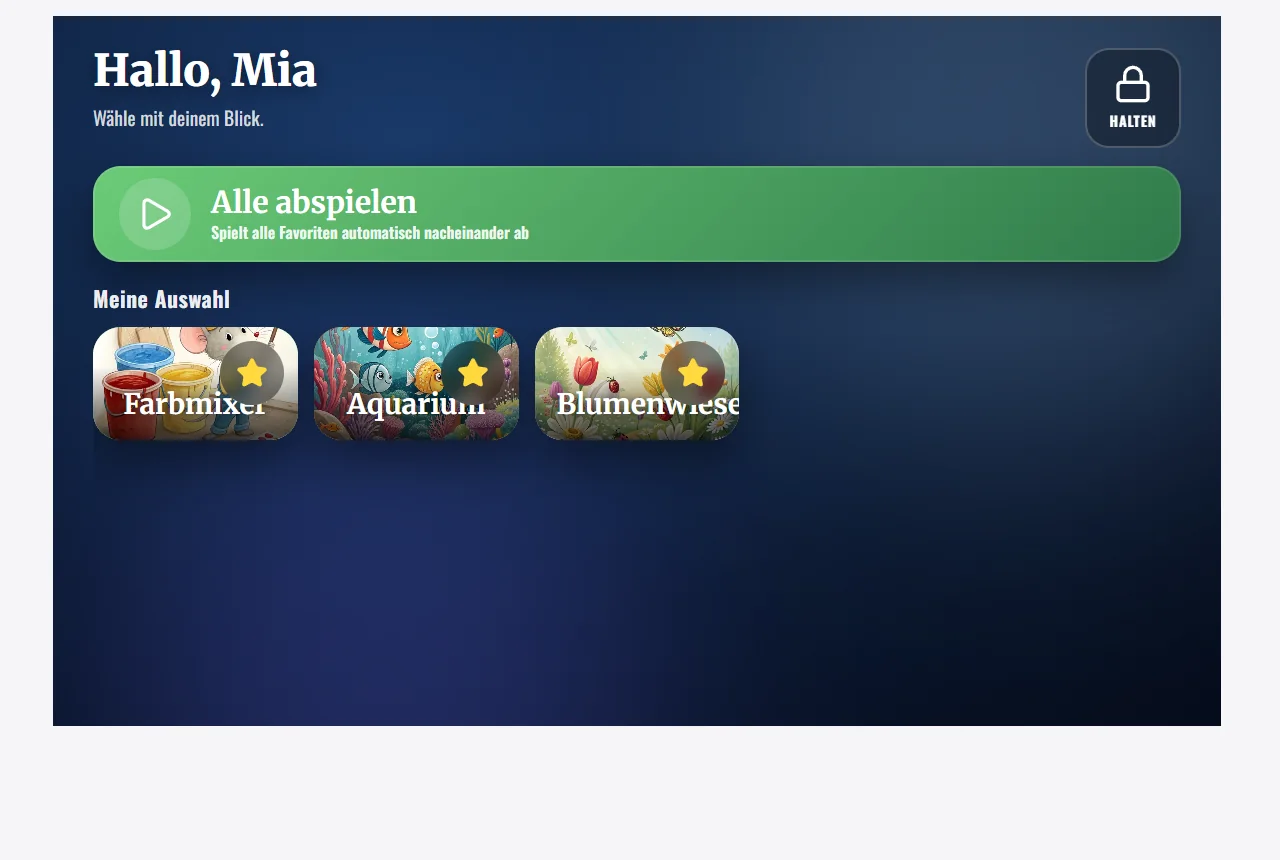
“My Area” is the selection curated for the person practicing. Activities that the caregiver marks with a star in the list appear here—this allows the person practicing to easily navigate through a prepared selection on their own. Custom-created scene layouts also appear here as separate tiles.
Kiosk Mode—Protected Practice
In the settings, there is an option called “Lock My Area (Kiosk).” When this lock is active, “My Area” becomes a protected user mode: The learner cannot accidentally navigate out or change settings—they remain safely within their prepared selection.
Here’s how the supervisor exits Kiosk Mode:
- Hold down the “Lock” button (top right, with the lock icon) with the mouse or keep your finger pressed on it.
- Keep holding until the bar inside the button is full—this takes about 2–3 seconds. Then the path back will open.
Important to know: Letting go cancels the action, and a quick tap isn’t enough—in that case, GazeTo will display a prompt showing the correct gesture. The button cannot be triggered intentionally with your gaze (Dwell): This prevents the user from accidentally leaving the protected area, even if their gaze lands on the button.
Tip: The full-screen button on the home screen only maximizes the screen area (press Esc to exit at any time). The true “lock” for independent practice is kiosk mode.
10. The Assessment — Determining the Level of Support
For professionals and therapists, there is a guided assessment that classifies the current developmental level and recommends appropriate stages and intervention approaches.
Here’s how it works:
- Open “Assessment” (at the bottom of the navigation bar) or “Progress” → “Start Assessment Wizard”—or the “For Professionals” section on an activity detail page.
- Answer 6 short questions about observable behavior (about 5 minutes).
- You’ll receive a recommended starting level, a classification within the frameworks, and specific support strategies.
In addition, there are assessment tests (e.g., accuracy, dwell time, zone accuracy, categorization) and the Word-Finding Test—its results can be transferred directly to the Vocabulary Finder to determine the appropriate vocabulary size for the communication aid.
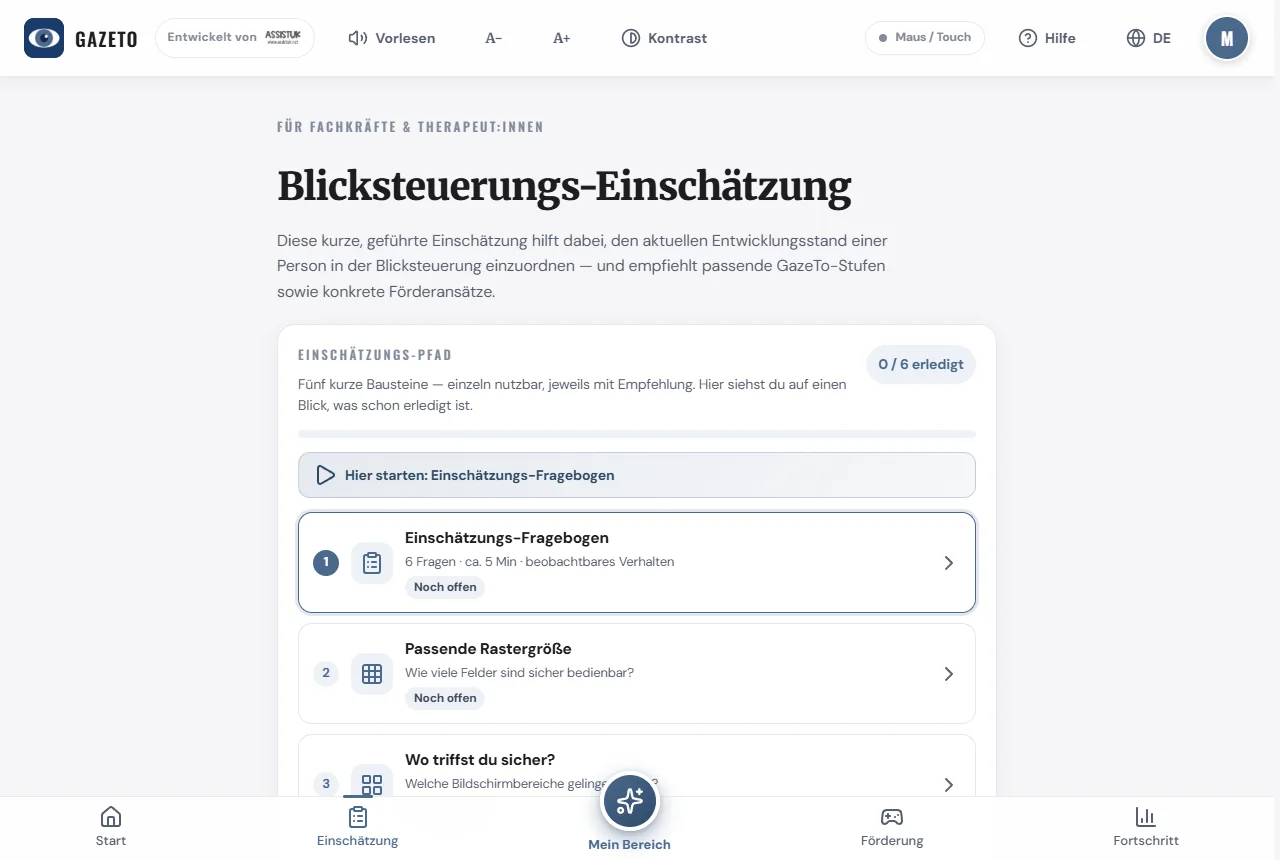
The assessment is based on recognized frameworks (Tobii Dynavox DAGG-3, Irene Leber, Eye Gaze Pathway). It serves as a guide and does not replace a professional evaluation.
11. Progress — the Support Cycle
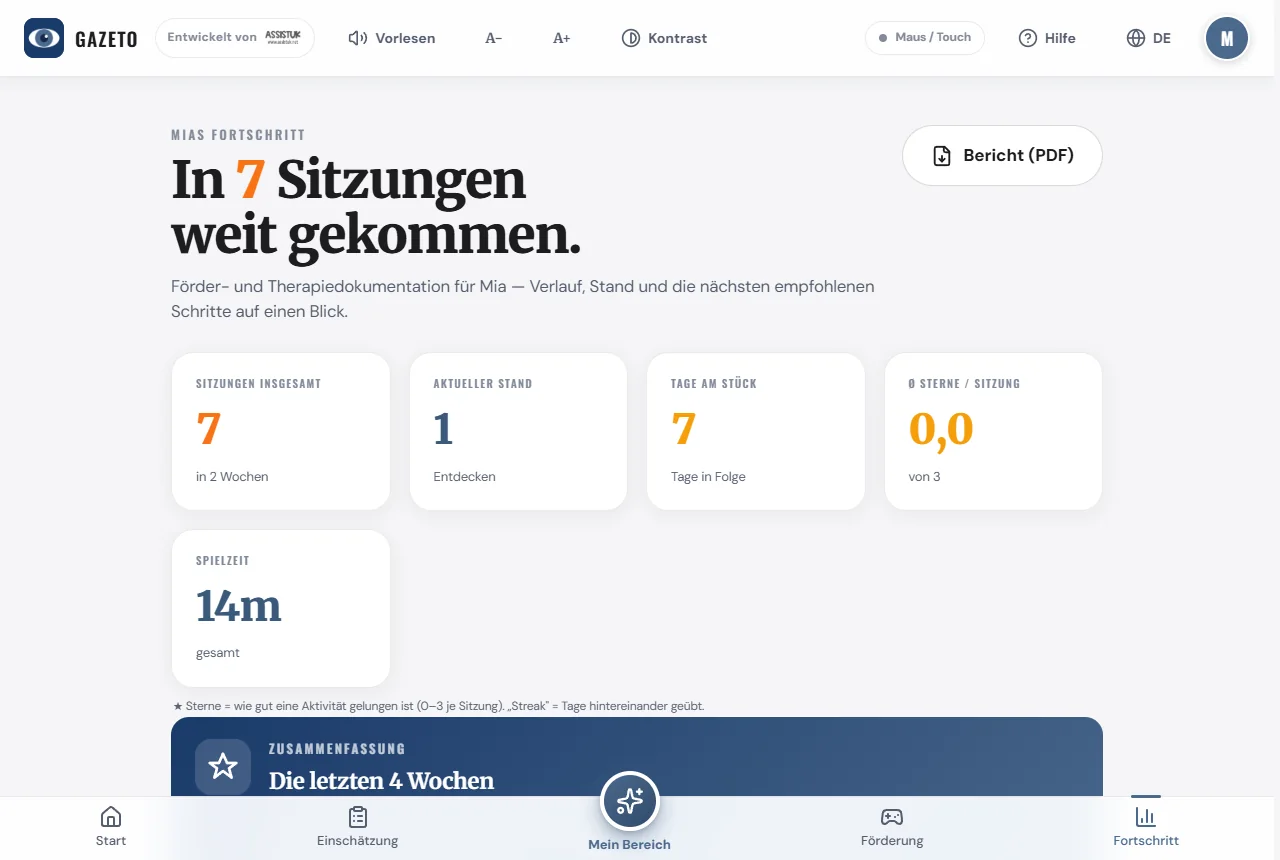
The Progress screen displays the progress and follows the support and intervention cycle: Assessment → Support Plan → Support → New Assessment.
Here you’ll find:
- Number of sessions, exercise days, and series (“consecutive days”)
- an eye-tracking analysis (screen coverage, fixations, lateral distribution)
- Recommended next steps and a weekly schedule
- the key areas of support that guide the recommendations on the home screen
- Reports & heatmaps for each session
12. Scene Images — in SceneTalk
You can create your own “talking pictures” in the sister app SceneTalk. There, you select a favorite photo, mark specific spots in the image (Mom, the pet, the favorite toy), and add text or a voice recording. When someone looks at a marked spot, they hear the corresponding word.
SceneTalk is free and can be used in your browser without registration: scenetalk.assistuk-apps.net
Three ways to access it from GazeTo:
- the “Scene images are available in SceneTalk” card at the top of the Activities page,
- the level note “Create your own content for this level” for Levels 2 through 7,
- the “Use in SceneTalk” button at the end of the grid accuracy test—there, the measured result fits directly into the grid you create.
The scenes remain stored in SceneTalk and are also backed up there. GazeTo continues to provide ready-made scene activities on its own—you’ll find them as usual in the Activities list.
13. Customize Settings
In the settings (gear icon at the bottom), you can configure, among other things:
- Input method and dwell time (see Chapter 5)
- Cursor style (default: subtle mouse ring in activities, standard mouse pointer in the menus; circle/dot/mini-dot/crosshairs can be enabled—with color; “Off” hides all pointers if the moving dot is distracting)
- Clear Visualization (CVI)—darkens backgrounds in activities and displays contrast rings around targets; helpful for CVI or low vision
- Lock My Area (Kiosk) — protected user mode (see Chapter 9)
- Volume, Sounds, and Background Music (with track selection)
- Contrast, color theme, and font size (also available at any time in the top bar)
- Language (see Chapter 14)
- Switch or edit profile
- Data & Backup — Backup and Migration (see Chapter 15)
14. Change Language — 101 Languages
GazeTo supports 101 languages — the same language selection as DigitalPainters. You can find it in two places:
- in the top-right corner of the bar via the language icon,
- or in the settings under the “Language” section.
Each language displays its flag and name in its own script (e.g., “中文,” “العربية”). Use the search field to quickly find any language—the search recognizes the language’s name in its own script, its English name, and its abbreviation.
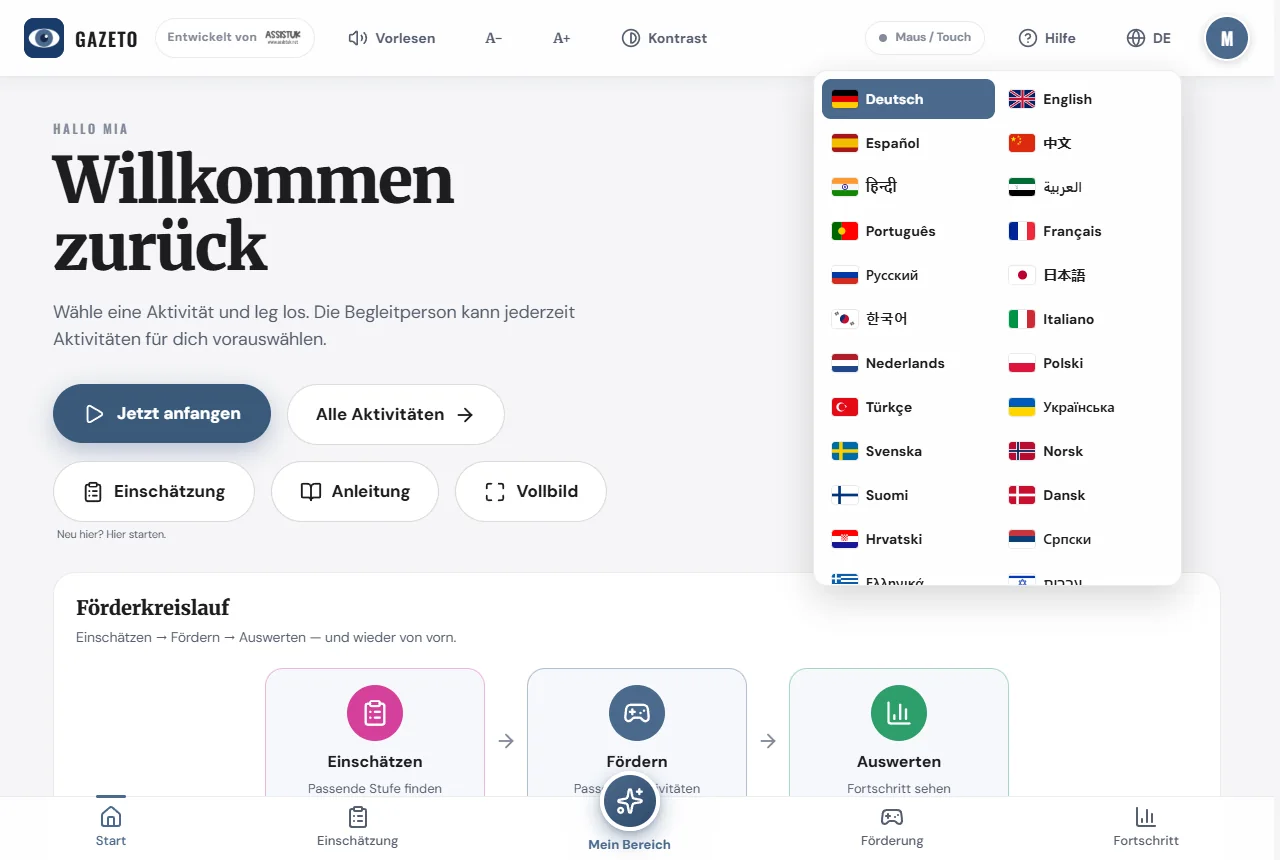
The entire app switches over immediately—even right-to-left scripts (Arabic, Hebrew, etc.) are displayed correctly. Content that hasn’t been translated into a language yet automatically appears in English—so everything remains readable at all times.
15. Backing Up and Transferring Data
In the “Data & Backup” section of Settings, you can:
- create a full backup (all profiles, sessions, scenes, and settings in a single file) and restore it on another device,
- or just export/import settings.
This allows you, for example, to switch from an old device to a new one without losing your progress. The backup file stays on your device—it isn’t uploaded anywhere.
Important: GazeTo stores everything locally in the browser. If you clear your browser data (“Clear browsing data”), you’ll also delete your profiles and progress. So before doing a major browser cleanup or switching devices: make sure to create a full backup first.
16. Install GazeTo and use it offline
GazeTo can be installed like an app and works offline afterward.
- On a tablet or phone: Select “Add to Home Screen” from the browser menu.
- On a computer: Click the installation icon in the address bar—or confirm the prompt “Install GazeTo.”
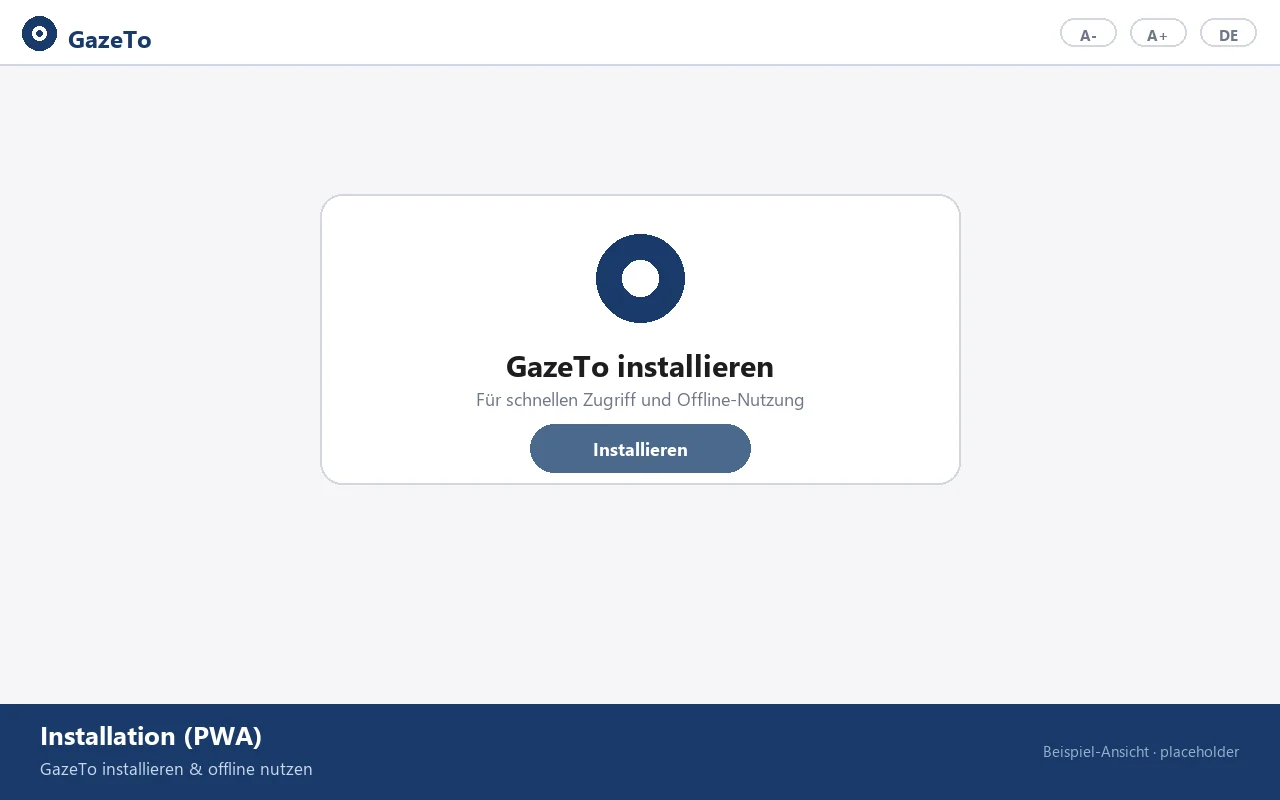
After the initial installation, GazeTo runs entirely without an internet connection—ideal for therapy and school. Only newly added languages will reload briefly the first time you switch between them.
Audio tip: For security reasons, sound in the browser tab won’t start until after the first touch—just tap or click anywhere once (GazeTo will display a prompt). Once installed as an app, the sound starts automatically—one more reason to install it.
17. Privacy
GazeTo does not store any personal data on servers. Profiles, progress, and scene images remain exclusively in the device’s browser (locally). There is no cloud transmission. We track how often the app is opened and whether it runs without technical errors anonymously on our own server—without cookies and without storing anything on the device.
Eye tracking runs entirely locally—no video is recorded or transmitted.
18. About Us — Lars Tiedemann, Nele Diercks & AssistUK
GazeTo is a project by AssistUK—a social enterprise dedicated to content and apps related to assistance, inclusion, and augmentative and alternative communication.
Lars Tiedemann
Inclusive educator (Dipl. Heilpädagoge FH), working in the field of Augmentative and Alternative Communication (AAC) since 1992. Over 10 years of experience at Tobii Dynavox, more than 5 years of teaching at the Catholic University of Applied Sciences in Freiburg, and software development for AAC since 2007. Lars Tiedemann develops GazeTo and the entire AssistUK app family.
Nele Diercks
Expert by lived experience and, on a voluntary basis, speaker for the German Society for Augmentative and Alternative Communication (Gesellschaft für Unterstützte Kommunikation). For AssistUK, Nele Diercks provides ideas and impulses: her lived experience with Augmentative and Alternative Communication shows what really matters in everyday use of the apps.

The AssistUK App Family
GazeTo has siblings—all designed to be accessible: TouchTo (direct touch access), DigitalPainters (painting & creativity, including eye control), ArtTherapy and MusicTherapy (art and music therapy activities), AssistPlay (educational games), and more. You can find all the apps and offerings at www.assistuk.net.
19. Support GazeTo
GazeTo is free, ad-free, and requires no account. We only track, anonymously, how often the app is opened. To ensure it stays that way—and so that new activities, features, and translations can be developed—we’d appreciate your voluntary contribution. Every euro goes directly toward further development and operations (servers, hosting, software licenses).
Note: GazeTo is a non-commercial project by Lars Tiedemann (AssistUK), but it is not a registered nonprofit organization. Contributions are therefore not tax-deductible donations, and no donation receipt will be issued. If you’d still like to support us: thank you very much—from the bottom of our hearts, for the cause.
SEPA Transfer

IBAN: DE81 1101 0100 2460 6697 67
BIC: SOBKDEBBXXX
Payment reference: GazeTo Support

You can help even without donating money: Spread the word about GazeTo—in schools, early intervention centers, speech therapy and occupational therapy practices, AAC counseling centers, and self-help groups. The more people who know about and use GazeTo, the more meaningful the entire project becomes. Feedback and testimonials via email are also very helpful.
20. Mini Glossary
A few terms that appear in this guide:
| AAC | Augmentative and Alternative Communication — all methods of communicating without (intelligible) spoken language. |
| Eye tracking | With an eye tracker, you move the mouse pointer using your eyes. |
| Dwell | “Dwell”: You look steadily at a spot until the ring fills up—then it triggers. This is how you click without a button. |
| Calibration | The eye tracker’s hardware and software automatically calibrate the eye control to your eyes. |
| Level | One of the 7 proficiency levels in the GazeTo learning model (from Discover to Master). |
| Scene View (VSD) | A photo with interactive areas (hotspots)—“Visual Scene Display.” |
| Hotspot | A marked area in a scene image that plays audio when viewed or tapped. |
| Kiosk Mode | The lock for “My Area”: The learner remains protected within their selection. |
| Heatmap | A colored map showing where the user’s gaze wandered during a session. |
| PWA | "Progressive Web App" — GazeTo can be installed like an app and runs offline. |
21. If something isn’t working
Don’t worry—most issues can be resolved quickly.
Eye control isn't triggering anything
- Eye control should only move the mouse pointer, not click on its own—see Chapter 5 (Auto-Click / Hardware Dwell Off).
- Is the dwell time too long or too short? Adjust it in the settings.
It triggers twice or too quickly
Usually, the eye-tracking hardware also clicks on its own—turn off its auto-clicks. If that doesn’t help, extend the dwell time in GazeTo slightly.
No sound
In the browser tab, sound should only start after the first actual touch—a single tap or click is enough. As an installed app, the sound starts automatically. Otherwise: Check the device volume and review the Sounds/Music settings.
A page remains blank or appears outdated
Reload the page once. GazeTo updates itself the next time you open it with an internet connection—no installation from an app store is necessary.
Profiles or progress have disappeared
This happens when the website’s browser data has been deleted (including via “free up storage” features). That’s why you should regularly create a full backup—you can restore everything from it.
A language won’t load
New languages are downloaded from the internet the first time you switch to them. Offline, only languages you’ve already used are available—just go online briefly and select the language once.
Still having trouble? Write to us—see Help & Contact. We’re happy to help, and every piece of feedback makes GazeTo better.
22. Frequently Asked Questions
Does GazeTo cost anything?
No, it’s free—even for organizations. To keep it that way, we appreciate any voluntary contribution.
Do I need an internet connection?
Only the first time you launch the app (and the first time you switch to a new language). After that, GazeTo can be installed and runs completely offline.
Which eye-tracking devices are supported?
Any that can move a mouse pointer—regardless of the manufacturer. GazeTo performs the clicks itself (dwell). Important: Disable the hardware’s auto-click feature (see Chapter 5).
On which devices does GazeTo run?
On tablets and PCs with a current browser (Chrome, Edge, Safari, Firefox). Eye control requires a device with an eye tracker; a mouse, trackball, and touchscreen work on all devices.
Can I use GazeTo in an institution (school, doctor’s office, special education center)?
Absolutely—that’s exactly what it’s designed for. Profiles separate the users, kiosk mode ensures independent practice, and the assessment supports educational planning. If you have any questions, just send an email.
What happens to the data? Is anything tracked?
No. No accounts, no cloud. The only thing tracked—anonymously—is how often the app is opened. Everything stays locally on the device—you create backups yourself as a file.
What’s the difference between GazeTo and TouchTo?
GazeTo is designed for eye control (dwell, gaze tracking), while TouchTo is the sister app for direct touch access (tapping with a finger)—with the same levels and activities. Anyone who uses both will find their way around immediately.
Can I submit requests or ideas?
Absolutely! GazeTo grows directly out of the community’s needs. Send your idea to lars.tiedemann@assistuk.net—the more specific, the better.
23. Help & Contact
- Email: lars.tiedemann@assistuk.net
- AssistUK: www.assistuk.net
- Legal Information: You can find the legal notice, privacy policy, and accessibility information in the app footer.
Give it a try—there’s nothing to break. Every small step is a real one.
— Lars Tiedemann & Nele Diercks, AssistUK