 GazeTo
PDF
-sprog
GazeTo
PDF
-sprog
GazeTo — Vejledning til alle, der lærer og kommunikerer med øjnene
Velkommen! GazeTo er en lærings- og kommunikationsplatform til øjenstyring — udviklet som led i AssistUK-projektet, specielt til mennesker, der bruger eller er ved at lære støttet kommunikation.
Du behøver ingen forudgående erfaring og ingen speciel hardware. GazeTo kører i browseren og fungerer lige så godt med øjenstyring som med mus eller touch.
Øjenstyring · Mus · Berøring — alt fungerer.
Uanset om du styrer med øjnene, klikker med musen, bruger en trackball eller
trykker på skærmen med fingeren — GazeTo reagerer på alle disse
indtastningsmetoder, uden at du behøver at ændre noget.
Om øjenstyring: Den fungerer med enhver enhed, der bevæger musemarkøren med øjnene
(„musemulering“). Dit blik overtager simpelthen musens opgave —
det kan stort set alle øjenstyringssystemer, uanset hvilken producent de kommer fra.
Inspiration fra egne erfaringer. Nele Diercks er ekspert på området og arbejder frivilligt som foredragsholder for foreningen for understøttet kommunikation. For AssistUK er Nele Diercks en inspirationskilde: Hendes egne erfaringer med understøttet kommunikation giver anledning til, hvad der virkelig betyder noget for apps i hverdagen. Læs mere herom i kapitlet Om os.
Kom i gang i 3 trin:
- Åbn GazeTo — første gang du starter appen, guider en kort vejledning dig gennem sprog og profil.
- Gå ned til »Støtte« og vælg en aktivitet fra niveau 1 eller 2 — eller tryk blot på »Kom i gang nu« på startskærmen.
- »Start« — kig, klik eller tryk. Mere behøver du ikke.
Indhold
- Hvad er GazeTo?
- Første opstart — onboarding og profil
- Oversigt over skærmen
- Hvordan styrer jeg? Øjne, mus, berøring
- Øjenstyring — indstil det korrekt én gang for alle
- Trinmodellen — de 7 kompetencetrin
- Find og start aktiviteter
- En aktivitet fra A til Z
- Mit område — sammensat udvalg & kiosk-tilstand
- Vurderingen — indplacering af støtteniveauet
- Fremskridt — støttecyklussen
- Scenebilleder — i SceneTalk
- Tilpas indstillinger
- Skift sprog — 101 sprog
- Sikkerhedskopiering og overførsel af data
- Installer GazeTo og brug det offline
- Databeskyttelse — alt forbliver lokalt
- Om os — Lars Tiedemann, Nele Diercks & AssistUK
- Støt GazeTo
- Lille ordbog
- Hvis noget ikke virker
- Ofte stillede spørgsmål
- Hjælp & kontakt
1. Hvad er GazeTo?
GazeTo hjælper med at lære øjenstyring trin for trin — fra det første blik til sikker kommunikation med symboler. Det tilbyder 197 aktiviteter, der er sjove og samtidig fremmer vigtige øjenstyringsfærdigheder.
GazeTo henvender sig til to grupper på samme tid:
- den, der træner — vedkommende leger, udforsker og kommunikerer med blikket.
- ledsageren (terapeut, lærer, pårørende) — vedkommende vælger aktiviteter, vurderer niveauet og følger fremskridtene.
Bagved ligger en klar udviklingscyklus: Vurdering → Træning → Evaluering — og så forfra. Vurderingen finder det passende startniveau, aktiviteterne træner målrettet, og fremskridtet viser, hvad der har ændret sig.
Det faglige grundlag udgøres af anerkendte rammeværker inden for støttet kommunikation og træning af blikstyring — bl.a. trinmodellen efter Irene Leber, DAGG-3 (Tobii Dynavox) og Eye Gaze Pathway. Hver aktivitet er tilknyttet disse rammeværker (synligt i afsnittet »For fagfolk« på detaljesiden).
GazeTo er gratis og uden reklamer – udviklet til terapi, skole, tidlig intervention og brug i hjemmet. Det kører direkte i browseren på tablet eller pc, uden login og uden app-store.
Søsterappen TouchTo: Til personer, der bruger fingeren i stedet for øjnene, findes GazeTos søsterapp TouchTo — de samme aktiviteter og niveauer, men udelukkende udviklet til direkte touch-adgang.
2. Første opstart — onboarding og profil
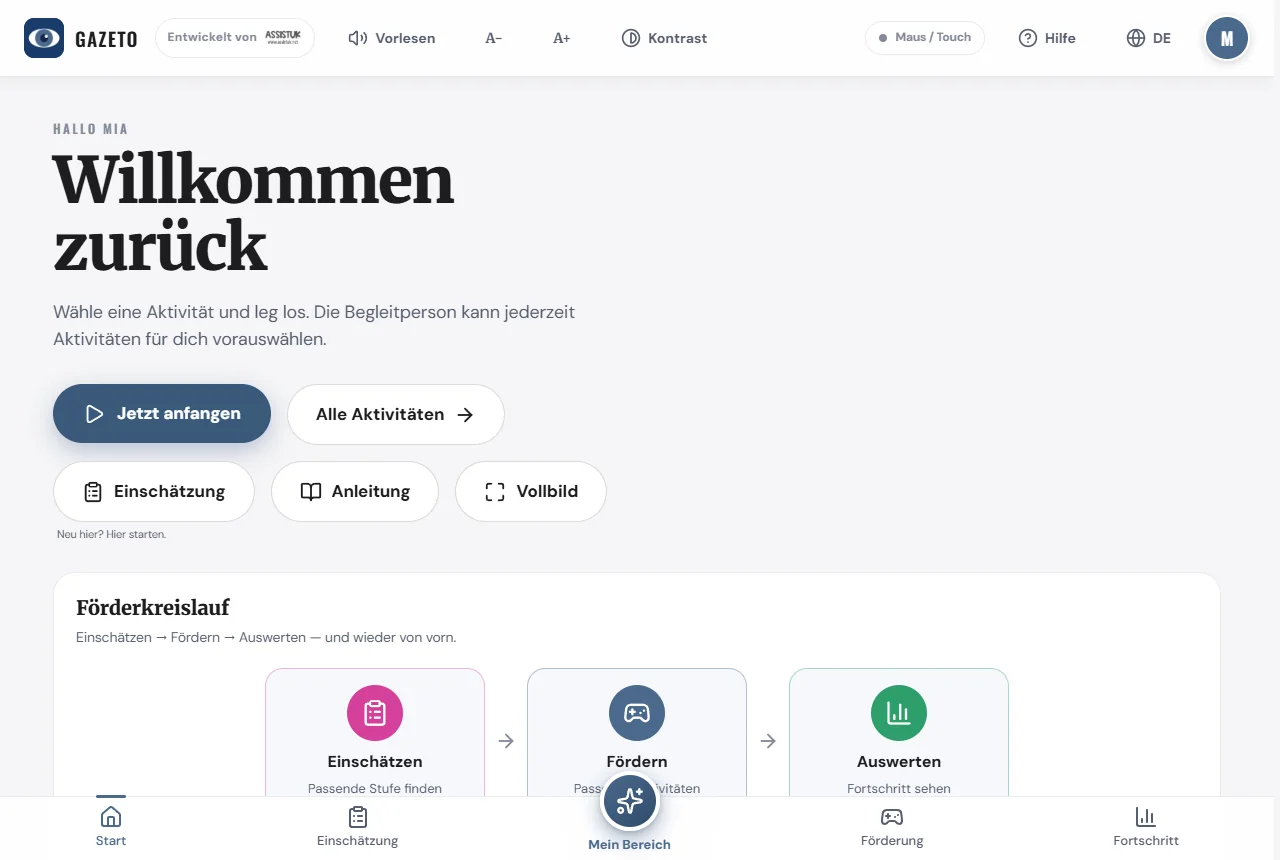
Når du åbner appen for allerførste gang, byder en kort guide dig velkommen i 4 trin:
- Velkomst & sprog — vælg dit sprog (blandt 101).
- Sådan fungerer det — kort forklaring af betjeningen.
- Hvad du kan her — oversigt over områderne.
- Opret profil — navn, billede og aldersgruppe.
Du kan når som helst gennemgå vejledningen igen: Indstillinger → „Se introduktionen igen“.
Profiler — Hvem øver sig i dag?
Hver profil gemmer dine egne fremskridt, dine foretrukne indstillinger og din aldersgruppe. På den måde kan flere personer træne på samme enhed uden at overskrive hinandens indstillinger.
Sådan opretter du en profil:
- Tryk på »Ny profil«.
- Indtast et navn, og vælg et foto (upload eller tag med kameraet), et billede fra galleriet (f.eks. ræv, panda, raket) eller en farve.
- Vælg aldersgruppe (barn, teenager, voksen, senior) — den bestemmer, hvilke aktiviteter der foreslås, og filtrerer aktivitetslisten i overensstemmelse hermed.
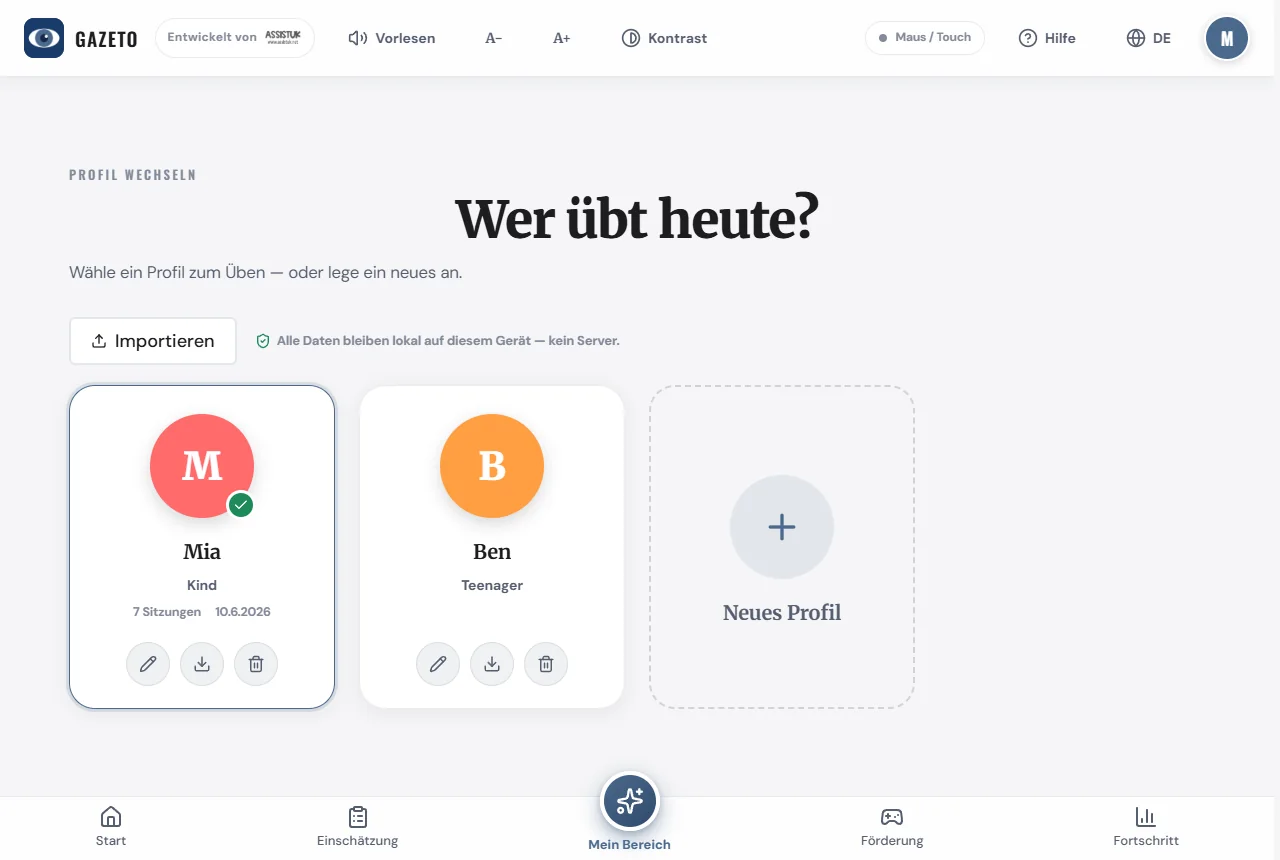
Tip: Du kan til enhver tid skifte eller redigere profilen via profilsymbolet øverst til højre. Du kan også administrere profiler og oprette nye i indstillingerne.
3. Oversigt over skærmbilledet
GazeTo er opbygget på samme måde overalt — når du først har forstået det, kan du finde rundt i alle områder.
Linjen øverst
- GazeTo-logoet (til venstre) — fører dig altid tilbage til startsiden.
- Oplæsning — læser teksten på den aktuelle skærm højt og markerer samtidig det sted, der læses op. Under oplæsningen skifter knappen til »Stop« — et nyt tryk eller et blik afslutter oplæsningen.
- A− / A+ — gør skriften mindre eller større; ændringen træder i kraft med det samme.
- Kontrast — slår en kontrastrig visningstilstand til og fra.
- Statusindikator — viser den aktive indtastningsmetode (f.eks. „Mus / Touch”).
- Hjælp — åbner funktionsoversigten: alle områder forklaret som kort med direkte links og en knap til denne vejledning.
- Sprog — åbner sprogvalget (se kapitel 14).
- Profil-ikon — Skift profil.
Navigationen nederst
- Start — velkomst, anbefalinger, 3-dages-plan og støttekredsløbet.
- Vurdering — vurderingsværktøjerne: spørgeskemaer og måletests (se kapitel 10).
- Mit område (i midten) — det sammensatte udvalg til den, der øver sig.
- Træning — alle 197 aktiviteter med filtre.
- Fremskridt — statistikker, rapporter og anbefalinger.
Helt nederst i sidefoden finder du linket til denne vejledning samt kolofon, privatlivspolitik, tilgængelighed og vilkår og betingelser.
4. Hvordan navigerer jeg?
GazeTo er fra grunden opbygget, så tre indtastningsmetoder fungerer på lige fod:
| Indtastning | Sådan fungerer det |
|---|---|
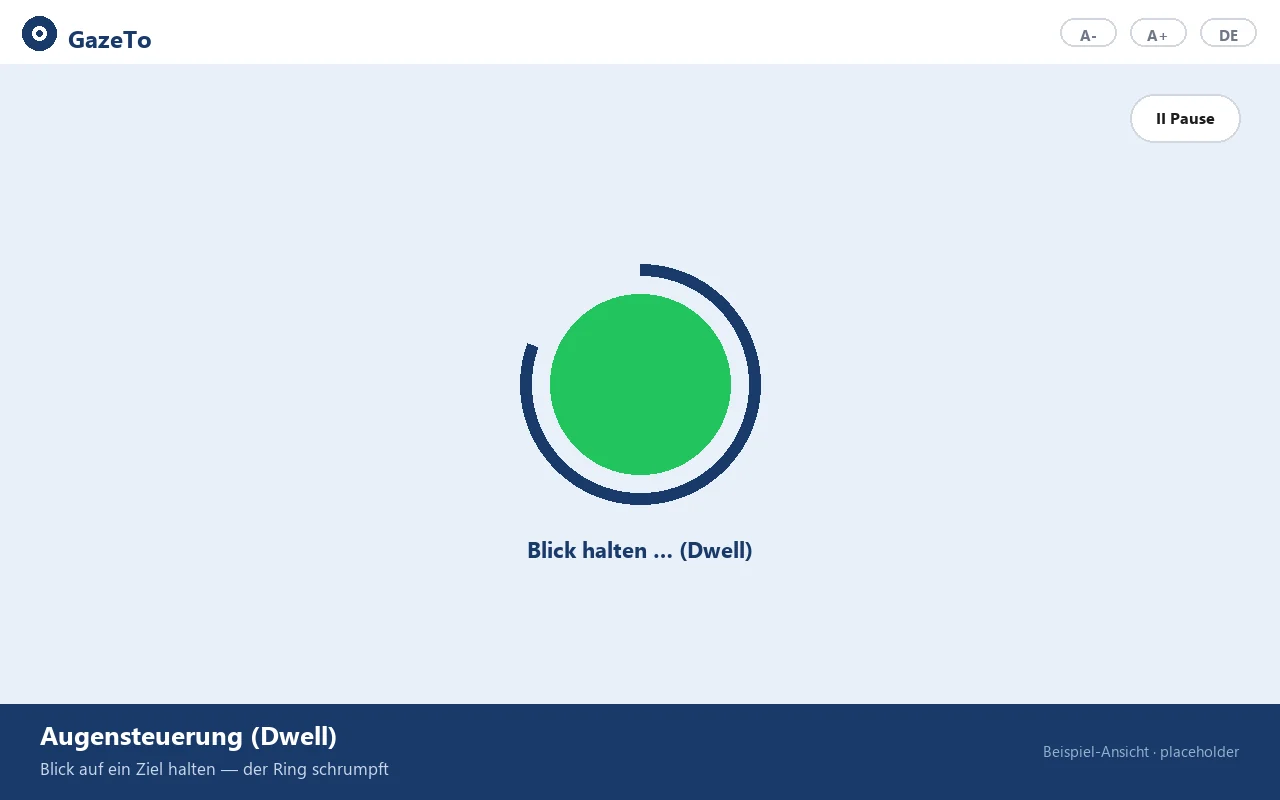
| Øjenstyring (producentuafhængig) | Du kigger på et mål — en ring eller en cirkel begynder at krympe. Når den er fuld, udløses målet. Dette kaldes »dwell« (ophold). |
| Mus (eller trackball, joystick) | Et klik aktiverer knapper. Når du bevæger dig over skærmen, tegner/reagerer den automatisk. |
| Touch (tablet, touchscreen) | Tryk = udløs. Fungerer overalt uden ekstra indstillinger. |
Det bedste ved det: Der er ingen grund til at skifte mellem forskellige tilstande. Hvis du vælger et mål med øjnene og derefter fortsætter med trackballen — intet problem.
Musemarkør: I aktiviteterne viser GazeTo som standard en diskret musering i stedet for pilen — den dækker kun lidt og er nem at følge med musen eller trackballen. I menuerne forbliver den normale musemarkør. Hvis du foretrækker at se en stor synscirkel, kan du aktivere den i indstillingerne under »Markørstil« og vælge en passende farve under »Cursor Color«. »Fra« skjuler alle markører.
5. Øjenstyring — når den først er indstillet korrekt
VIGTIGT for brugere af øjenstyring:
GazeTo udfører selv klikene via dwell-systemet. Din
øjenstyring – uanset producent – bør KUN flytte musemarkøren – den skal ikke
udføre egne klik eller udløse hardware-dwell.
Sådan indstiller du det:
- Åbn indstillingerne (tandhjulsikonet nederst).
- Indstil indtastningsmetoden til „Musemarkør / Øjenstyring”.
- Indstil dwell-tiden – hvor længe du skal kigge på noget, før der sker noget. Til at begynde med er 500–800 ms ofte fint; hvis dit blik er meget upræcist, bør du vælge en længere tid.
- Valgfrit: Vælg en tydelig cirkel i stedet for museringen under Markørstil, og vælg en passende farve under Cursor Color.
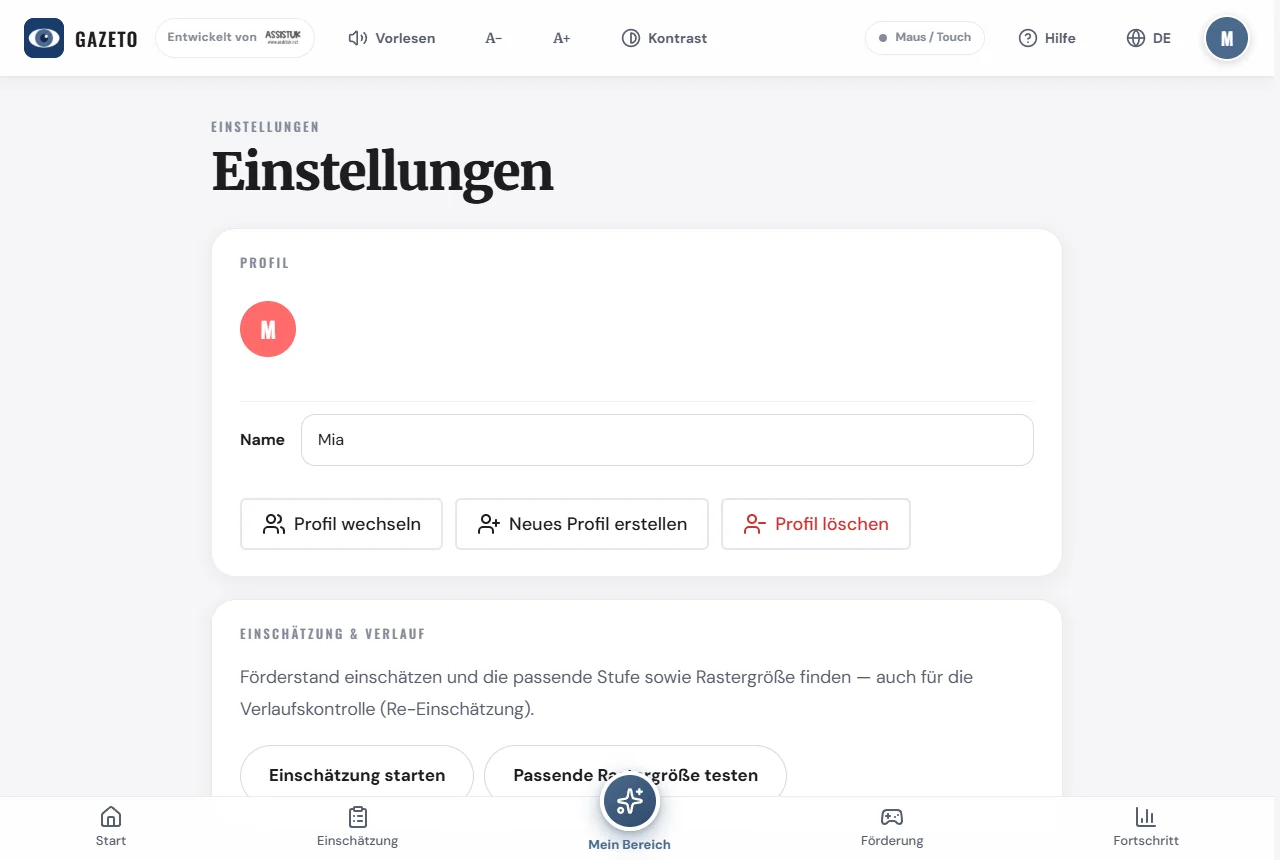
Tip: Sørg for, at øjenstyringen er korrekt kalibreret, og at afstanden mellem dig og skærmen er passende. Det forbedrer træfsikkerheden markant.
Hvilken dwell-tid er den rigtige? En vejledning:
| Situation | Anbefaling |
|---|---|
| Erfarne brugere, præcist blik | 400–600 ms |
| Nybegyndere, første erfaringer | 600–1000 ms |
| Uroligt blik, træthed, CVI | 1000–1500 ms — hellere langsomt og sikkert |
Ved nedsat syn eller CVI hjælper funktionen »Klar visning (CVI)« i indstillingerne yderligere — den mørkner baggrunden og lægger tydelige kontrastringe omkring målene (se kapitel 13).
6. Trinsmodellen
GazeTo inddeler alle aktiviteter i 7 kompetencetrin — de bygger videre på hinanden:
| Niveau | Navn | Hvad det handler om |
|---|---|---|
| 1 | Udforskning | Reagere på stimuli — opfatte farver, bevægelse og lyd. |
| 2 | Udforske | Årsag og virkning — »mit blik har en virkning«. |
| 3 | Finde | At se målrettet — at ramme et bestemt mål. |
| 4 | Vælge | Foretage et valg — vælge mellem forskellige muligheder. |
| 5 | Styre | Selv styre spil og forløb. |
| 6 | Anvendelse | Anvende det lærte i hverdagen og i kommunikationen. |
| 7 | Mestre | Kommunikere sikkert, selvstændigt og ved at kombinere forskellige elementer. |

Hvert niveau har sin egen farve, der går igen i hele appen. På startskærmen fører rækken af fliser „Alle 7 niveauer“ til siderne med detaljer om de enkelte niveauer: Her forklares hvert niveau udførligt — med mål, observationstips og alle relevante aktiviteter.
Hvilket niveau passer? Hvis du er i tvivl: Vurderingen anbefaler et startniveau efter 6 korte spørgsmål. I tvivlstilfælde er det bedre at starte et niveau lavere – succesoplevelser giver større motivation end overbelastning.
7. Find og start aktiviteter
Under »Støtte« (nederst i navigationsmenuen) finder du alle 197 øvelser.
Sådan filtrerer du:
- Vælg målgruppe (Alle, børn, teenagere, voksne, seniorer).
- Vælg niveau (1–7) – eller »Alle« for at se den fulde liste.
- Det valgte sværhedsgradsfilter forbliver aktivt, indtil du vælger et nyt.
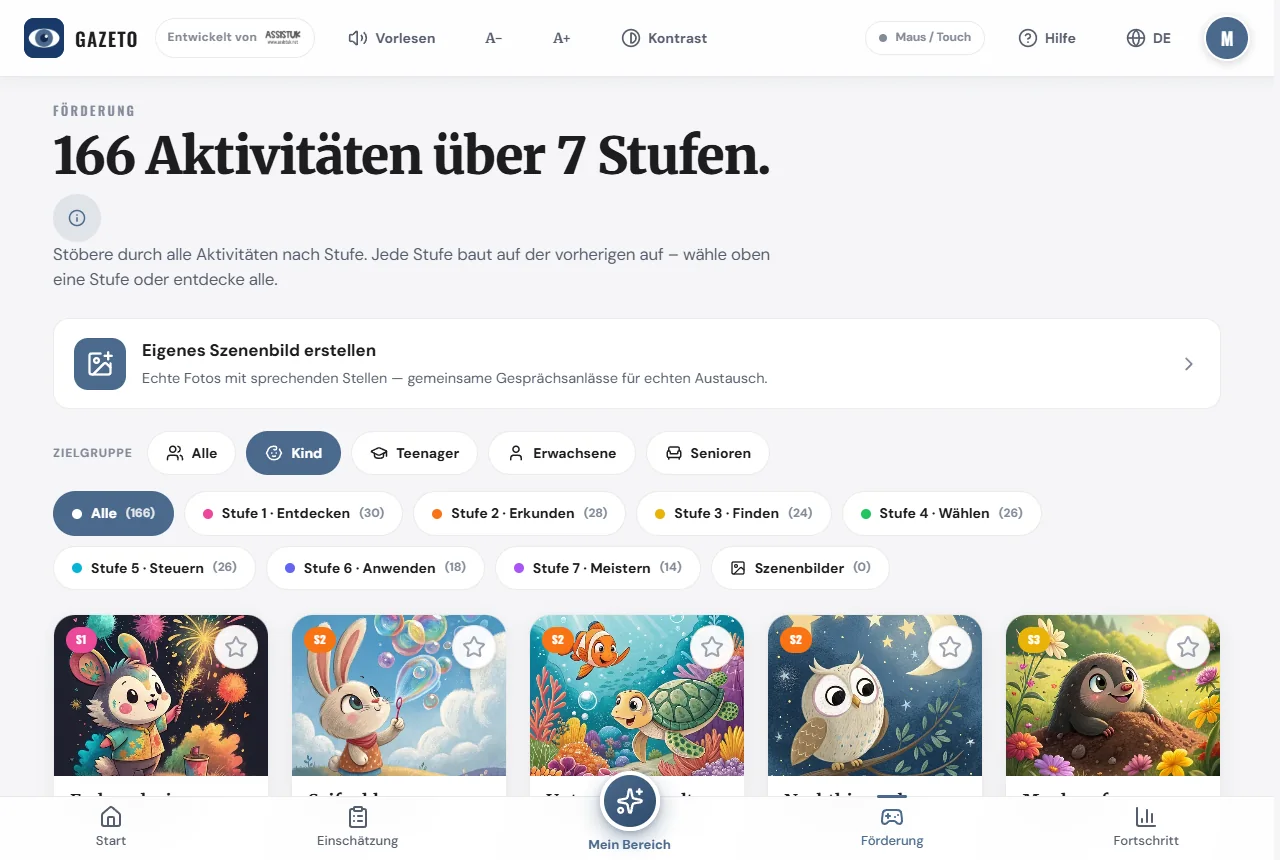
Tryk på en aktivitet for at åbne detaljesiden. Her kan du, inden du starter, indstille sværhedsgrad (Let/Standard), spilletid og andre indstillinger.
Stjernen: Med stjernesymbolet ved en aktivitet kan du fastgøre den — den vises derefter i »Mit område« og på startsiden under »Fastgjorte aktiviteter«. På den måde kan ledsageren sammensætte et passende udvalg.
8. En aktivitet fra A til Z
- Vælg en aktivitet – detaljesiden åbnes.
- Du kan eventuelt justere sværhedsgraden og varigheden. Via »Tilpas« er der flere indstillinger (f.eks. instrument, baggrundsmusik, baggrundsbillede).
- Tryk på »Start« – aktiviteten starter i fuldskærm.
- Spil med blik, mus eller berøring. Der er altid adgang til en pause-knap; opgaven kan læses op når som helst.
- Når tiden er gået, vises evalueringen med stjerner og en oversigt over blikbevægelserne.
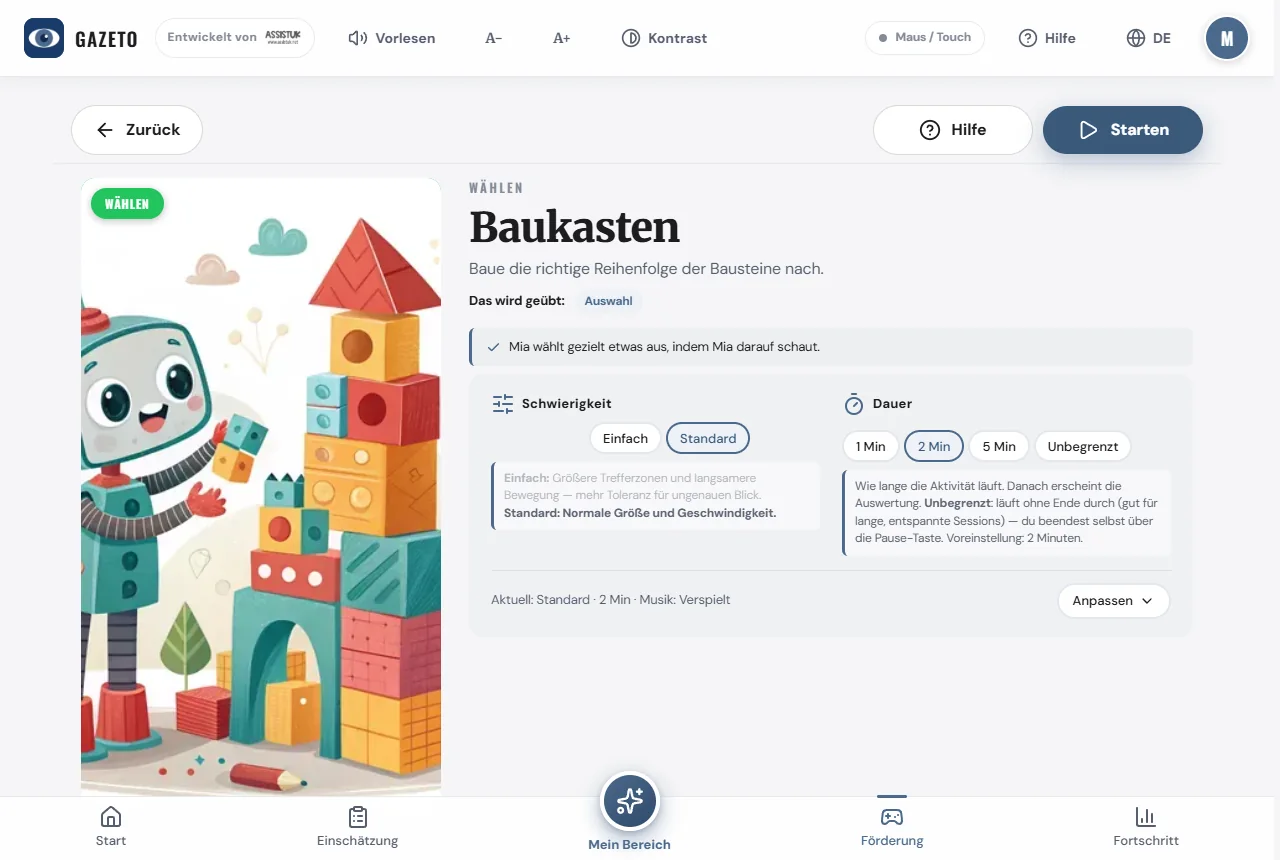
Tip til fagpersoner: På detaljesiden findes afsnittet »For fagpersoner« med en indplacering af aktiviteten i rammeværkerne (Leber, DAGG-3, Eye Gaze Pathway) samt observationstip.
Små glæder: Ved afslutningen af hver runde fejrer GazeTo succesen – nogle gange med konfetti, andre gange med stjerner eller balloner. Fejringen skifter fra runde til runde, så det ikke bliver kedeligt. For brugere, der har brug for ro, sørger »Klar visning (CVI)« for mere afdæmpede effekter.
9. Mit område — sammensat udvalg & kiosk-tilstand
»Mit område« er det udvalg, der er sammensat til den, der øver sig. Aktiviteter, som ledsageren markerer med en stjerne på listen, vises her — så kan den, der øver sig, nemt selv navigere gennem et forberedt udvalg. Også selvoprettede scenebilleder vises her som egne fliser.
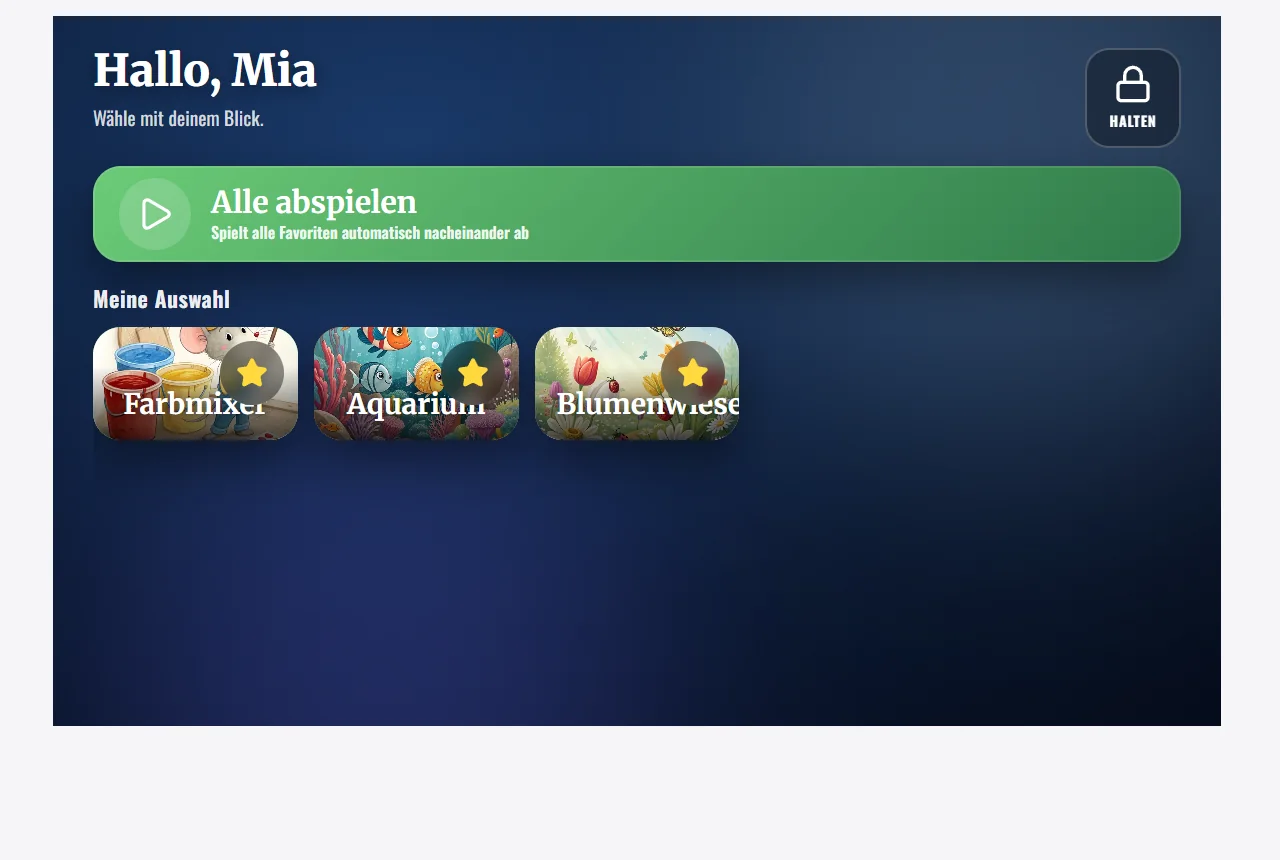
Kiosk-tilstand — beskyttet øvelse
I indstillingerne findes „Lås Mit område (Kiosk)“. Når låsen er aktiv, bliver „Mit område“ til en beskyttet brugertilstand: Den, der øver sig, kan ikke ved et uheld navigere ud eller ændre indstillingerne — vedkommende forbliver sikkert inden for det forberedte udvalg.
Sådan forlader ledsageren kiosk-tilstanden:
- Hold knappen »Hold« (øverst til højre, med låsesymbolet) nede med musen eller tryk på den med fingeren.
- Bliv ved med at holde den nede, indtil bjælken i knappen er fyldt – det tager ca. 2–3 sekunder. Derefter åbnes vejen tilbage.
Vigtigt at vide: Hvis du slipper, afbrydes funktionen, og et kort tryk er ikke nok – i så fald viser GazeTo en vejledning med den korrekte gestus. Knappen kan bevidst slet ikke aktiveres med blikket (Dwell): På den måde kan den, der øver sig, ikke forlade det beskyttede område ved et uheld, selvom blikket lander på knappen.
Tip: Knappen »Fuld skærm« på startskærmen maksimerer kun skærmområdet (Esc afslutter det når som helst). Den egentlige »lås« til selvstændig øvelse er kiosktilstand.
10. Vurderingen — indplacering af udviklingsniveauet
For fagfolk og terapeuter findes der en guidet vurdering, der indordner det aktuelle udviklingsniveau og anbefaler passende trin og støtteforanstaltninger.
Sådan fungerer den:
- Åbn Vurdering (nederst i navigationsmenuen) eller Fremskridt → »Start vurderingsassistenten« — eller afsnittet »For fagfolk« på en aktivitetsdetaljeside.
- Besvar 6 korte spørgsmål om observerbar adfærd (ca. 5 minutter).
- Du får et anbefalet startniveau, en indplacering i rammeværkerne og konkrete støtteforanstaltninger.
Derudover er der måletests (f.eks. træffesikkerhed, dwell-tid, zonepræcision, kategorisering) og ordfindertesten — resultatet heraf kan overføres direkte til ordbogsfinderen for at bestemme det passende ordforråd til kommunikationshjælpemidlet.
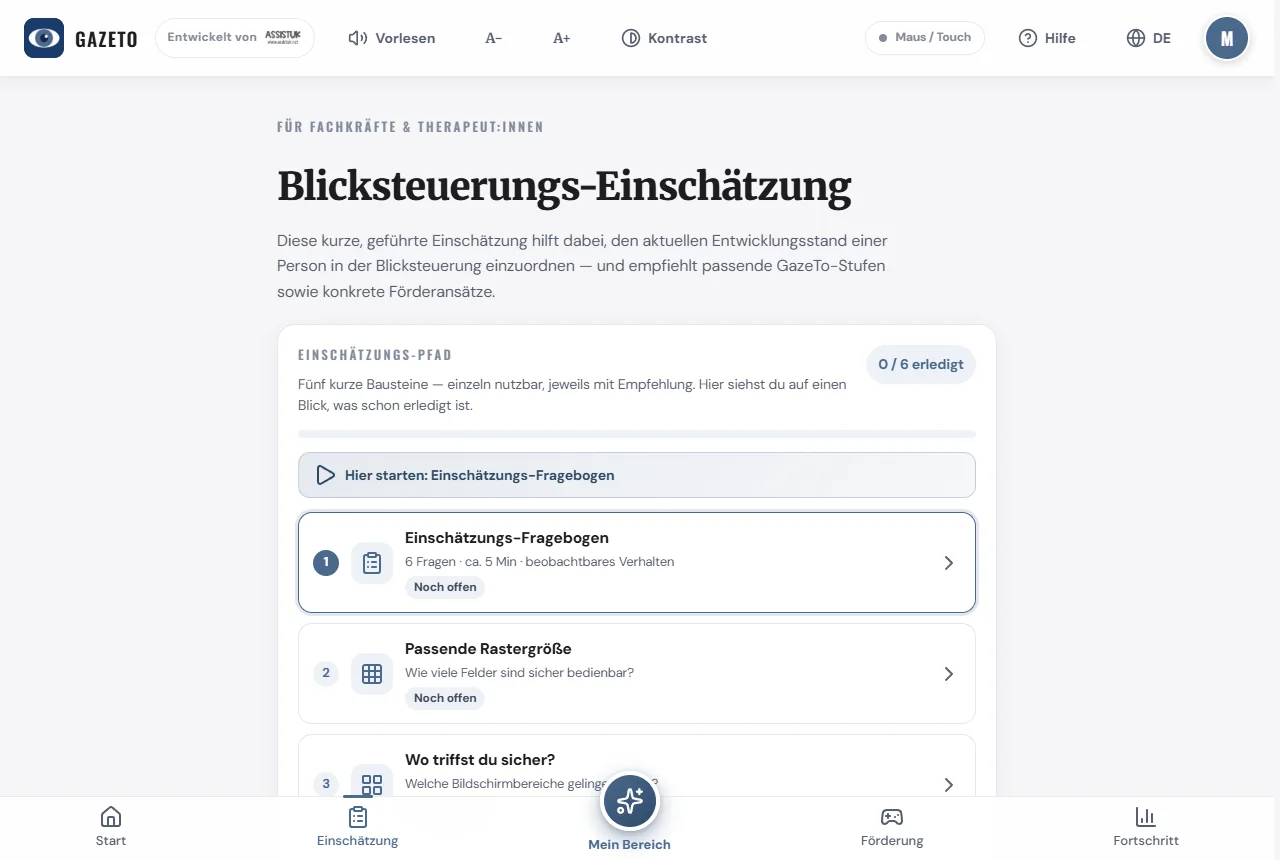
Vurderingen er baseret på anerkendte rammeværker (Tobii Dynavox DAGG-3, Irene Leber, Eye Gaze Pathway). Den er en vejledning og erstatter ikke en faglig undersøgelse.
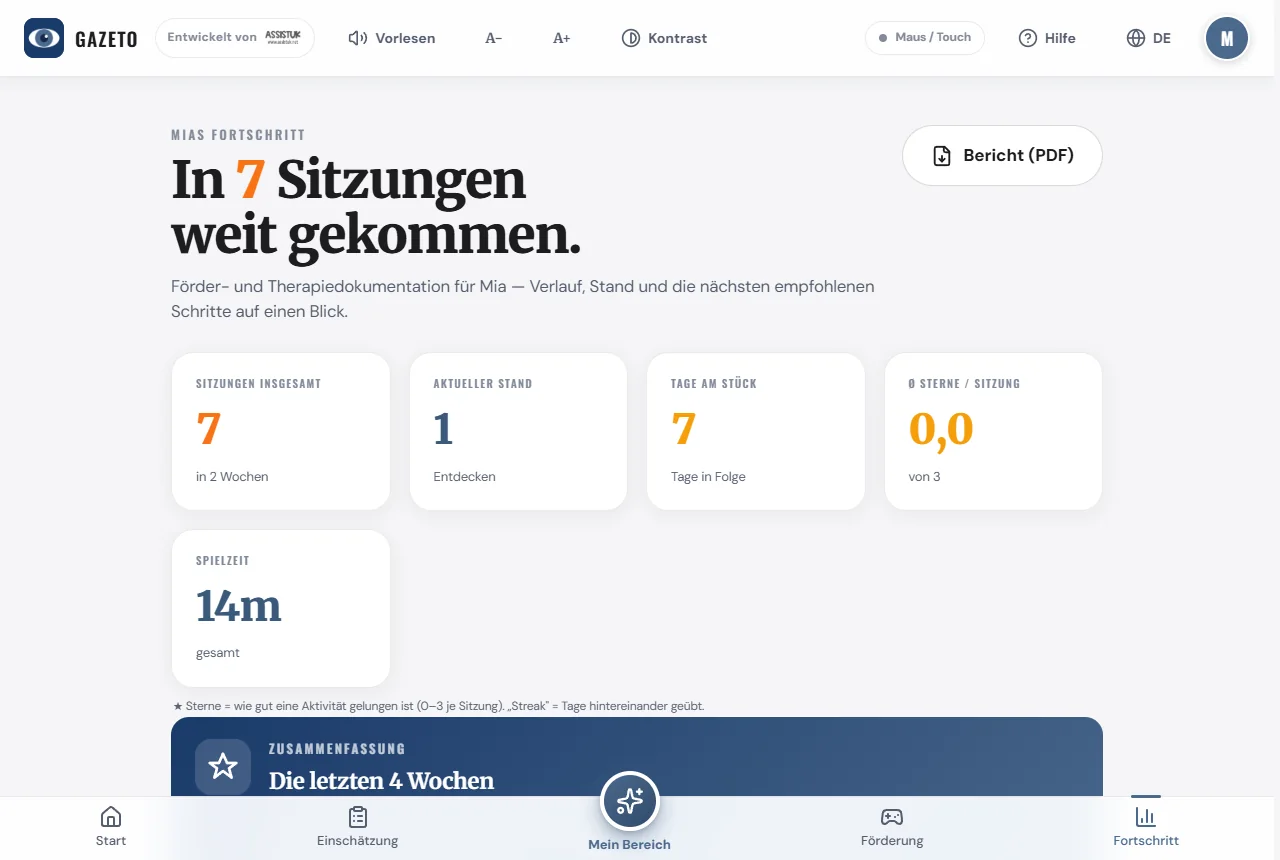
11. Fremskridt — støttecyklussen
Skærmbilledet »Fremskridt« viser forløbet og følger støtte- og interventionscyklussen: Vurdering → Støtteplan → Støtte → Ny vurdering.
Her finder du:
- Antal sessioner, træningsdage og serier („dage i træk“)
- en blikvurdering (skærmdækning, fikseringer, sidefordeling)
- anbefalede næste trin og en ugeplan
- de støtteprioriteter, der styrer anbefalingerne på startskærmen
- rapporter og heatmaps for hver session
12. Scenebilleder — i SceneTalk
Dine egne talende billeder hører til søsterappen SceneTalk. Der vælger du et yndlingsfoto, markerer steder på billedet (mor, kæledyret, yndlingslegetøjet) og tilføjer tekst eller en lydoptagelse. Når man ser på et sted, hører man ordet.
SceneTalk er gratis og kan bruges i browseren uden tilmelding: scenetalk.assistuk-apps.net
Der er tre måder at komme dertil fra GazeTo:
- kortet »Scene-billeder findes i SceneTalk« øverst på siden Aktiviteter,
- niveauvejledningen »Eget indhold til dette niveau« ved niveau 2 til 7,
- knappen »Brug i SceneTalk« i slutningen af gitternøjagtighedstesten — her passer det målte resultat direkte til det gitter, du opretter.
Scenerne forbliver gemt i SceneTalk og sikkerhedskopieres også der. GazeTo leverer fortsat færdige sceneaktiviteter — dem finder du som sædvanlig i aktivitetslisten.
13. Tilpas indstillinger
I indstillingerne (tandhjulet nederst) kan du blandt andet indstille:
- Indtastningsmetode og dwell-tid (se kapitel 5)
- Markørstil (standard: diskret musering i aktiviteterne, normal musemarkør i menuen; cirkel/prik/miniatureprik/kryds kan aktiveres — med farve; »Fra« skjuler alle markører, når den bevægelige prik distraherer)
- Klar visning (CVI) — mørkner baggrunden i aktiviteter og viser kontrastringe omkring mål; nyttigt ved CVI eller nedsat syn
- Lås mit område (kiosk) — den beskyttede brugertilstand (se kapitel 9)
- Lydstyrke, lyde og baggrundsmusik (med valg af titler)
- Kontrast, farvetema og skriftstørrelse (også tilgængeligt når som helst øverst i bjælken)
- Sprog (se kapitel 14)
- Skift eller rediger profil
- Data & sikkerhedskopiering — sikkerhedskopiering og flytning (se kapitel 15)
14. Skift sprog — 101 sprog
GazeTo taler 101 sprog — det samme sprogvalg som DigitalPainters. Du finder det to steder:
- øverst til højre i bjælken via sprogikonet,
- eller i indstillingerne under afsnittet „Sprog“.
Hvert sprog vises med sit flag og navn skrevet på det pågældende sprog (f.eks. „中文", „العربية"). Med søgefeltet kan du hurtigt finde ethvert sprog — søgefunktionen genkender både det pågældende sprogs navn, det engelske navn og forkortelsen.
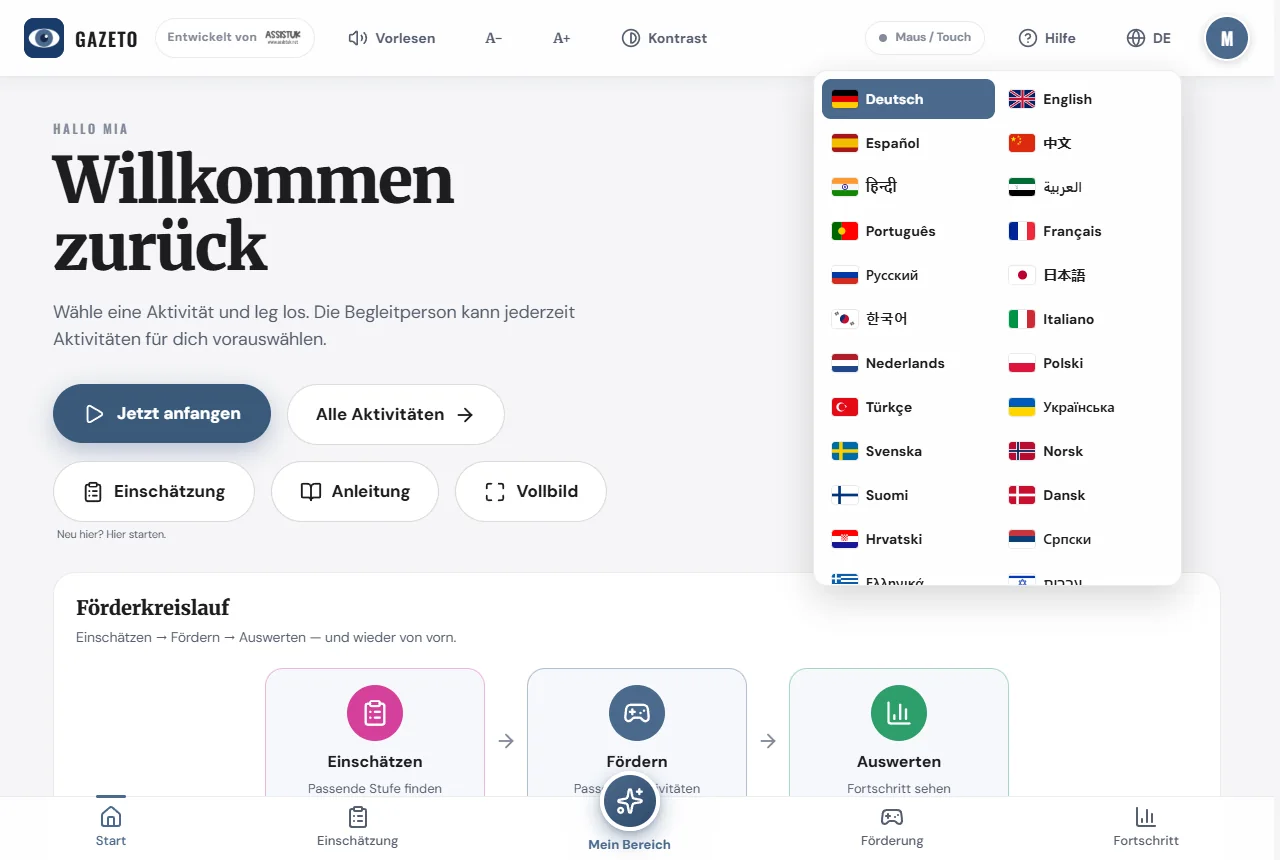
Hele appen skifter straks sprog — også skriftsystemer, der skrives fra højre mod venstre (arabisk, hebraisk m.fl.), vises korrekt. Indhold, der endnu ikke er oversat til et sprog, vises automatisk på engelsk — så forbliver alt altid læseligt.
15. Sikkerhedskopiering og overførsel af data
I indstillingsafsnittet »Data & sikkerhedskopiering« kan du:
- oprette en fuld sikkerhedskopi (alle profiler, sessioner, scener og indstillinger i én fil) og gendanne den på en anden enhed,
- eller blot eksportere/importere indstillingerne.
På den måde kan du f.eks. skifte fra en gammel enhed til en ny uden at miste din fremgang. Sikkerhedskopifilen forbliver hos dig – den uploades ikke nogen steder.
Vigtigt: GazeTo gemmer alt lokalt i browseren. Hvis du sletter browserdataene („Fjern webstedsdata“), sletter du dermed også profiler og fremskridt. Før du foretager en grundig oprydning i browseren eller skifter enhed, skal du derfor først oprette en fuld sikkerhedskopi.
16. Installer GazeTo og brug det offline
GazeTo kan installeres som en app og fungerer derefter offline.
- På tablet/mobiltelefon: Vælg »Føj til startskærm« i browsermenuen.
- På computeren: Klik på installationsikonet i adresselinjen – eller bekræft meddelelsen »Installer GazeTo«.
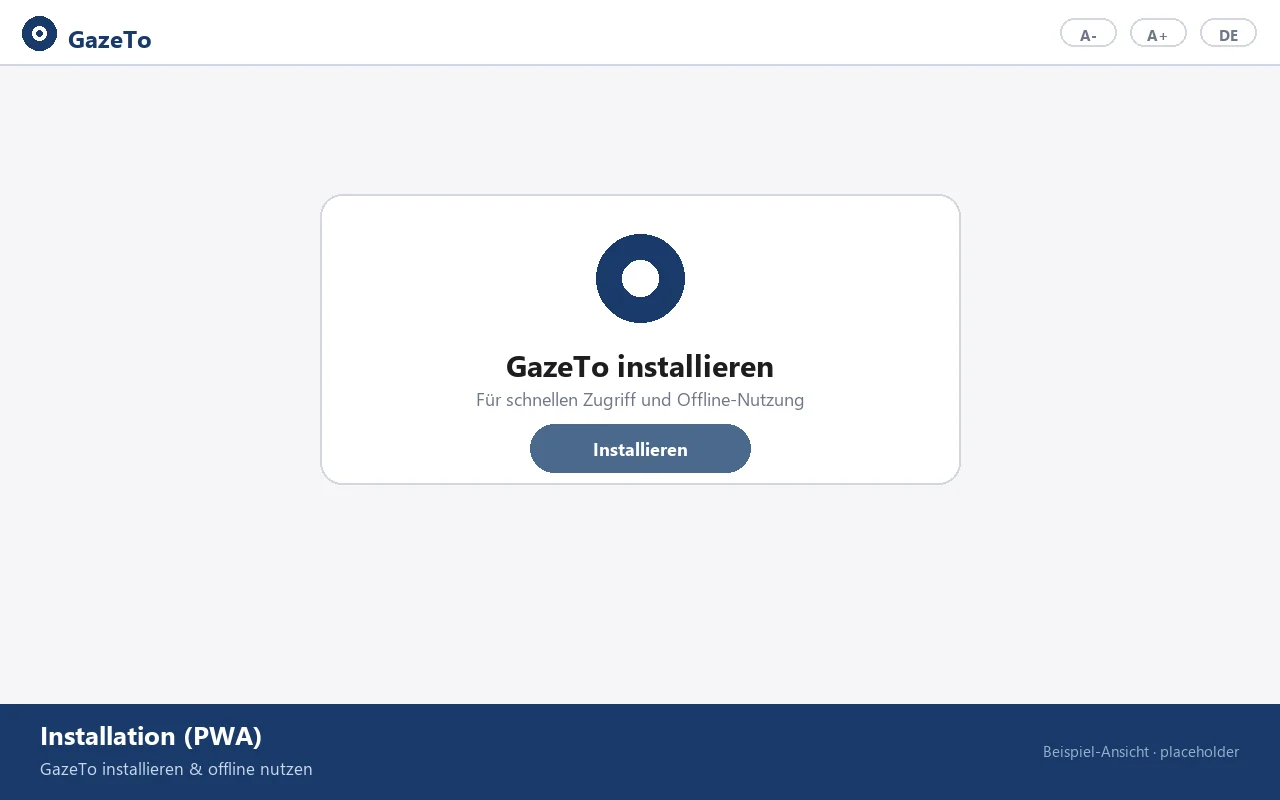
Efter den første installation kører GazeTo fuldstændigt uden internet — ideelt til terapi og skole. Kun nye sprog, der tilføjes, indlæses kortvarigt ved det første skift.
Tip vedrørende lyd: Af sikkerhedsmæssige årsager må lyden i browserfanen først starte efter den første berøring — det er nok at trykke eller klikke et vilkårligt sted (GazeTo viser en meddelelse herom). Når appen er installeret, starter lyden automatisk — endnu en grund til at installere den.
17. Databeskyttelse
GazeTo gemmer ingen personlige data på servere. Profiler, fremskridt og scenebilleder forbliver udelukkende i enhedens browser (lokalt). Der foregår ingen overførsel til skyen. Hvor ofte appen åbnes, og om den kører uden tekniske fejl, tæller vi anonymt på vores egen server — uden cookies og uden at noget gemmes på enheden.
Øjenstyringen foregår udelukkende lokalt — der optages eller overføres ingen video.
18. Om os — Lars Tiedemann, Nele Diercks & AssistUK
GazeTo er et projekt fra AssistUK — en social virksomhed, der udvikler indhold og apps inden for assistance, inklusion og støttet kommunikation.
Lars Tiedemann
Diplomeret specialpædagog (FH), har arbejdet med støttet kommunikation siden 1992. Over 10 års erfaring hos Tobii Dynavox, mere end 5 års undervisning ved den katolske højskole i Freiburg, softwareudvikling til støttet kommunikation siden 2007. Lars Tiedemann udvikler GazeTo og hele AssistUK-app-familien.
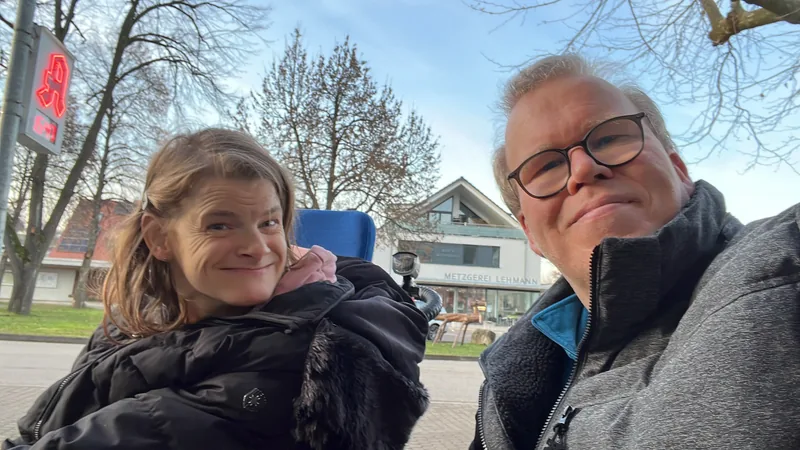
Nele Diercks
Ekspert på sit felt og frivillig foredragsholder for Selskabet for Støttet Kommunikation. For AssistUK er Nele Diercks en drivkraft: Hendes praktiske erfaring med støttet kommunikation giver inspiration til, hvad der virkelig betyder noget i hverdagen, når det gælder apps.
AssistUK-app-familien
GazeTo har søskende — alle designet med henblik på tilgængelighed: TouchTo (direkte adgang via berøring), DigitalPainters (maling og kreativitet, også med øjenstyring), ArtTherapy og MusicTherapy (kunst- og musikterapeutisk udfoldelse), AssistPlay (læringsspil) og meget mere. Du finder alle apps og tilbud på www.assistuk.net.
19. Støt GazeTo
GazeTo er gratis, uden reklamer og uden brugerkonto. Der registreres kun anonymt, hvor ofte appen åbnes. For at det kan forblive sådan – og for at der kan udvikles nye aktiviteter, funktioner og oversættelser – vil vi gerne modtage dit frivillige bidrag. Hver eneste euro går direkte til videreudvikling og drift (servere, hosting, softwarelicenser).
Bemærk: GazeTo er et ikke-kommercielt projekt af Lars Tiedemann (AssistUK), men ikke en registreret almennyttig forening. Bidrag er derfor ikke skattefradragsberettigede donationer, og der udstedes ikke et donationsbevis. Hvis du alligevel ønsker at støtte os: tusind tak – fra hjertet, for sagen.
SEPA-overførsel

IBAN: DE81 1101 0100 2460 6697 67
BIC: SOBKDEBBXXX
Formål: Støtte til GazeTo

Du kan også hjælpe uden penge: Fortæl om GazeTo – i skoler, tidlig intervention, talepædagogiske og ergoterapeutiske klinikker, UK-rådgivningscentre og selvhjælpsgrupper. Jo flere mennesker der kender og bruger GazeTo, jo mere meningsfuldt bliver hele projektet. Også feedback og erfaringsberetninger via e-mail er til stor hjælp.
20. Lille ordbog
Et par begreber, der forekommer i denne vejledning:
| UK | Støttet kommunikation — alle måder at kommunikere på uden (forståeligt) talesprog. |
| Øjenstyring | Med en øjenstyring bevæger du musemarkøren med øjnene. |
| Dwell | „Dwell”: Du kigger roligt på et sted, indtil ringen fyldes op — så udløses den. Sådan klikker du uden at bruge en knap. |
| Kalibrering | Indstilling af øjenstyringen til dine øjne — dette klarer eye-trackerens hardware og software. |
| Niveau | Et af de 7 kompetenceniveauer i GazeTo-læringsmodellen (fra opdagelse til mestring). |
| Scenebillede (VSD) | Et foto med interaktive områder (hotspots) – »Visual Scene Display«. |
| Hotspot | Et markeret sted i et scenebillede, der afspiller lyd, når man ser på det eller trykker på det. |
| Kiosk-tilstand | Låsen til »Mit område«: Den, der træner, forbliver beskyttet i sit valg. |
| Heatmap | Et farvet kort, der viser, hvor blikket har bevæget sig hen under en session. |
| PWA | »Progressive Web App« — GazeTo kan installeres som en app og kører offline. |
21. Hvis noget ikke fungerer
Bare rolig — de fleste problemer løses hurtigt.
Øjenstyringen udløser ikke noget
- Øjenstyringen må kun flytte musemarkøren, ikke selv klikke — se kapitel 5 (Automatisk klik / Hardware-dwell slået fra).
- Er dwell-tiden for lang eller for kort? Juster den i indstillingerne.
Den udløser dobbelt eller for hurtigt
Oftest klikker øjenstyringshardwaren også selv — deaktiver dens autoklik. Hvis det ikke hjælper, skal du forlænge dwell-tiden lidt i GazeTo.
Ingen lyd
I browserfanen må lyden først starte efter den første rigtige berøring — et enkelt tryk eller klik er nok. Som installeret app starter lyden automatisk. Ellers: Kontroller enhedens lydstyrke og tjek indstillingerne for lyde/musik.
En side forbliver hvid eller ser forældet ud
Prøv at genindlæse siden. GazeTo opdaterer sig selv ved næste opkald via internettet — der er ikke behov for installation fra en app-butik.
Profiler eller fremskridt er forsvundet
Det sker, hvis webstedets browserdata er blevet slettet (også via funktioner til at »frigøre lagerplads«). Lav derfor regelmæssigt en fuld sikkerhedskopi — så kan alt gendannes.
Et sprog indlæses ikke
Nye sprog hentes én gang fra internettet, når du skifter til dem for første gang. Offline er kun de sprog tilgængelige, som du allerede har brugt — gå kortvarigt online, og vælg sproget én gang.
Står du stadig fast? Skriv til os – se Hjælp & Kontakt. Vi hjælper gerne, og al feedback gør GazeTo bedre.
22. Ofte stillede spørgsmål
Koster GazeTo noget?
Nej, det koster ikke noget — heller ikke for institutioner. For at det kan forblive sådan, glæder vi os over ethvert frivilligt bidrag.
Har jeg brug for en internetforbindelse?
Kun ved første opstart (og ved første skift til et nyt sprog). Derefter kan GazeTo installeres og kører fuldstændig offline.
Hvilke øjenstyringer understøttes?
Alle, der kan flytte en musemarkør — uanset producent. GazeTo udfører selv klikene (Dwell). Vigtigt: Slå hardwareens automatiske klik fra (se kapitel 5).
Hvilke enheder kører GazeTo på?
På tablet og pc med en opdateret browser (Chrome, Edge, Safari, Firefox). Øjenstyring kræver en enhed med øjenfølger; mus, trackball og touch fungerer overalt.
Kan jeg bruge GazeTo i en institution (skole, praksis, specialundervisningscenter)?
Selvfølgelig – det er netop det, det er lavet til. Profiler adskiller de personer, der øver sig, kiosk-tilstanden sikrer selvstændig øvelse, og evalueringen understøtter planlægningen af støtteforløbet. Skriv blot en e-mail, hvis du har spørgsmål.
Hvad sker der med dataene? Bliver der talt noget?
Nej. Ingen konti, ingen cloud. Der tælles kun anonymt, hvor ofte appen åbnes. Alt forbliver lokalt på enheden – du laver selv sikkerhedskopier som filer.
Hvad er forskellen mellem GazeTo og TouchTo?
GazeTo er udviklet til øjenstyring (Dwell, blikregistrering), mens TouchTo er søsterappen til direkte berøringsadgang (at trykke med fingeren) – med de samme niveauer og aktiviteter. Hvis du bruger begge, finder du straks rundt.
Kan jeg komme med ønsker eller ideer?
Ja, meget gerne! GazeTo vokser direkte ud af brugerfællesskabets behov. Send din idé til lars.tiedemann@assistuk.net — jo mere konkret, desto bedre.
23. Hjælp & kontakt
- E-mail: lars.tiedemann@assistuk.net
- AssistUK: www.assistuk.net
- Juridisk: Du finder vores juridiske oplysninger, privatlivspolitik og tilgængelighed i appens fodnote.
Prøv jer frem — der er intet at ødelægge. Hvert lille skridt er et rigtigt skridt
. — Lars Tiedemann & Nele Diercks, AssistUK